 LinkedIn
  You-tube


Job queues are widely used in Microsoft Dynamics 365 Business Central to run background tasks such as integrations, scheduled reports, posting routines, and automation processes. When a job queue fails, the error may remain unnoticed until someone manually checks Business Central.
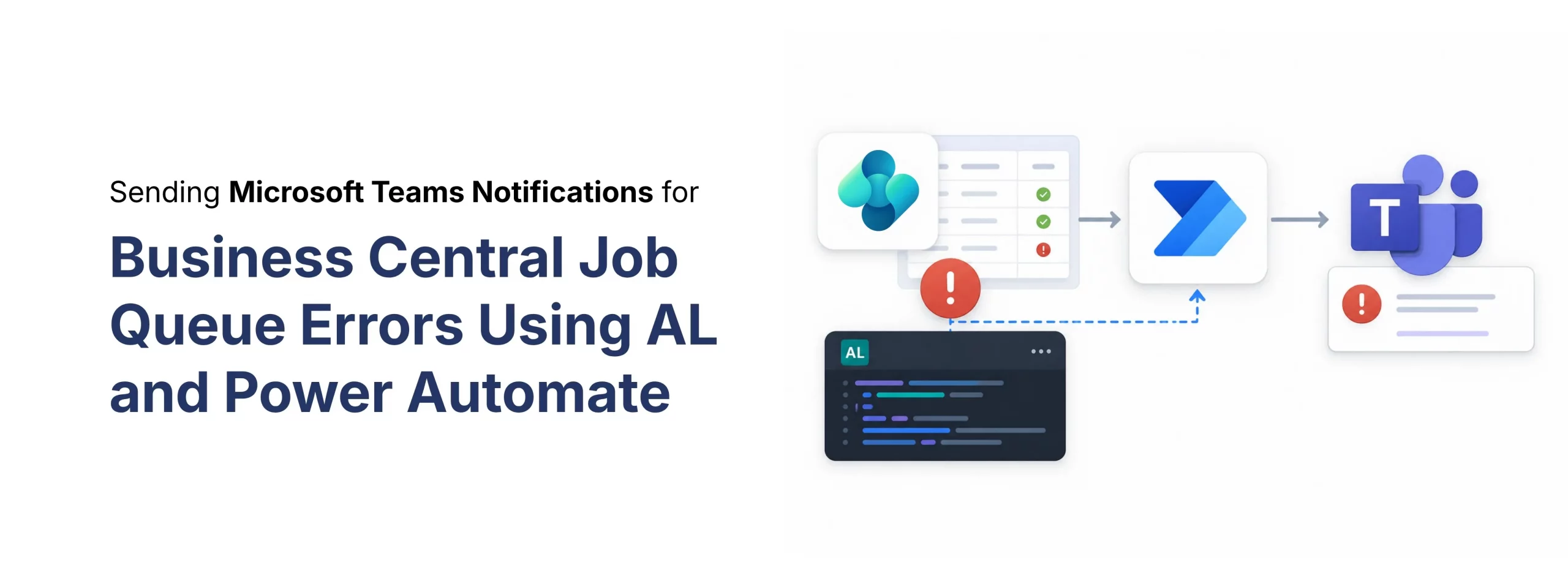
In this blog, we will see how to send an automatic Microsoft Teams notification whenever a Business Central job queue entry ends with an error. The solution uses AL code, an HTTP POST request, Power Automate, and a Teams channel.
Overview: This blog explains how Business Central can automatically notify a Microsoft Teams channel when a job queue fails, helping support teams respond faster.
In a live Business Central environment, many job queues run silently in the background. If one of them fails, it can affect integrations, data updates, or business operations. Sending the error details directly to Microsoft Teams helps the support team react quickly.
Native Job Queue Notifications vs. This Custom Approach
Since the 2024 release wave 2 (BC25), Business Central ships with a built-in “Set Up Job Queue Notifications” assisted setup guide. It lets administrators turn on in-app alerts and, through a business event, forward job queue failures to Power Automate for delivery by email or Teams using a ready-made template. For straightforward monitoring needs, this native option is often enough and requires no AL development at all.
However, the native business event exposes a fixed set of fields and a fixed message template, which makes it harder to route different companies or environments to separate Teams channels, add a direct link back to the exact record that failed, or match a specific layout used by an internal support desk. Building the notification with AL and a custom HTTP POST request, as shown in this blog, gives full control over the payload and message design, and it also works on Business Central versions where the native business event is not yet available.
Prerequisites Before You Start
Before setting up this solution, it helps to have the following in place so the implementation goes smoothly:
- Access to an AL development environment, such as Visual Studio Code with the AL Language extension, along with permission to publish an extension to the target Business Central environment.
- A Power Automate plan that supports the “When an HTTP request is received” trigger. This is a premium connector, so it needs an appropriate Power Automate or per-flow license.
- A Microsoft Teams channel where the account used by the flow has permission to post messages.
- A working understanding of JSON, since the AL procedure builds and sends a JSON payload that Power Automate needs to parse correctly.
- A sandbox or test environment where a job queue entry can be forced to fail safely, so the full notification path can be verified before it goes live in production.
High-Level Solution Flow
The solution follows a simple automation path from Business Central to Power Automate and finally to Microsoft Teams.
1. A job queue entry fails in Business Central.

2. The AL procedure collects important details such as object type, object ID, object caption, user ID, error message, tenant ID, environment name, company name, and a direct Business Central URL.
- The procedure builds a JSON payload with the collected details.
- The payload is written into an HTTP request body.
- The request content header is set to application/json.
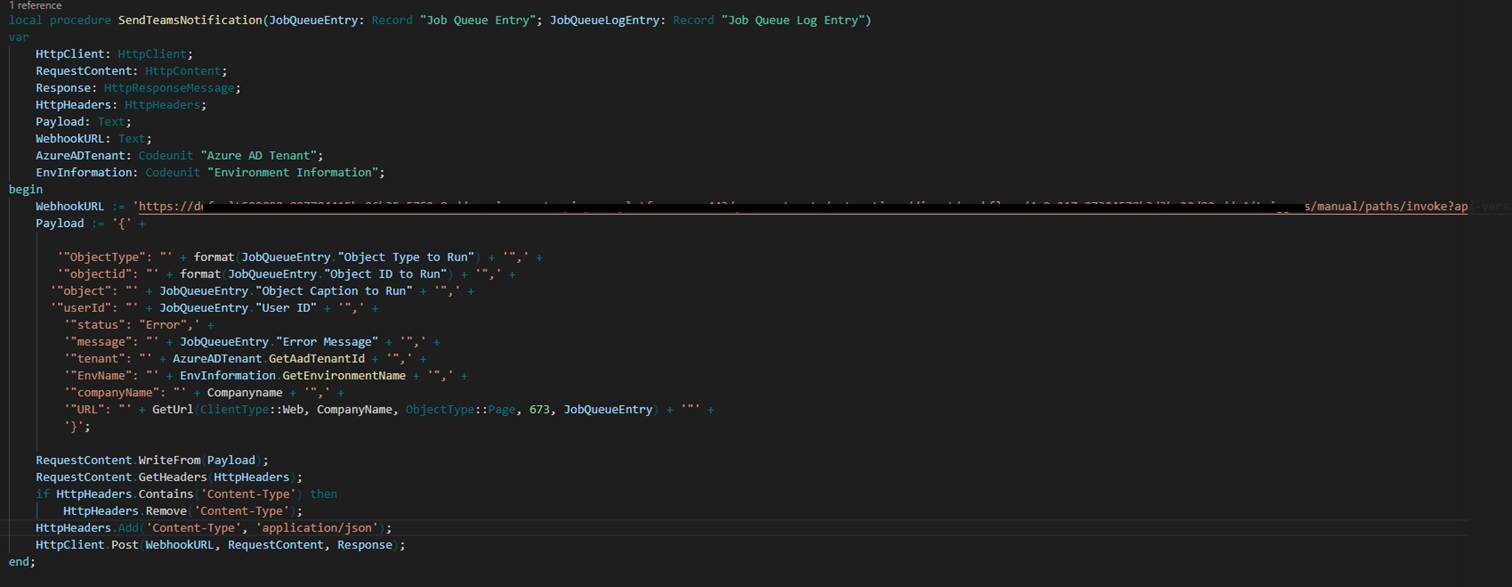
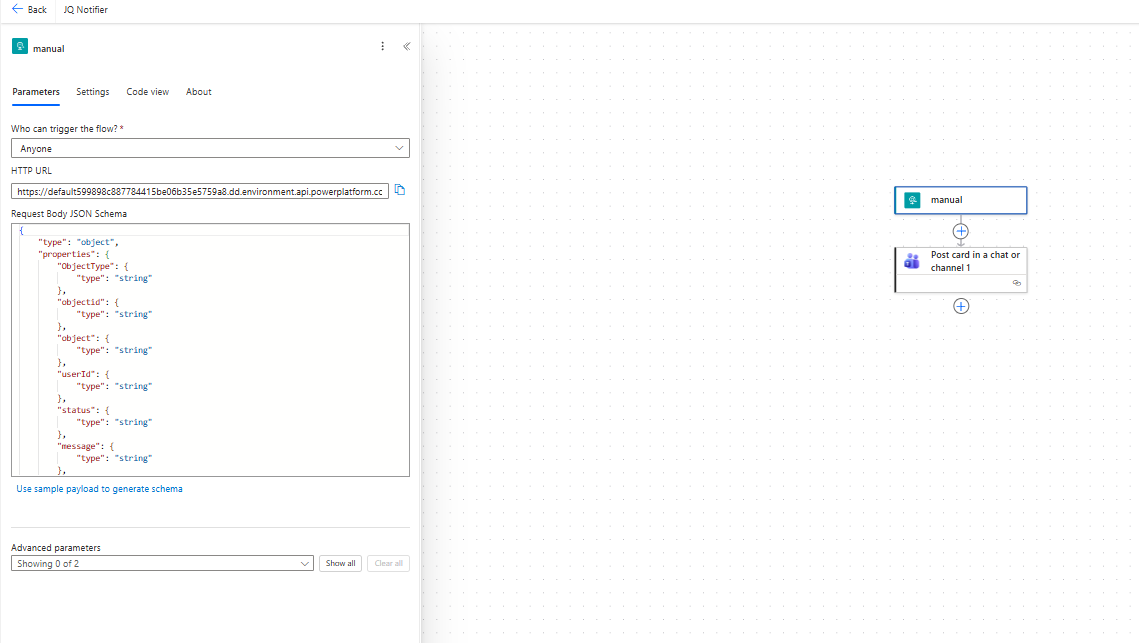
3. Business Central sends an HTTP POST request to the Power Automate webhook URL.
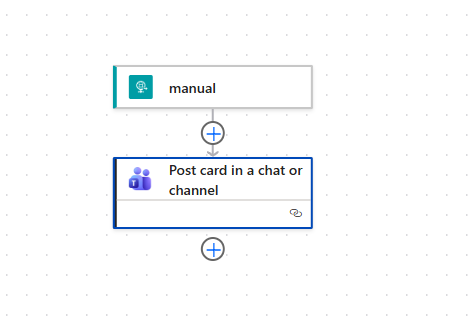
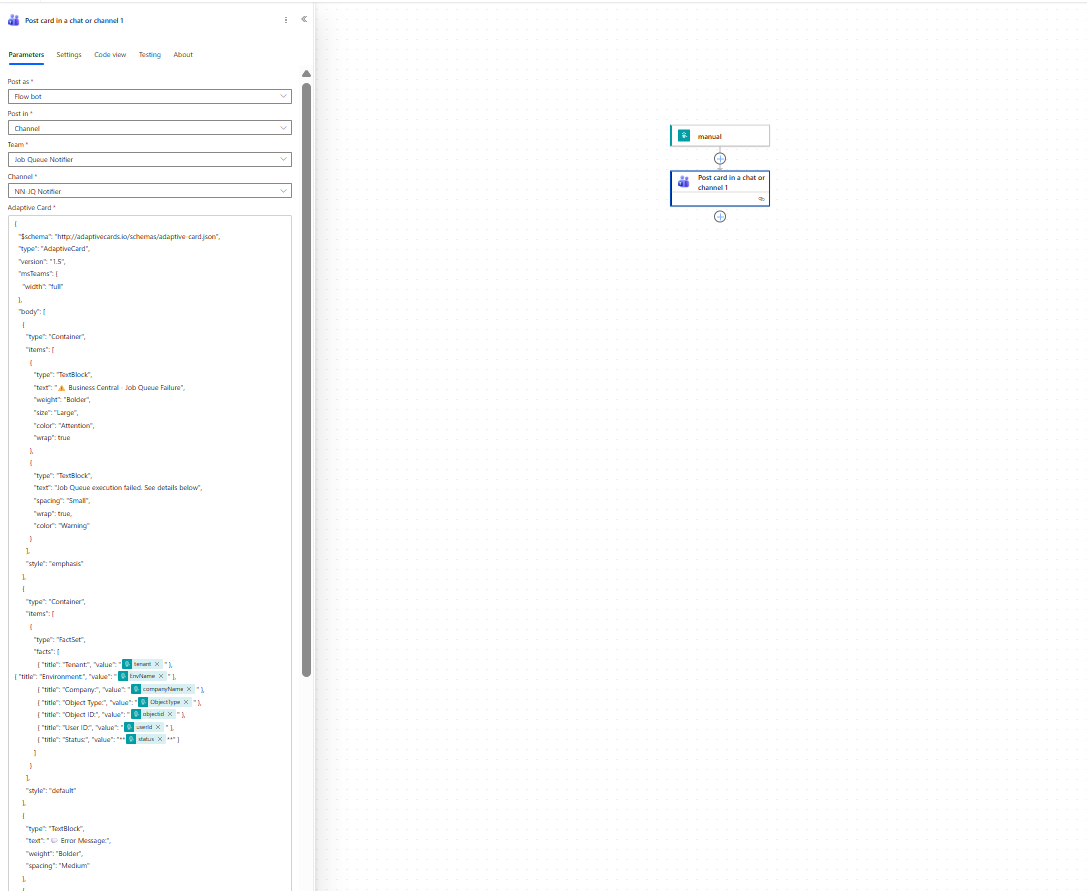
4. Power Automate receives the payload and posts a formatted notification into Microsoft Teams.
Power Automate and Teams Notification
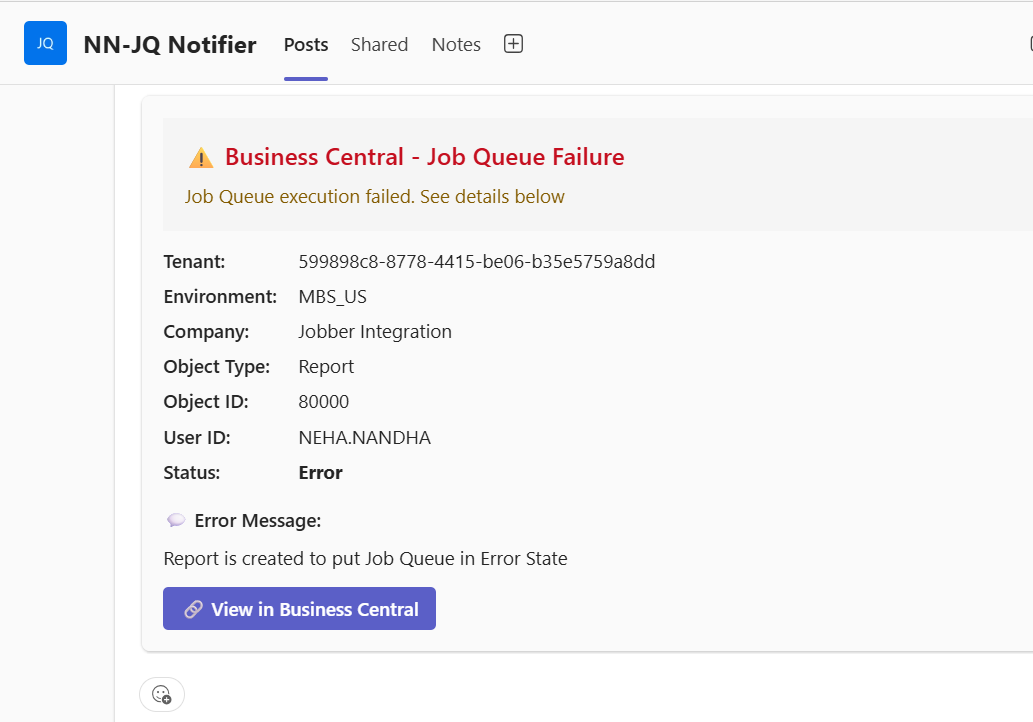
Power Automate receives the HTTP request from Business Central, reads the JSON values, and posts a clear message into the selected Microsoft Teams channel. The Teams message should include the environment, company, object details, user ID, error message, and the Business Central URL.
Best Practices to Avoid Common Pitfalls
A few practical habits keep this solution reliable and easy to maintain over time:
- Store the Power Automate HTTP URL in a setup table rather than hardcoding it into AL code, so it can be updated per environment or rotated without a new deployment.
- Wrap the HTTP call in a TryFunction so that a slow or failed notification request never blocks or throws an error in the underlying job queue task itself.
- Add simple filtering logic, such as skipping repeat alerts for the same job queue entry within a short time window, to avoid flooding the Teams channel when a task fails repeatedly.
- Consider using an Adaptive Card instead of plain text for the Teams message, since it is easier to scan and can include an action button that opens the record directly in Business Central.
- Check the Power Automate run history from time to time to confirm the flow is still triggering as expected, especially after connector updates, credential changes, or tenant migrations.
Benefits
- Faster visibility of job queue failures.
- Reduced manual monitoring in Business Central.
- Clear error details shared with the support team.
- Quick access to the related Business Central page.
- Better operational tracking for integrations and background tasks.
How Madhda BC team Can Help You Get More From Business Central?
Setting up a notification like this is a great start, but it’s usually just one piece of keeping Business Central running smoothly. Many internal teams don’t have spare AL development time to build, test, and maintain automations like this alongside their day-to-day work, which is often when small issues start slipping through unnoticed.
This is a simple and effective way to monitor Business Central job queue failures. By combining AL, Power Automate, and Microsoft Teams, support teams can get faster alerts and resolve issues before they impact business operations.
Curious what a well-monitored, well-automated Business Central environment could look like for your business?
Connect with Madhda Inc.’s Dynamics 365 team and let’s explore it together. Call at +1 (302) 303-9860