
 LinkedIn
  You-tube


OCR (Optical Character Recognition) setup connects Business Central with an external service like ReadSoft Online to automatically read data from documents.
What Work It Does
Main purpose:
Convert invoice PDFs/images into usable data in Business Central.
OCR in Dynamics 365 Business Central helps businesses automate the invoice data entry process by extracting information directly from scanned documents, PDF invoices, and image files. Instead of manually entering invoice details line by line, the OCR service intelligently reads the document and converts the information into structured digital data inside Business Central.
By using OCR integration, organizations can:
- Reduce manual invoice processing time
- Minimize human data entry errors
- Improve invoice accuracy and validation
- Speed up purchase invoice creation
- Simplify vendor invoice management
- Increase productivity for finance teams
How It Works (End-to-End)
1. User uploads an invoice (PDF/Image)
2. Business Central sends it to OCR service
3. OCR reads the document and extracts:
- Vendor Name
- Invoice Number
- Date
- Amount
4. Data comes back to Business Central
5. The system creates a Purchase Invoice automatically
6. User reviews and posts
Step 1: Create an OCR Account (ReadSoft Online):
Open Sign-up Page
Use the URL from your setup screen https://store.readsoftonline.com/nav
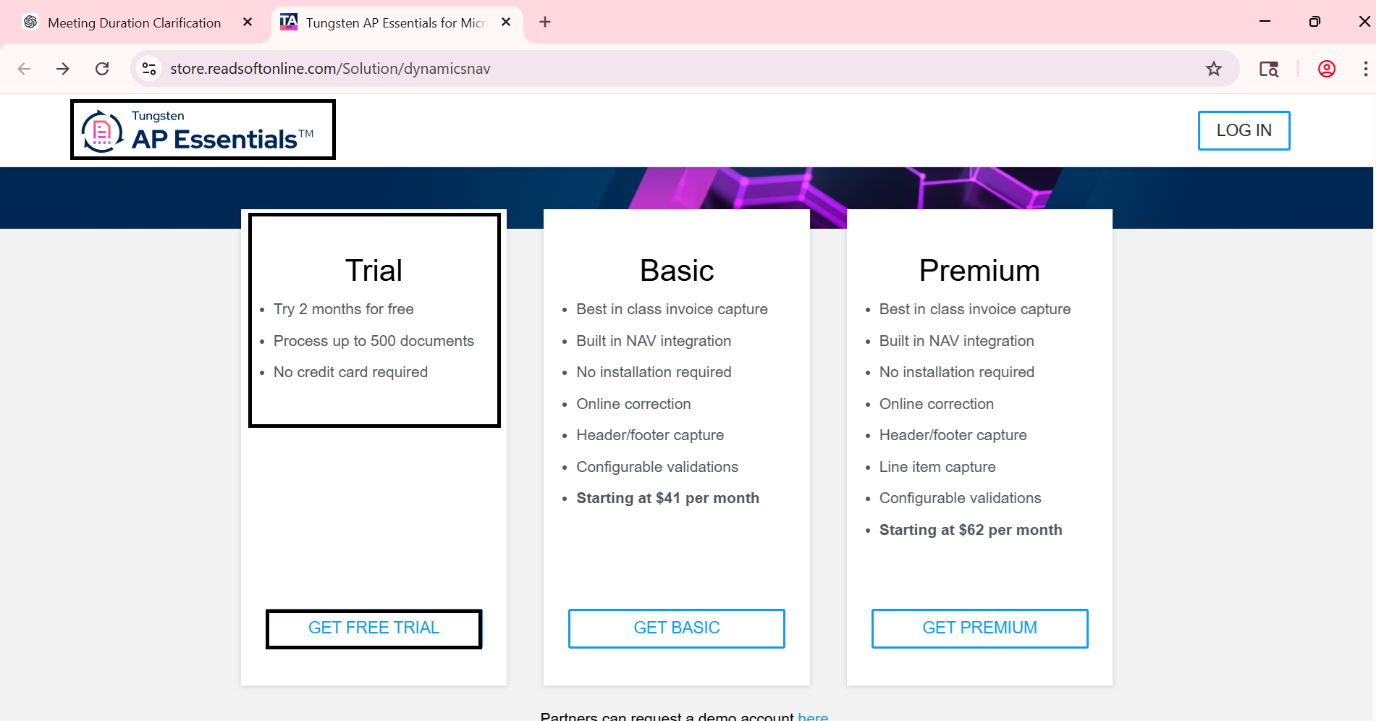
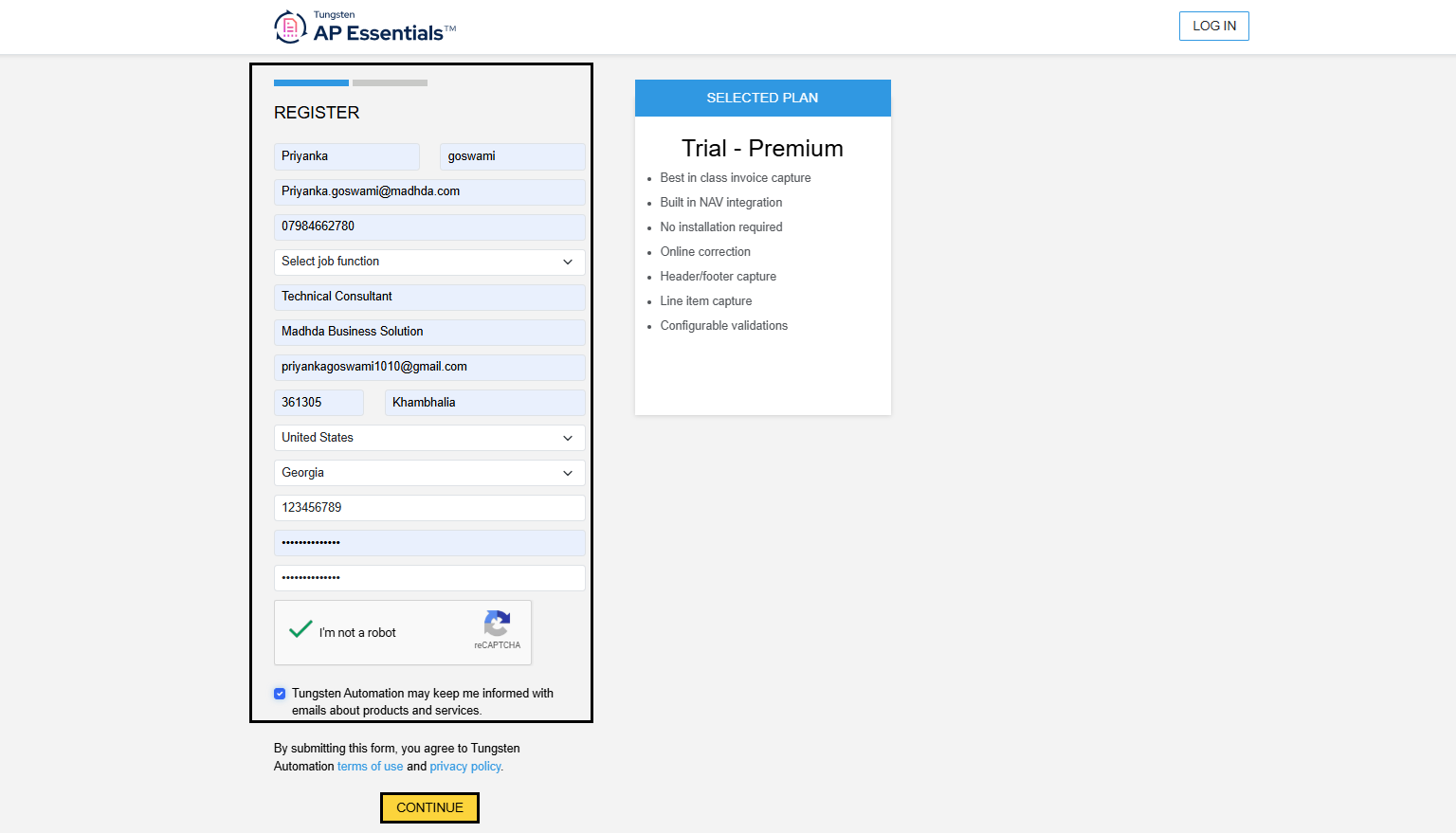
Register
- Enter your Email
- Create Password
- Fill company details
- Complete signup
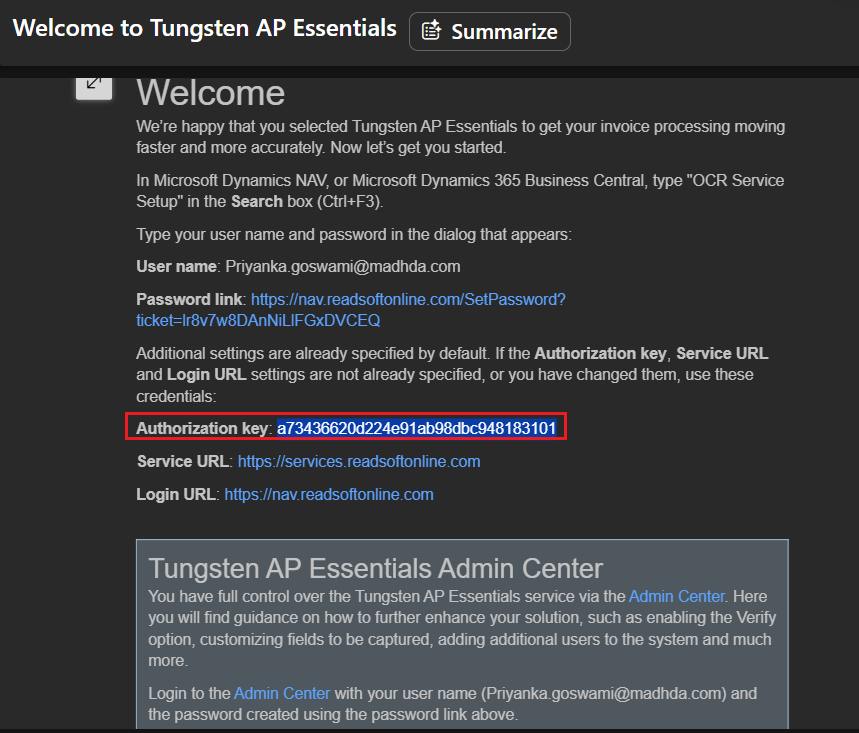
Open Login URL : https://nav.readsoftonline.com
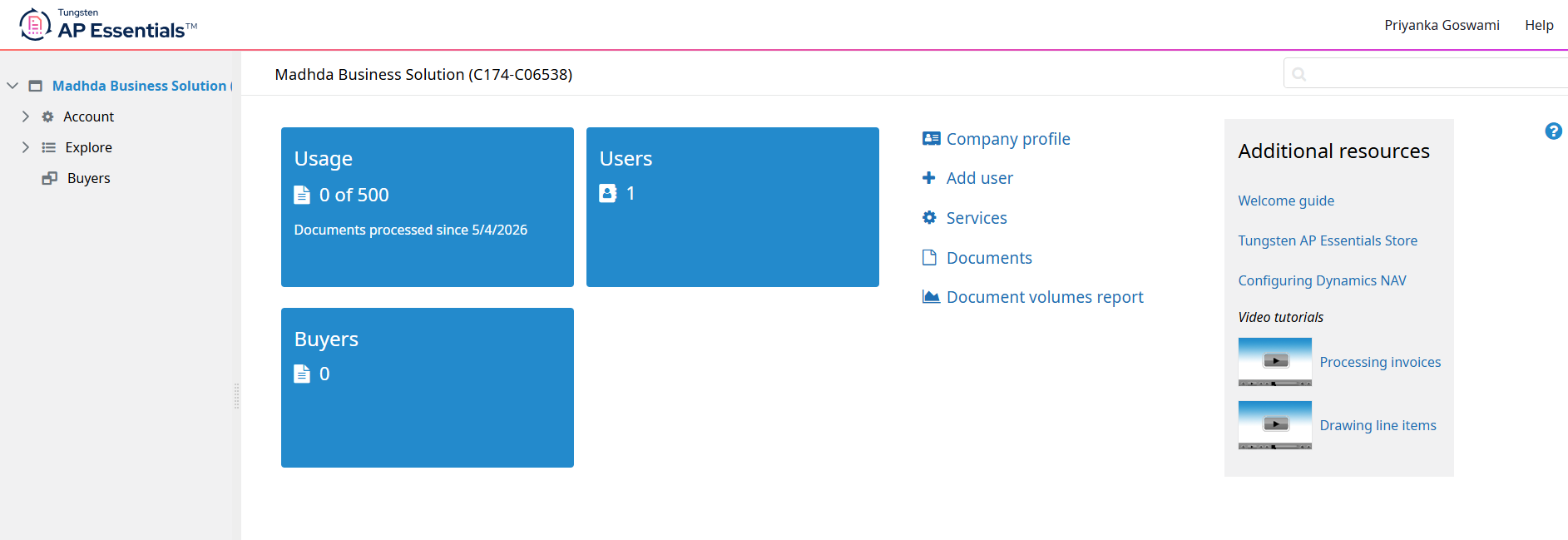
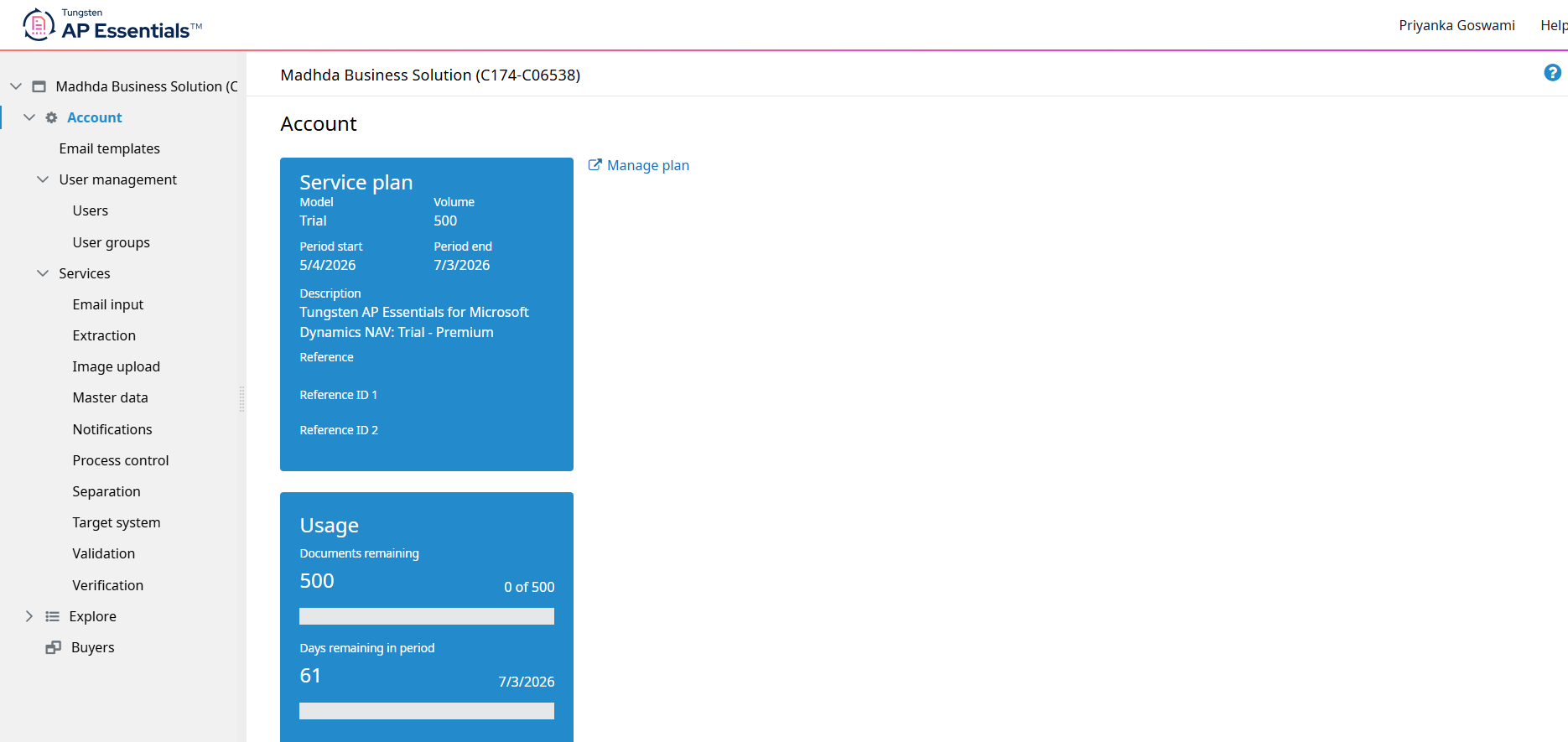
Step 2: Configure OCR in Business Central
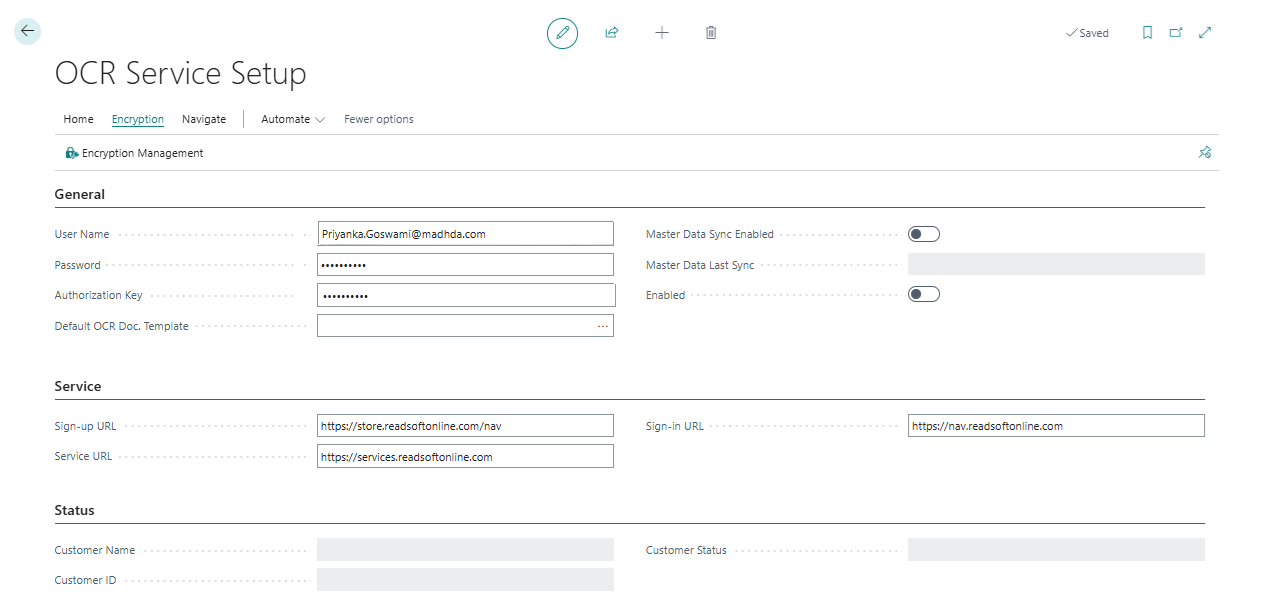
Open OCR Service Setup and Enter the Authorization Key
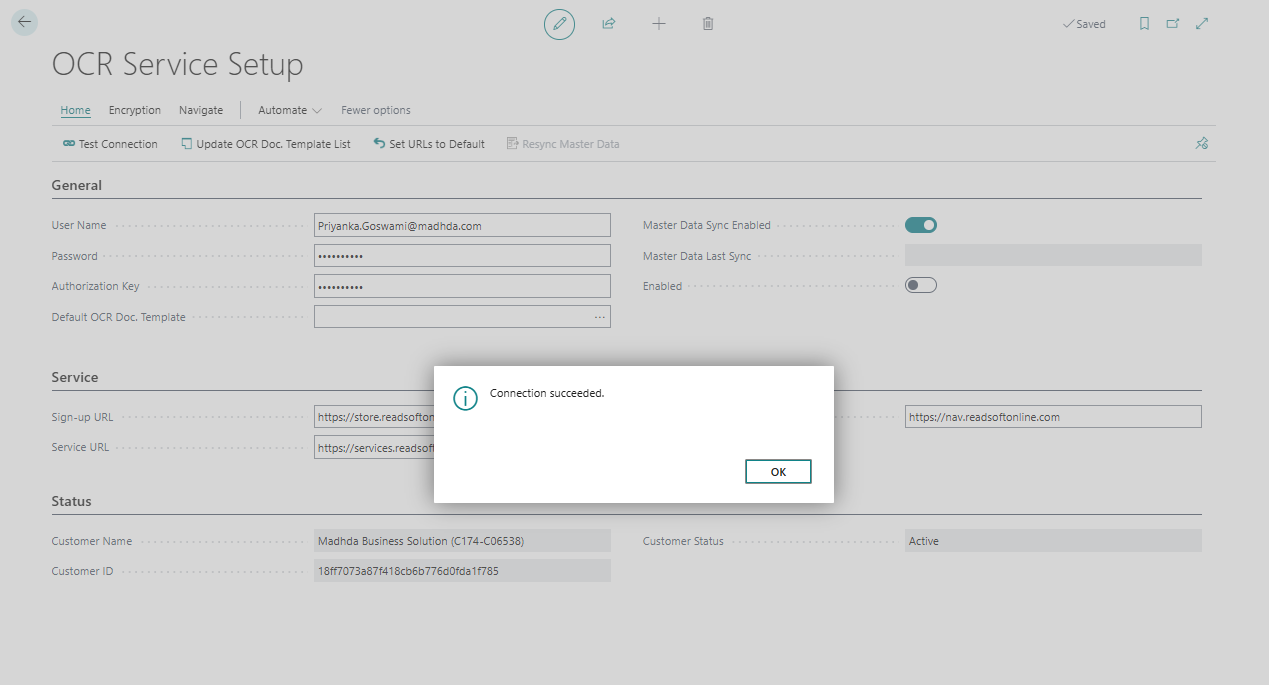
- Click on Test Connection
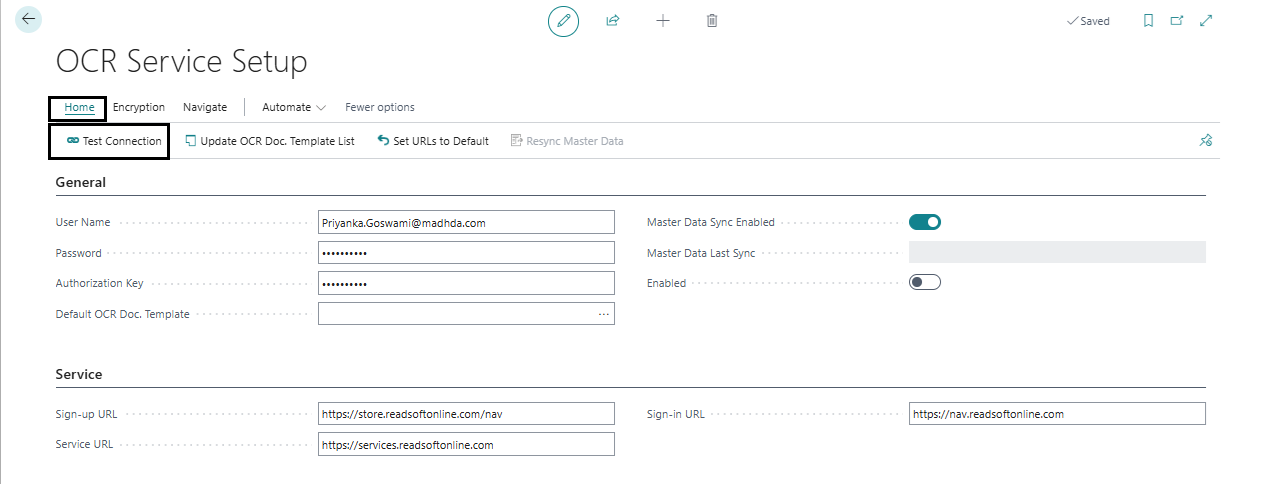
- Ensure the connection shows Succeeded.
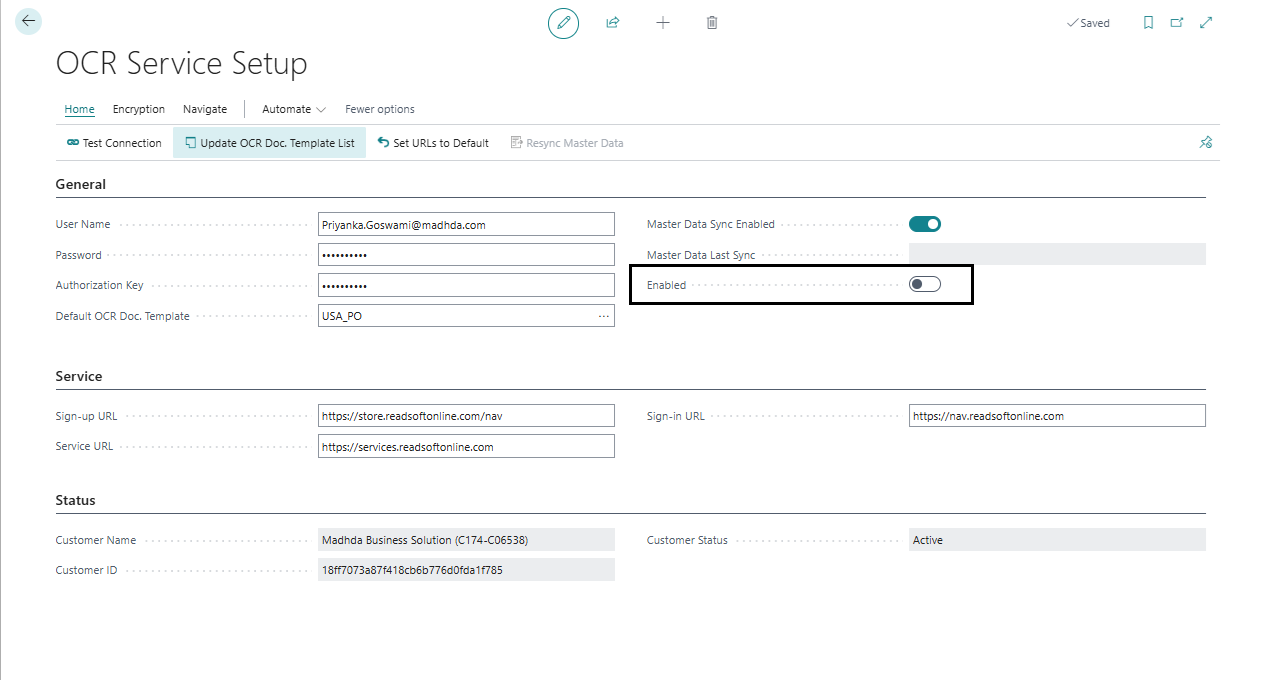
- Enable the OCR service
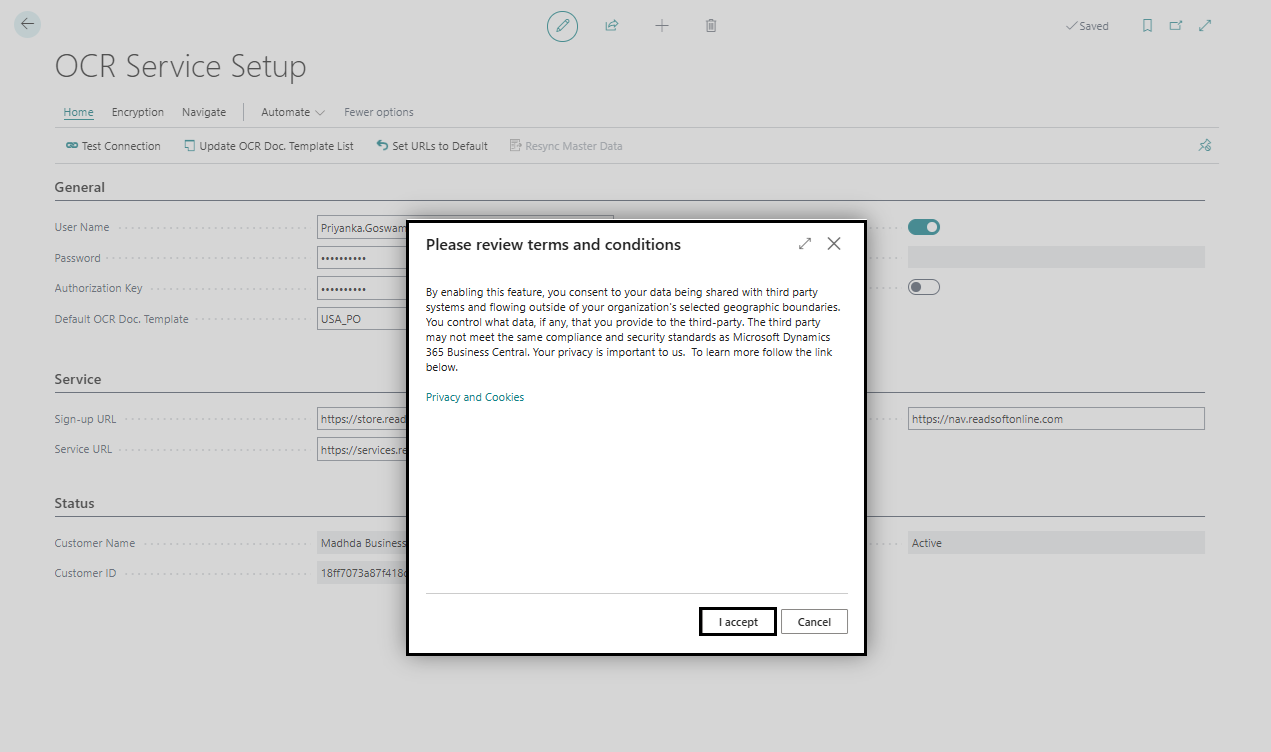
- Accept terms and conditions
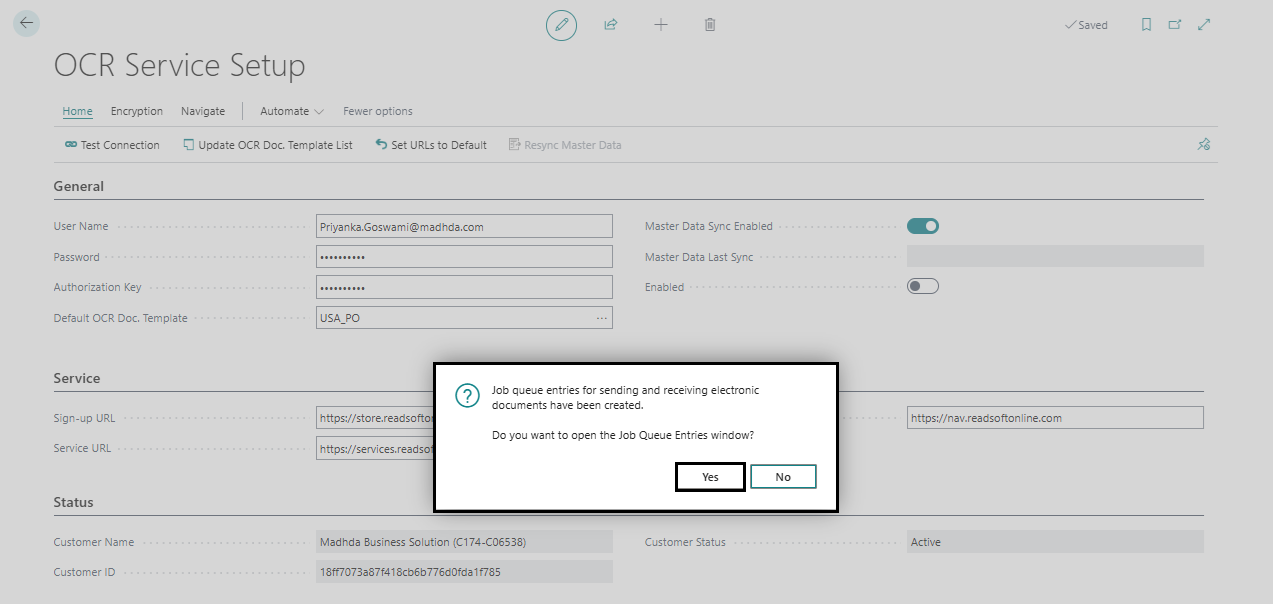
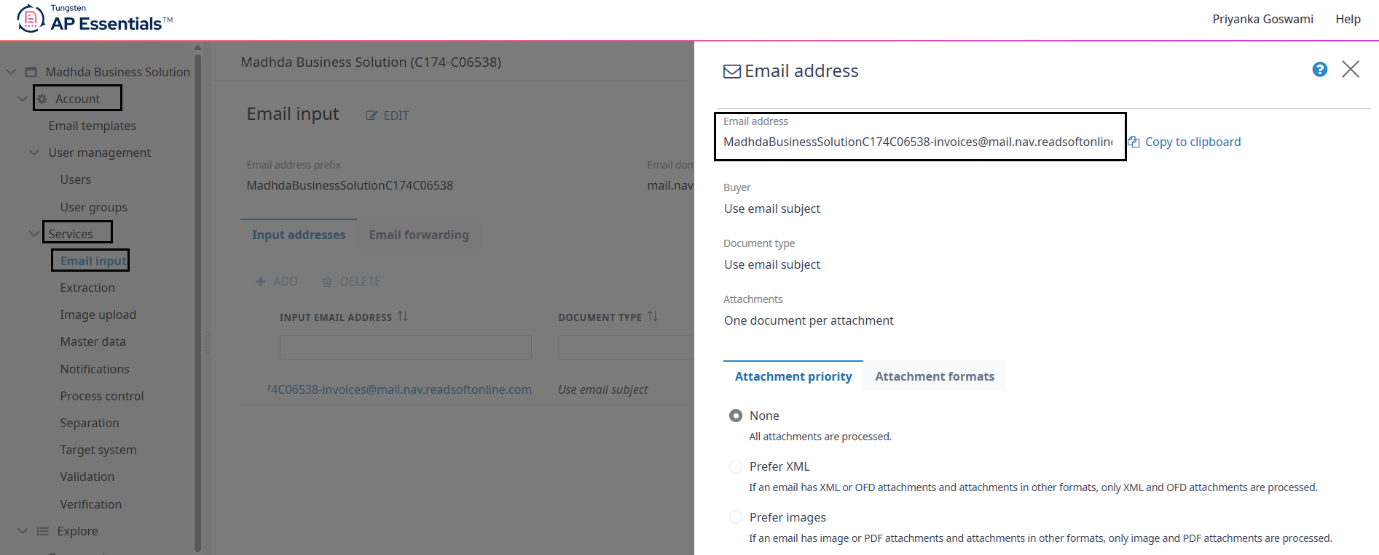
In the AP Essentials, click on the Services, open the email information, and copy the email address.
Step 3: Process Invoice via Email
Go to AP Essentials → Services
Copy the provided email address
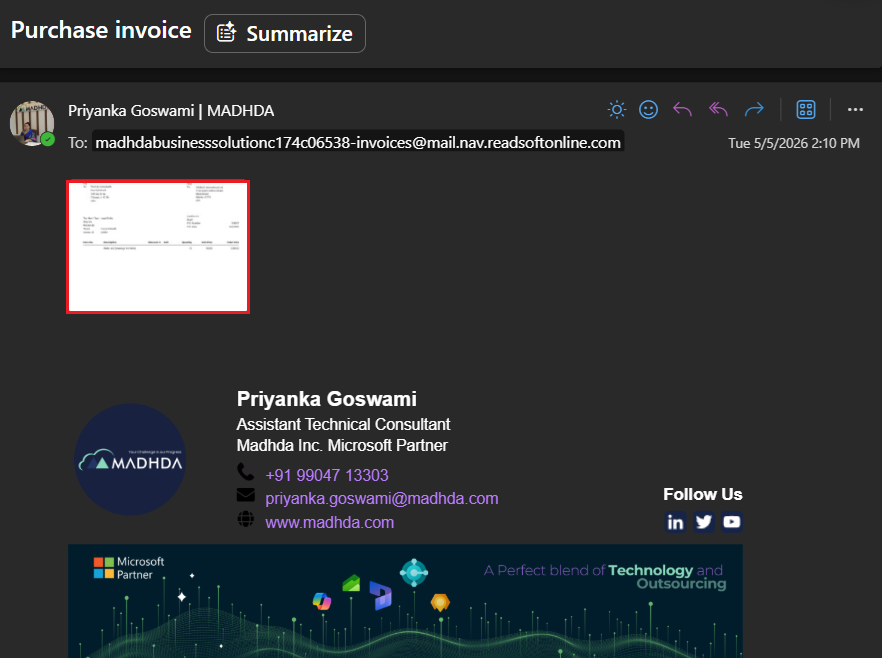
Send an email with:
- Invoice attachment (.jpg format recommended)
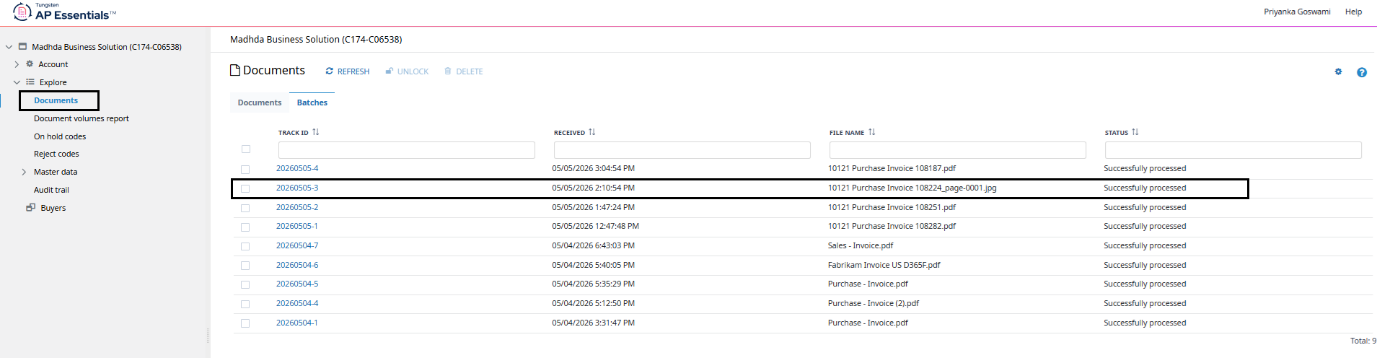
The document will be received by the OCR service.
Result:
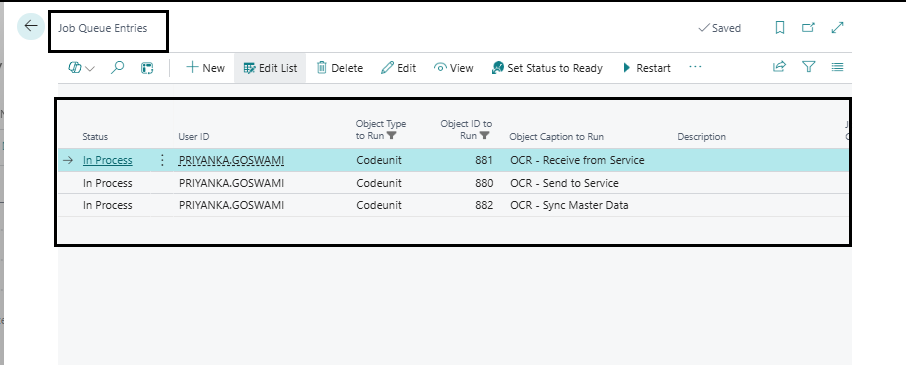
- Within ~5 minutes, the Job Queue processes the document
- It appears in Incoming Documents
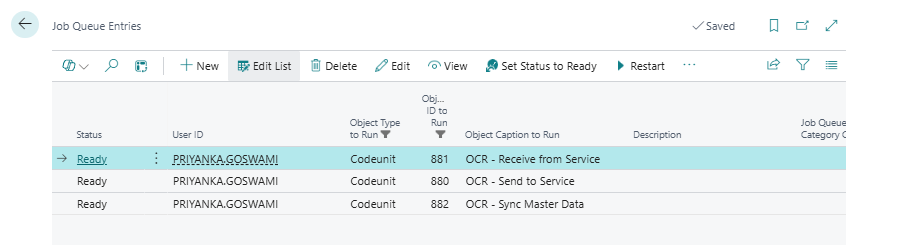
Step 4: Create Purchase Invoice from OCR
- Open Incoming Documents
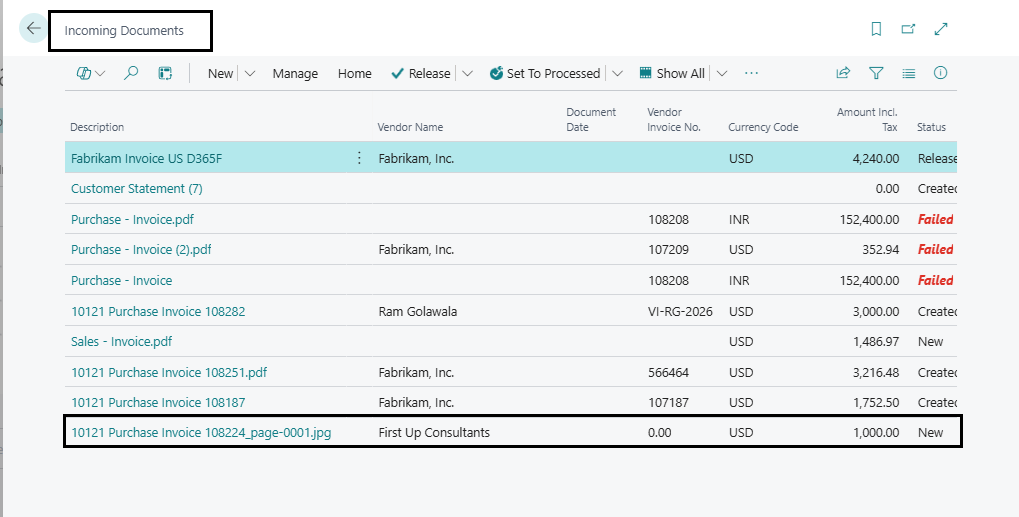
- Select the uploaded file
- Click Create Document
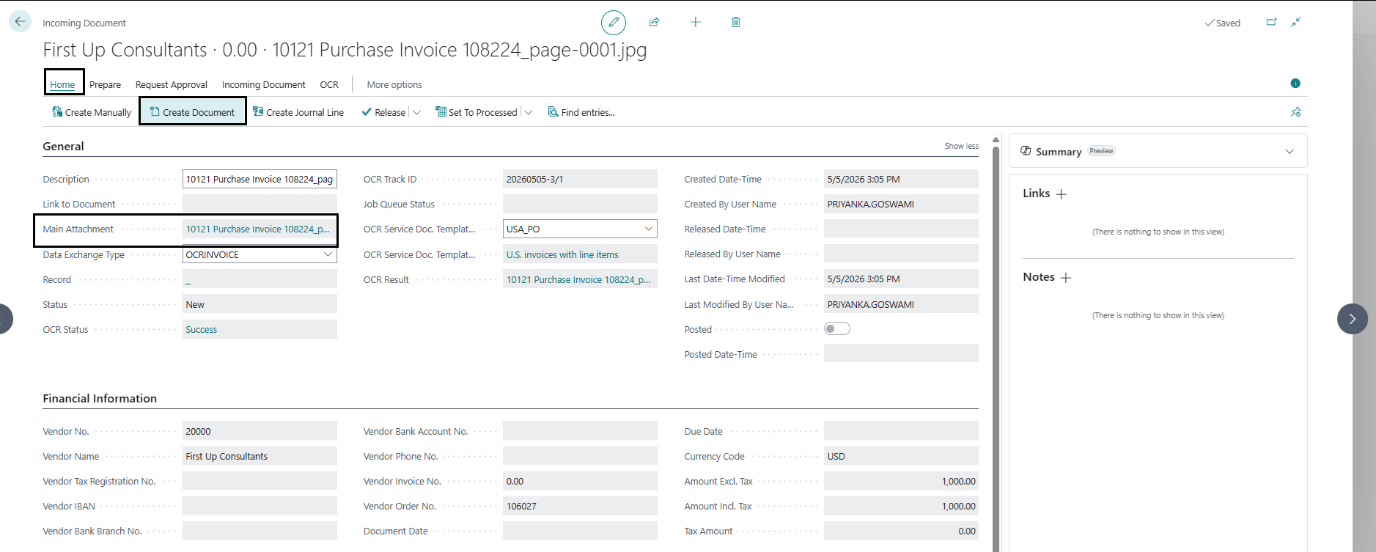
Output:
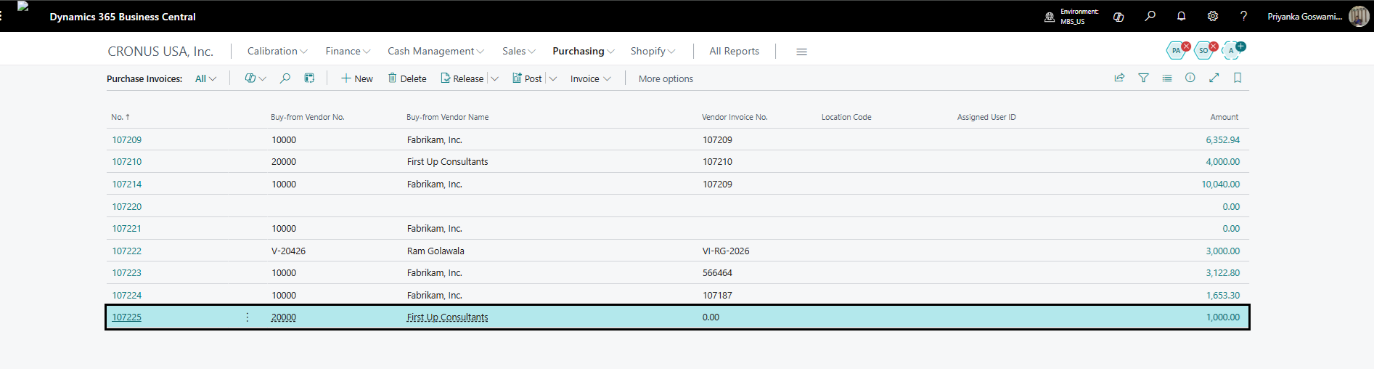
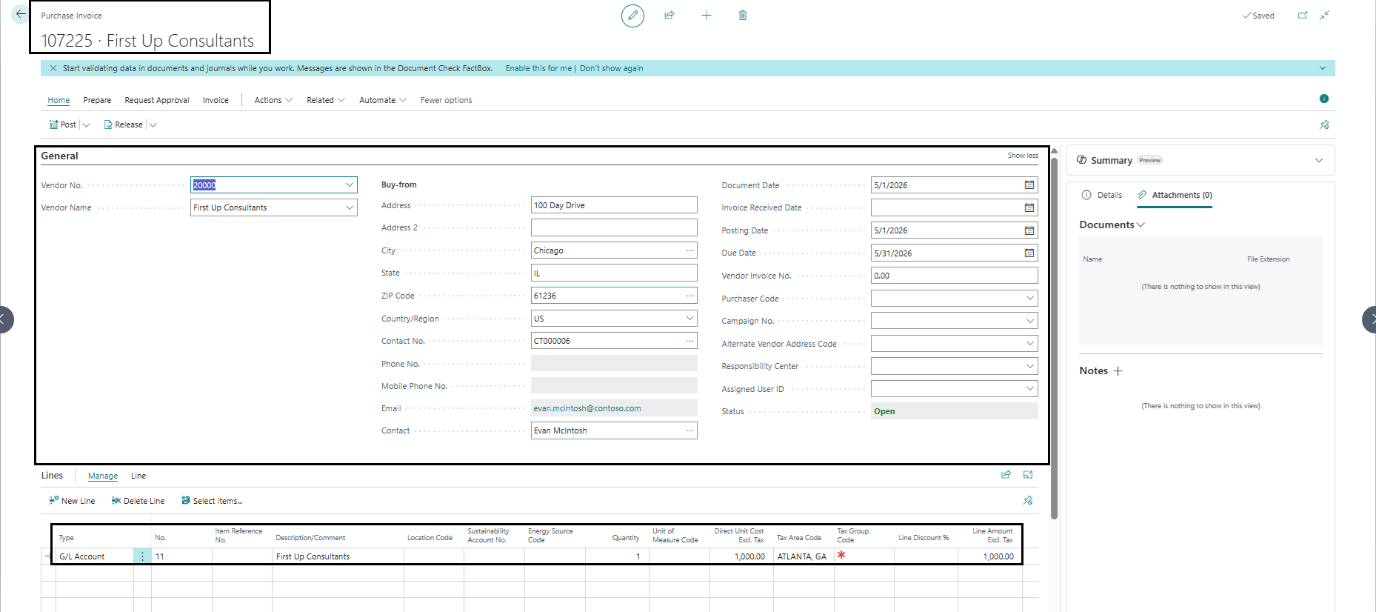
- Purchase Invoice is automatically created
- Purchase invoice (107225)
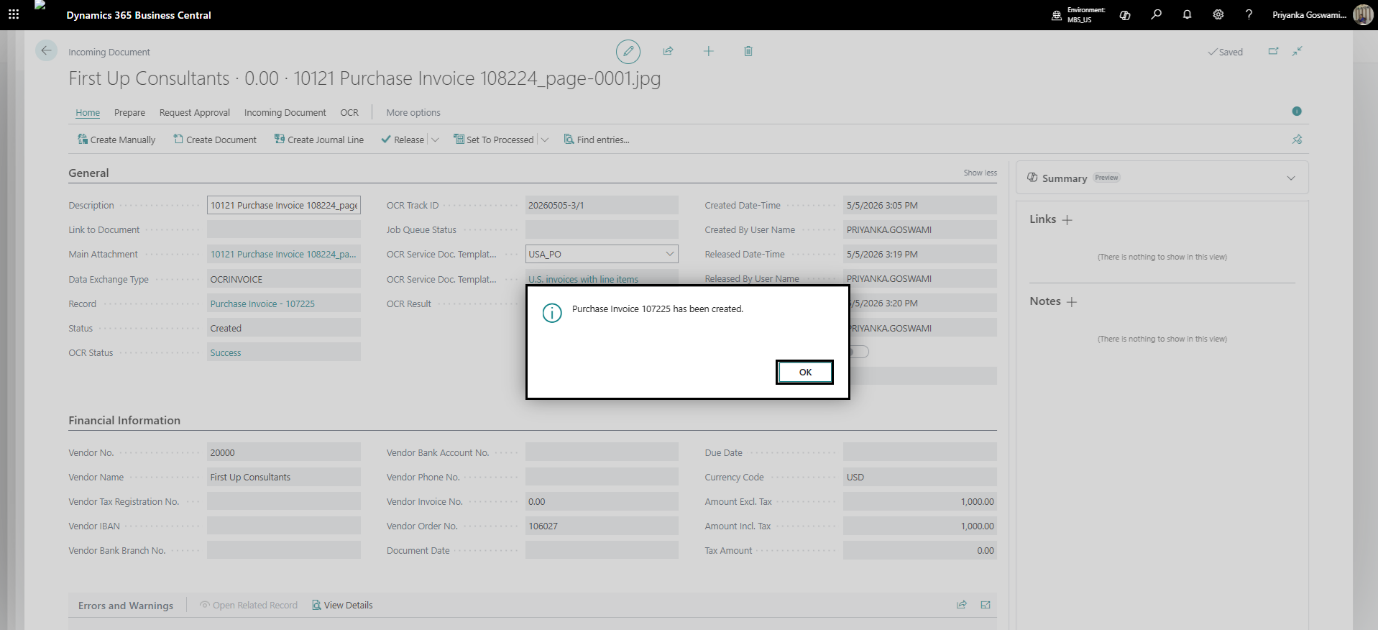
- Open the Purchase Invoice 107225 and verify
OCR Workflow in Business Central
OCR Processing Flow
- Invoice received from vendor
- Document uploaded or emailed
- OCR service reads the document
- Data extraction performed automatically
- Incoming Document created
- Purchase Invoice generated
- User validates the information
- Invoice posted in Business Central
This workflow helps maintain consistency and improves invoice processing efficiency. OCR is especially useful for businesses that receive a large number of vendor invoices daily and want to streamline their financial workflows.
Supported File Types for OCR Processing
Business Central OCR services can process multiple document formats. However, using clear and high-quality files improves recognition accuracy.
Commonly Supported Formats
- PDF (.pdf)
- JPEG/JPG (.jpg, .jpeg)
- PNG (.png)
- TIFF (.tiff)
Best Practices for Better OCR Accuracy
- Use high-resolution invoice scans
- Avoid blurred or cropped documents
- Ensure invoice text is clearly visible
- Keep vendor information readable
- Upload properly aligned documents
Using properly formatted invoice files significantly improves data extraction quality.
Alternative Method: Upload File Manually
- Open Incoming Documents
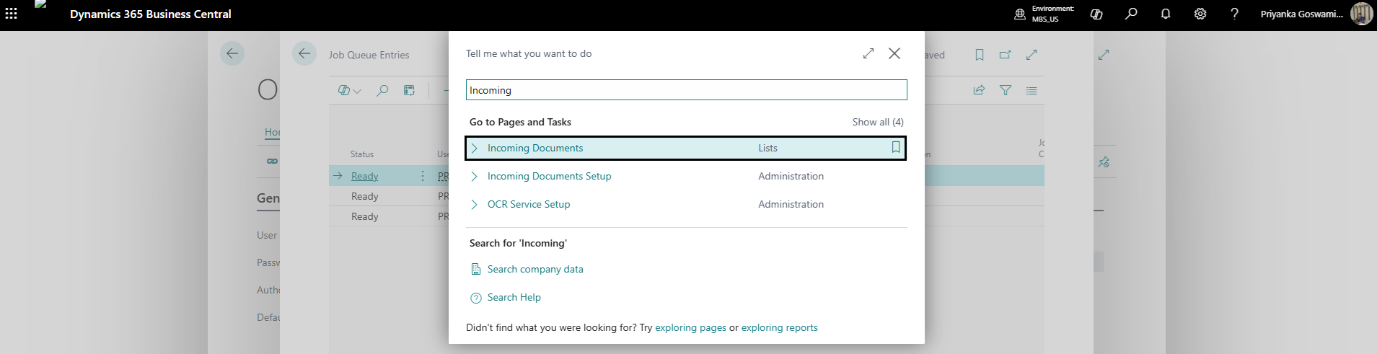
- Click Create from File
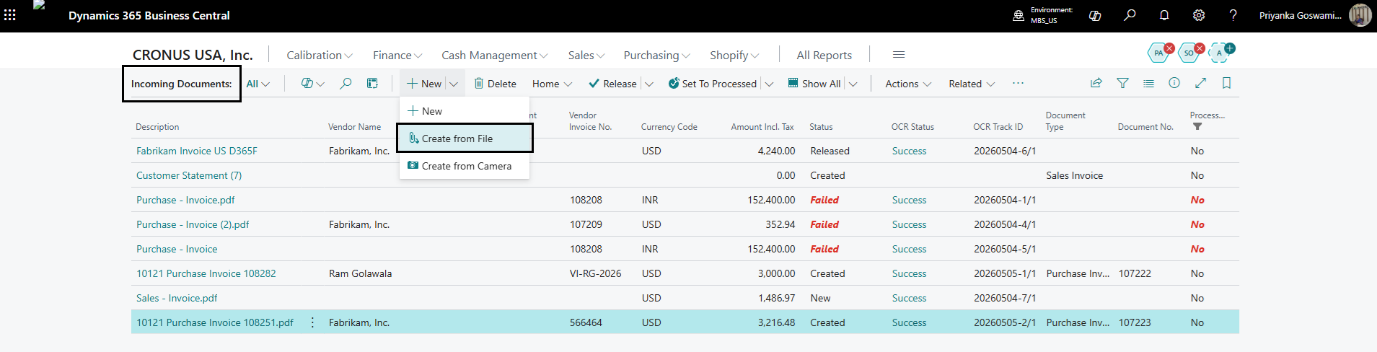
- Upload the invoice file
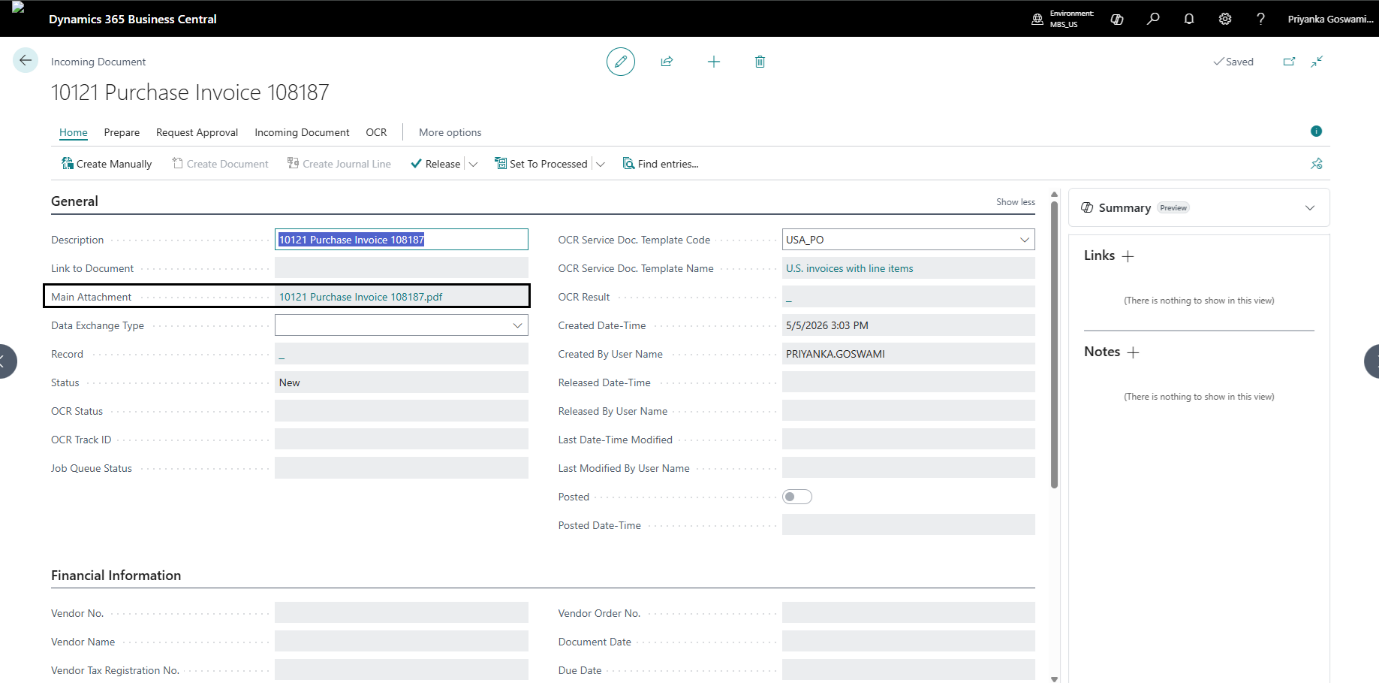
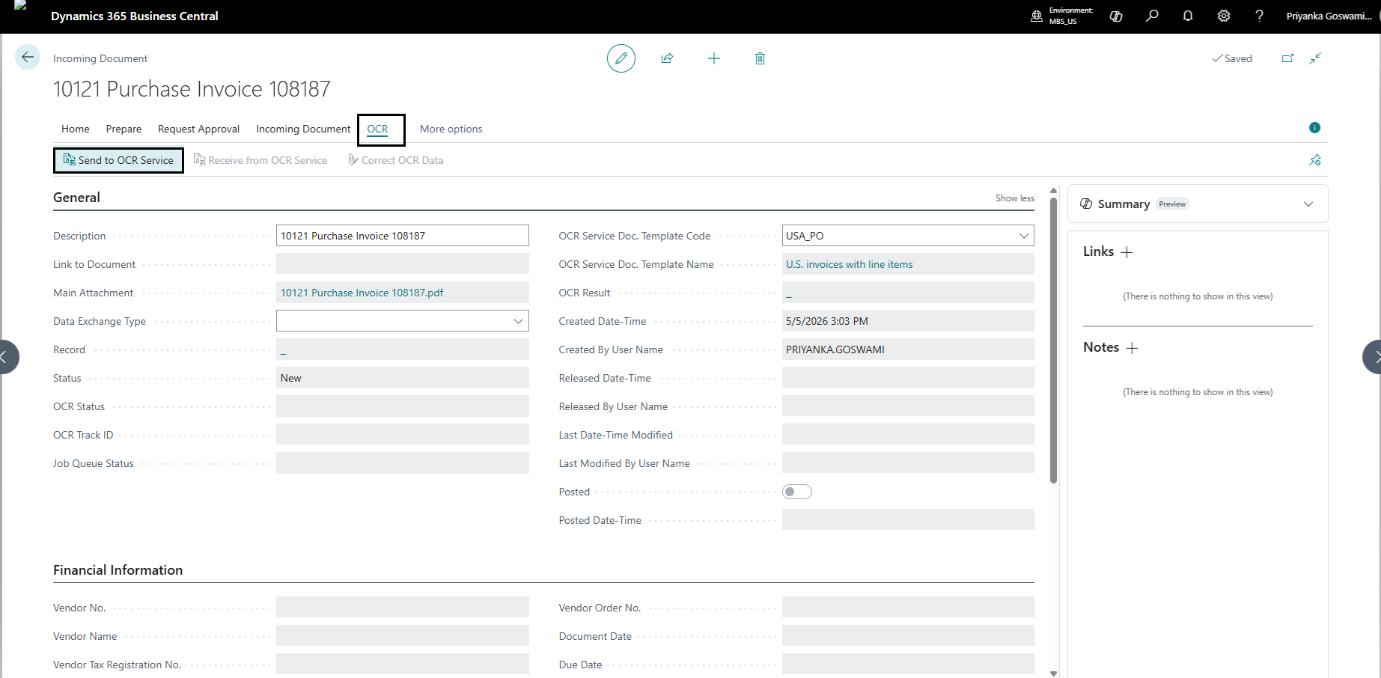
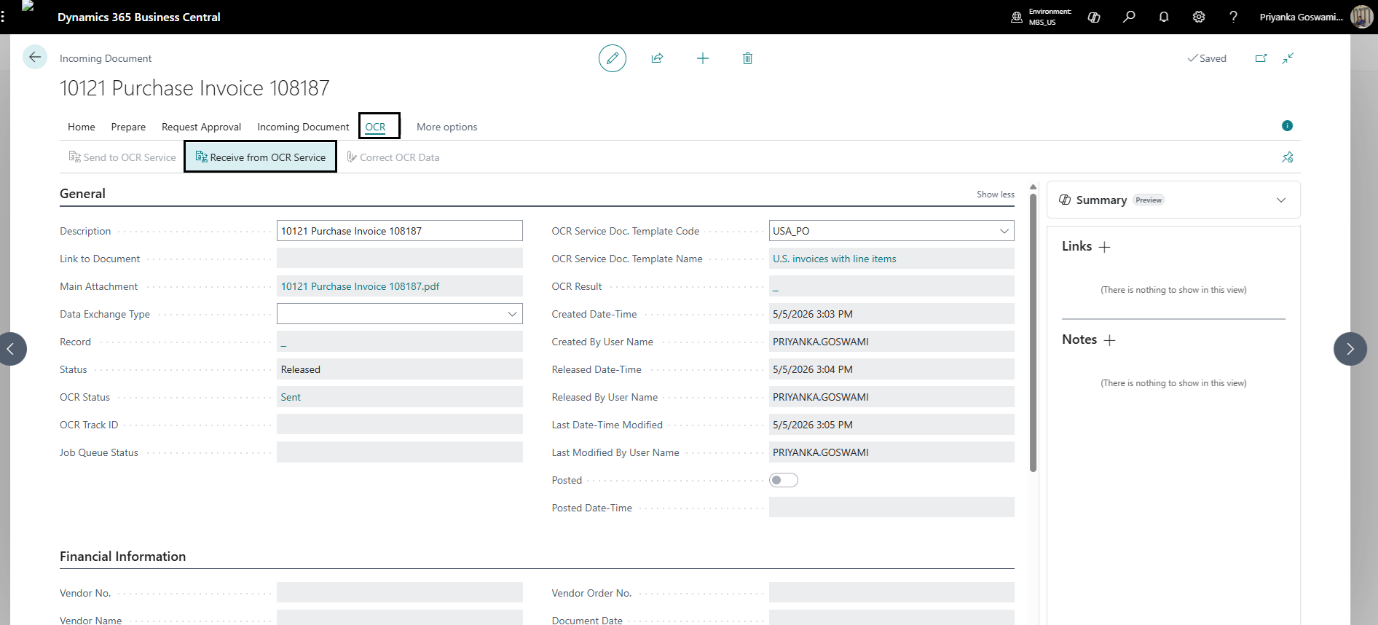
- Use the Send to OCR Service action
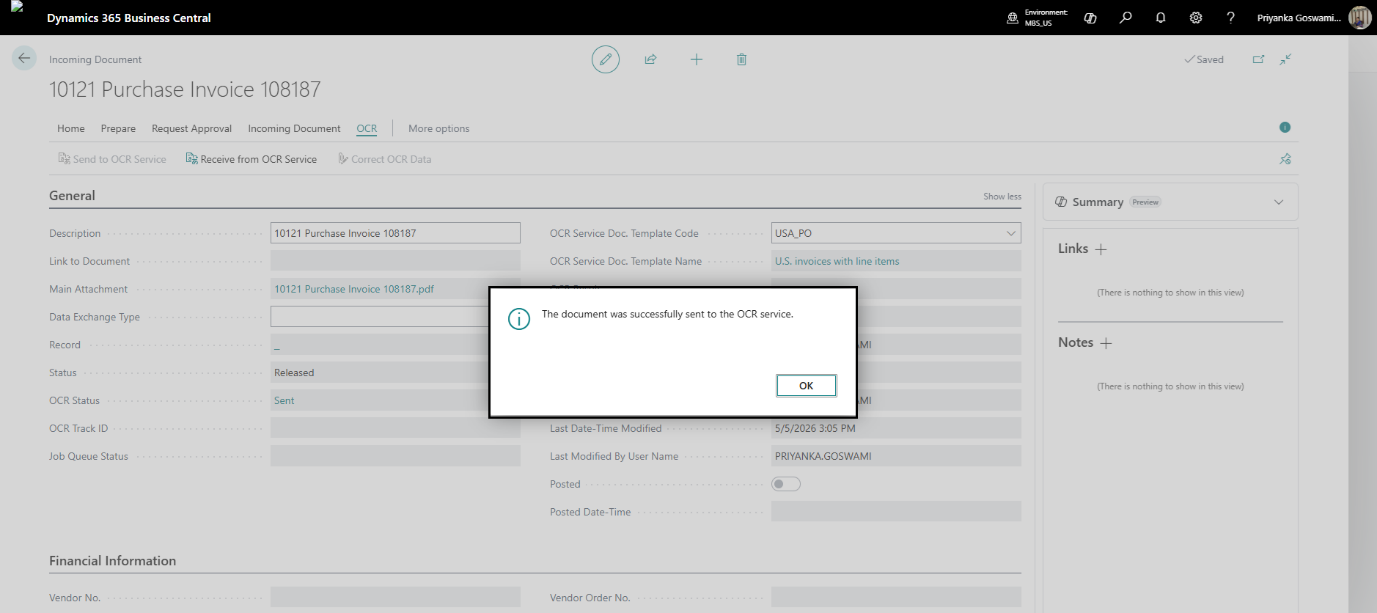
- The document was successfully sent to the OCR service.
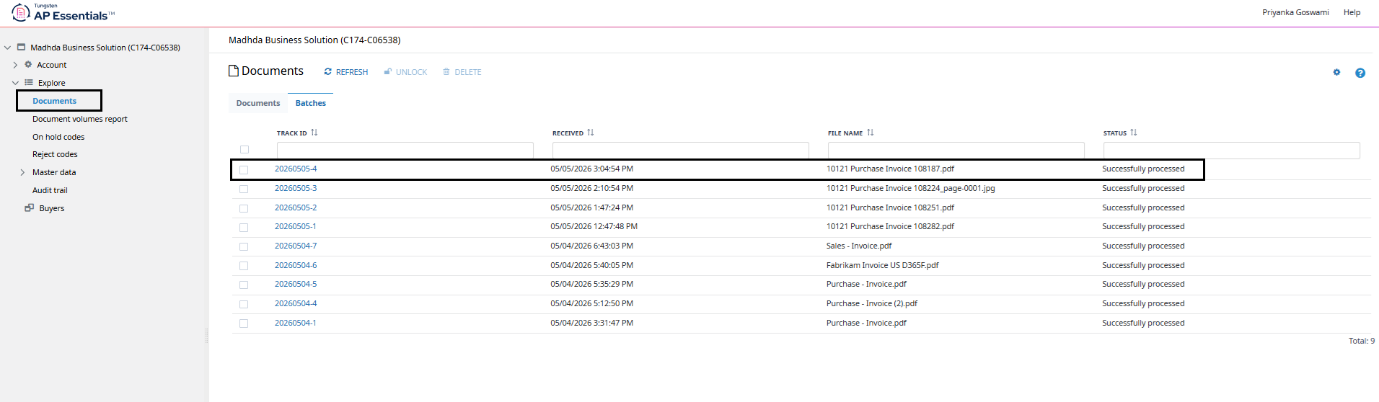
- Click Receive from OCR Service
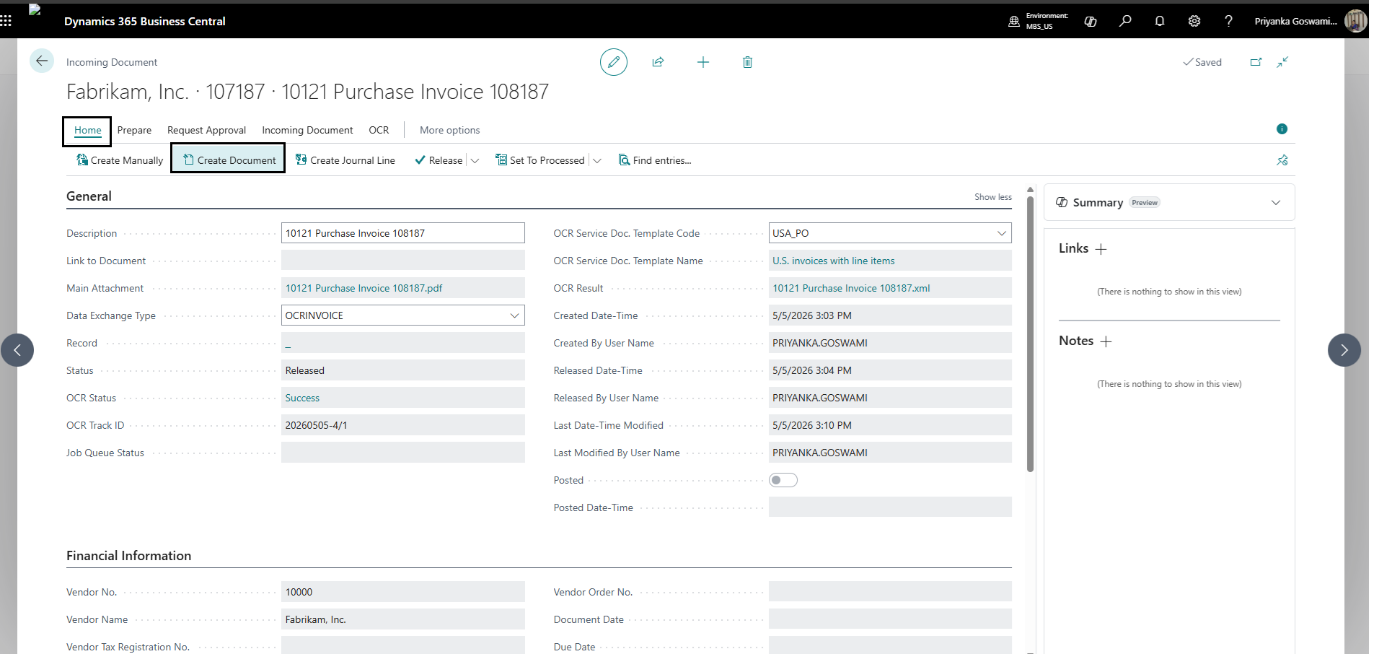
- Run Create Document action
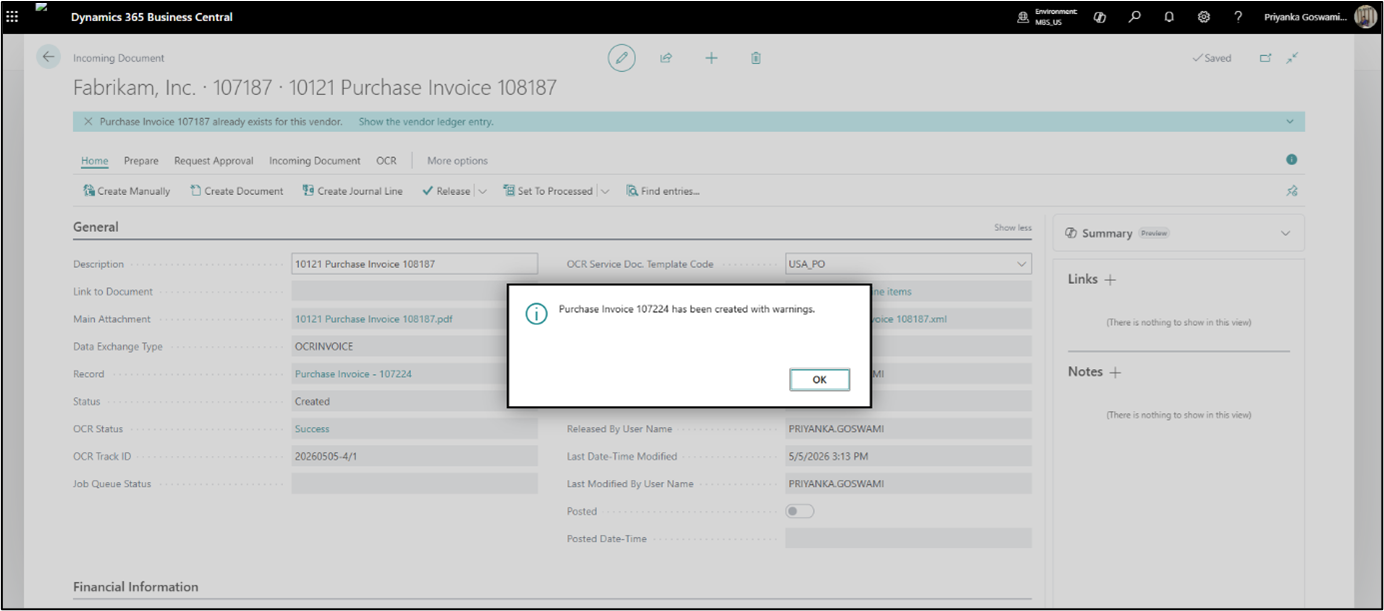
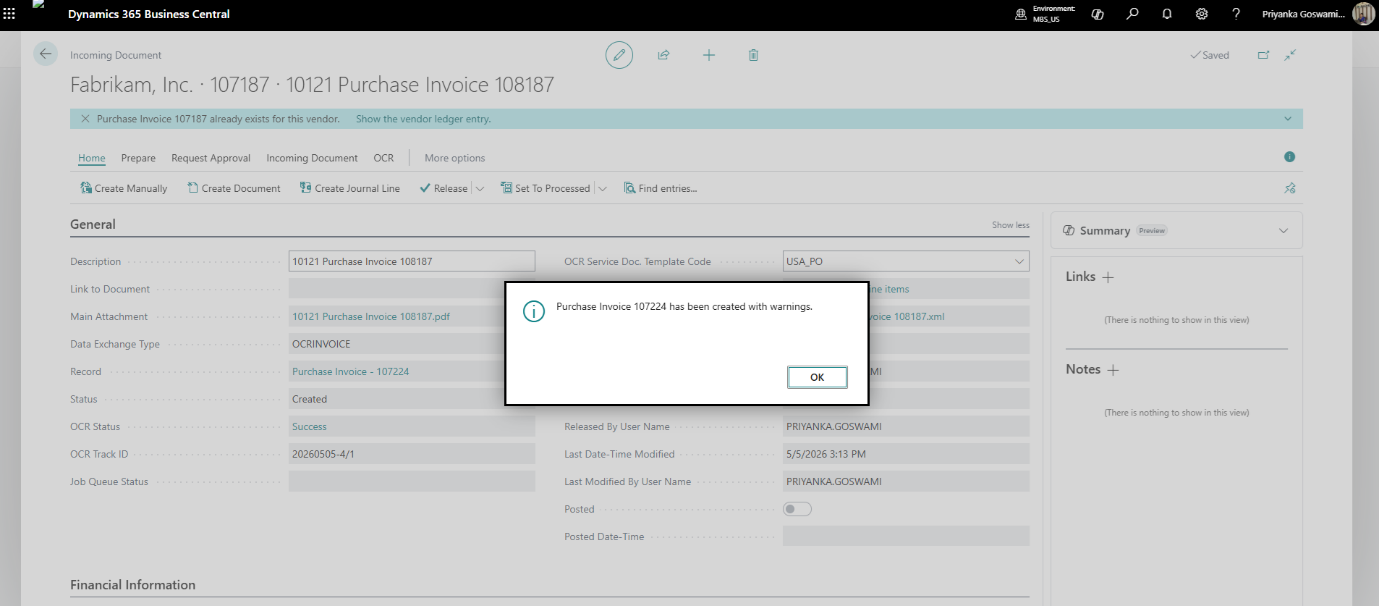
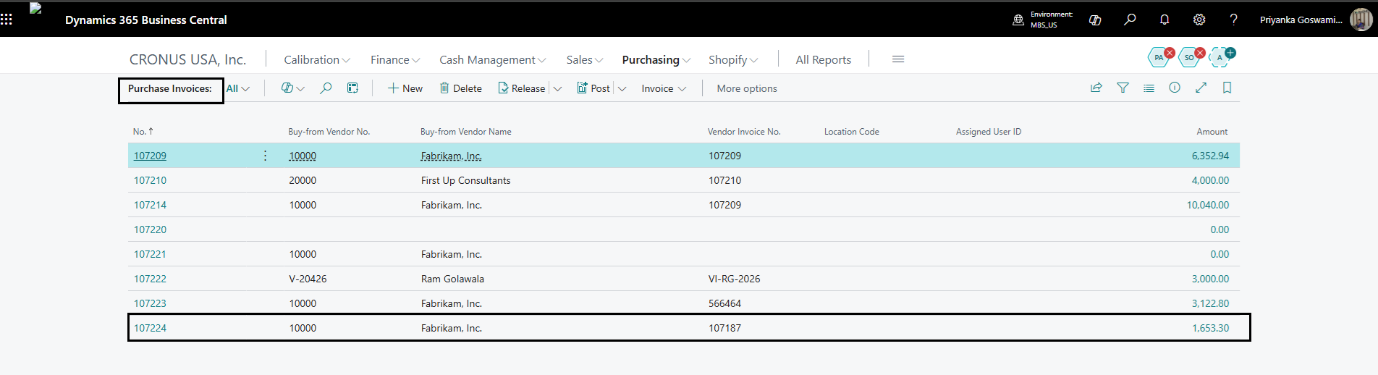
- Purchase Invoice (107224) created successfully.
- Open the Purchase invoice and verify
Troubleshooting Common OCR Issues
Sometimes OCR processing may fail due to configuration or document-related issues. Below are some common problems and solutions.
| Issue | Possible Reason | Solution |
|---|---|---|
| OCR connection failed | Invalid authorization key | Verify OCR setup credentials |
| Invoice not processed | Job Queue not running | Check Job Queue Entries |
| Data extraction incorrect | Poor document quality | Upload clear invoice image |
| OCR service delay | Service processing pending | Wait a few minutes and retry |
| Create Document disabled | OCR result not received | Click Receive from OCR Service |
Why Businesses Use OCR with Business Central
Modern businesses prefer OCR automation because manual invoice entry is time-consuming and error-prone. OCR in Business Central enables finance teams to focus on approvals, analysis, and decision-making instead of repetitive data entry tasks.
For growing organizations, OCR is essential tool for improving operational efficiency and scaling financial processes effectively.
OCR in Dynamics 365 Business Central helps automate invoice processing by converting scanned documents into structured accounting data. With OCR integration, businesses can reduce manual work, improve invoice accuracy, and accelerate Accounts Payable operations.
Whether invoices are received through email or uploaded manually, Business Central simplifies the entire document processing workflow through intelligent OCR automation.
Ready to Automate Your Invoice Processing?
Connect with our Business Central experts today and discover how OCR automation can simplify your accounting operations and improve business productivity.