 LinkedIn
  You-tube


Why Move Tables and Fields Instead of Recreating Them?
As Business Central extensions grow over time, tables and fields don’t always stay in the right place. A shared table might need to move into a common library extension, or a large monolithic app might need to be broken into smaller, easier-to-maintain pieces. In the past, restructuring like this meant writing custom upgrade code, exporting and re-importing data, and hoping nothing broke along the way.
The Move Tables and Fields feature removes most of that pain. It lets developers transfer ownership of tables and fields between extensions using a handful of AL properties, while Business Central handles the underlying data transfer automatically. There are no custom scripts to write, no manual data copying, and no downtime for end users.
In this article, we will explore how to move tables and fields between extensions and the AL properties required to do so safely.
Moving tables and fields between extensions without losing data requires marking the source objects as obsolete and linking them to the target extension via the “MovedFrom” and “MovedTo” properties.
One of the major advantages of this feature is that existing data remains intact.
This capability is supported in Business Central on-premises environments and AppSource (Marketplace) applications beginning with the 2025 Release Wave 1. It is also available for use during development and testing.
1. Move the field from one extension to another:
When a field is moved from one extension to another, the source extension must indicate that it no longer owns the field, while the destination extension must declare that it is receiving the field.
Source Extension:
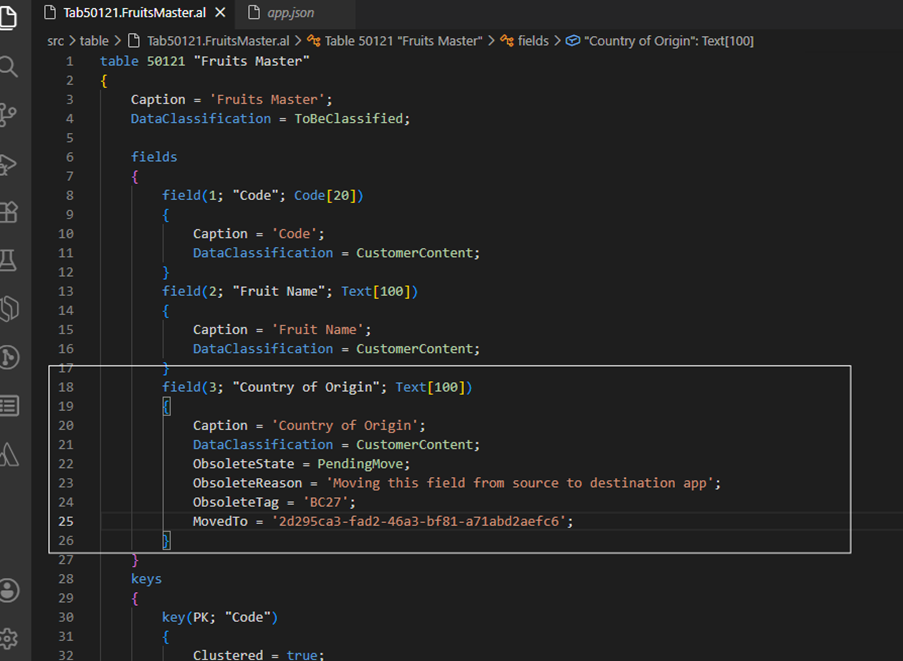
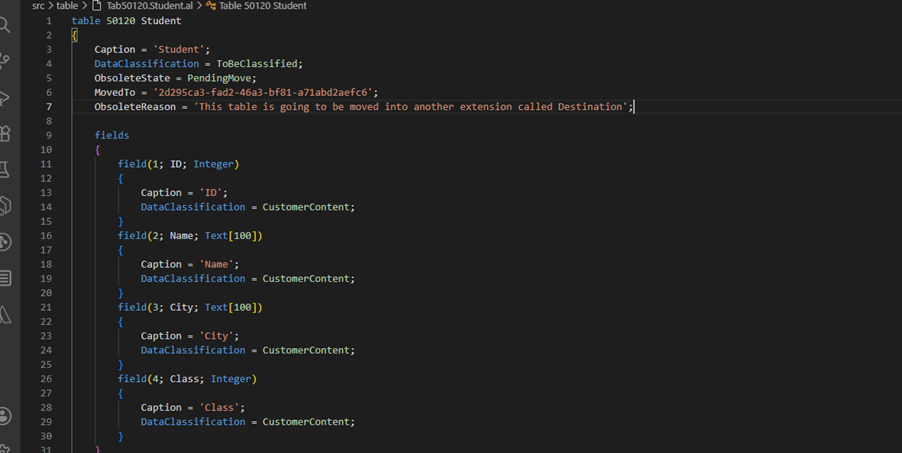
Understanding ObsoleteState = PendingMove:-
Moving a table and its fields can affect dependent extensions, so perform the move in stages rather than marking it as moved right away. In the first release, set the ObsoleteState property to PendingMoved to give dependent extensions time to update their references.
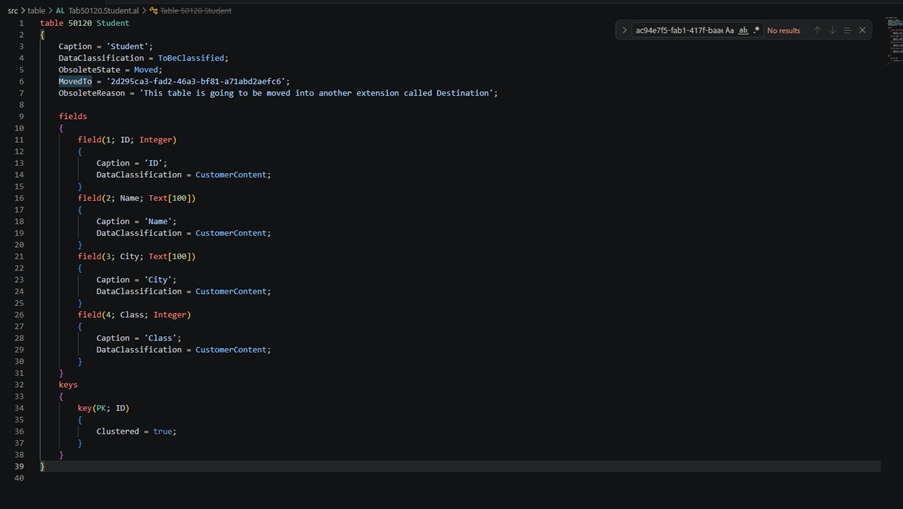
After the dependencies have been updated and validated, change the ObsoleteState property to Moved in a later release. This staged approach helps reduce upgrade issues and ensures a smoother transition for customers and developers.
Please refer to the snapshot below of the source extension:
Understanding ObsoleteState = Moved:-
The ObsoleteState = Moved property indicates that the field has been transferred to another extension. Unlike traditional obsolescence states such as Pending or Removed, the Moved state indicates that the field still exists in the database, but ownership has been reassigned.
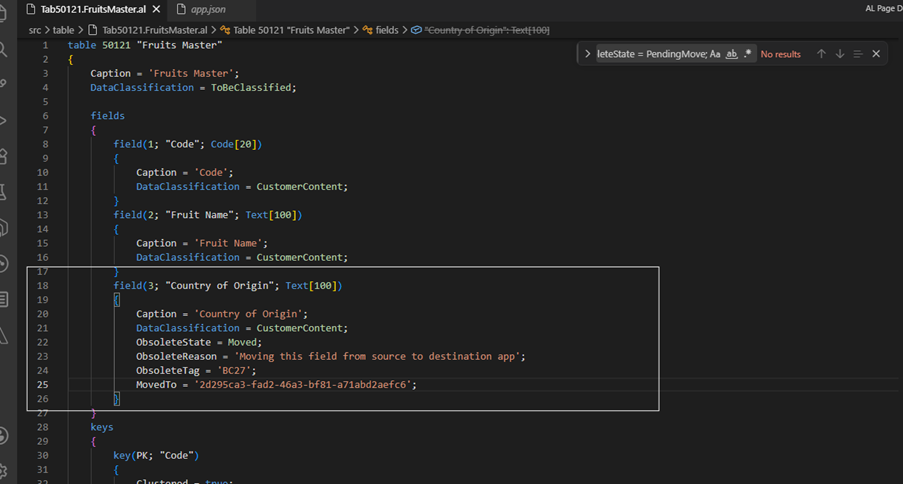
Additional properties such as MovedTo, ObsoleteReason, and ObsoleteTag help Business Central identify the destination application and manage the process correctly.
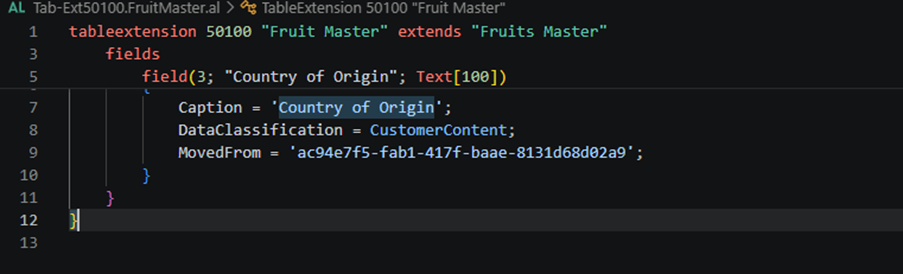
Destination Extension
The destination extension uses the MovedFrom property to establish the relationship with the source extension and assume ownership of the field.
Please refer to the snapshot below of the destination extension:
2. Move the table from one extension to another:
The process for moving a table is similar to moving a field.
The source extension must mark the table as moved and specify the destination application using the MovedTo property.
Source Extension
Please refer to the snapshot below of the source extension:
ObsoleteState = PendingMove:-
ObsoleteState = Moved:-
Destination Extension
Please refer to the snapshot below of the destination extension:
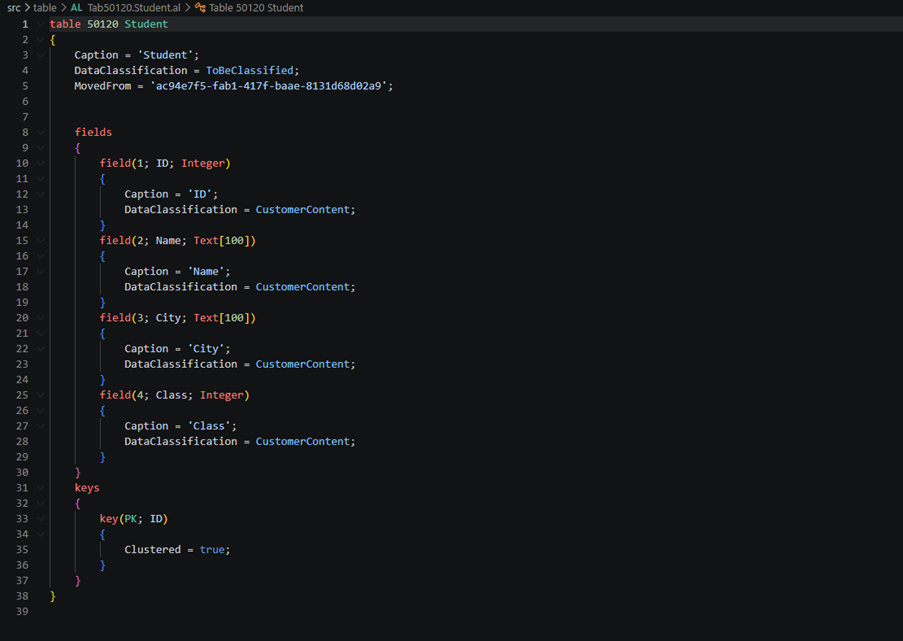
Key AL Properties Used in This Process
Before you start moving tables or fields, it helps to know the small set of AL properties that drive the entire process. Here is a quick summary:
- ObsoleteState: Marks whether an object is PendingMove or Moved, controlling when the transfer actually takes effect.
- MovedTo: Set on the source object to point to the app ID of the destination extension.
- MovedFrom: Set on the destination object to point to the app ID of the source extension.
- ObsoleteReason: A short note explaining why the object was moved, useful for other developers reading the code later.
- ObsoleteTag: Tracks the version in which the object was marked obsolete, which is helpful for auditing changes over time.
Limitations
Developers should be aware of several restrictions:
* Primary key fields cannot be moved.
* Fields that participate in keys cannot be moved.
* Field IDs and data types must remain unchanged.
* This feature is not supported for Per-Tenant Extensions (PTEs).
Best Practices for a Smooth Move
A successful move depends on more than just setting the right properties. Keep these practices in mind before you publish:
- Always stage the move across two releases: set ObsoleteState to PendingMoved first, then switch it to Moved once dependent extensions are confirmed to be working.
- Test the move in a sandbox environment with a copy of production data before rolling it out live.
- Communicate the change to partners and ISVs who depend on the table or field, so they have time to update their code.
- Keep field IDs, data types, and keys identical between the source and destination objects, since even small mismatches will break the sync.
- Document every move with a clear ObsoleteReason, so the history stays easy to trace during future upgrades.
The ability to move tables and fields between extensions is a valuable enhancement for Business Central developers. It simplifies application refactoring and modularization while reducing the risk of data loss. Read More

How Madhda Inc Can Help
Moving tables and fields between extensions sounds straightforward on paper, but getting the staging, dependency checks, and testing right takes hands-on Business Central development experience. Madhda Inc is a Microsoft Solutions Partner that works with finance and operations teams to build, extend, and maintain Business Central solutions, including complex extension refactoring and data migration projects. Whether you are consolidating extensions, preparing for an AppSource release, or simply want a second pair of eyes on your upgrade plan, our team can guide you through the process safely and efficiently.
Ready to simplify your Business Central extension architecture?
Reach out to the Madhda Inc team at sales@madhda.com, or call us at +1 (302) 303-9860 (US) or +91 97242 42267 (India). We would love to help you plan and execute your next Business Central development project.