 LinkedIn
  You-tube



Microsoft Power Platform has introduced AI-powered generative pages that allow users to create fully functional UI pages in model-driven Power Apps using natural language. This feature significantly reduces development time and enables faster app customization without deep UI design effort.
In this blog, we’ll walk through what AI generative pages are, the prerequisites, and step-by-step instructions to build them using natural language prompts.
- Model-driven Power App
- Dataverse tables available (standard or custom)
- Copilot enabled in your environment
- The Power Platform environment must be in the US region
- Appropriate security role (System Customizer / Power Platform Admin)
- Environment with AI features enabled
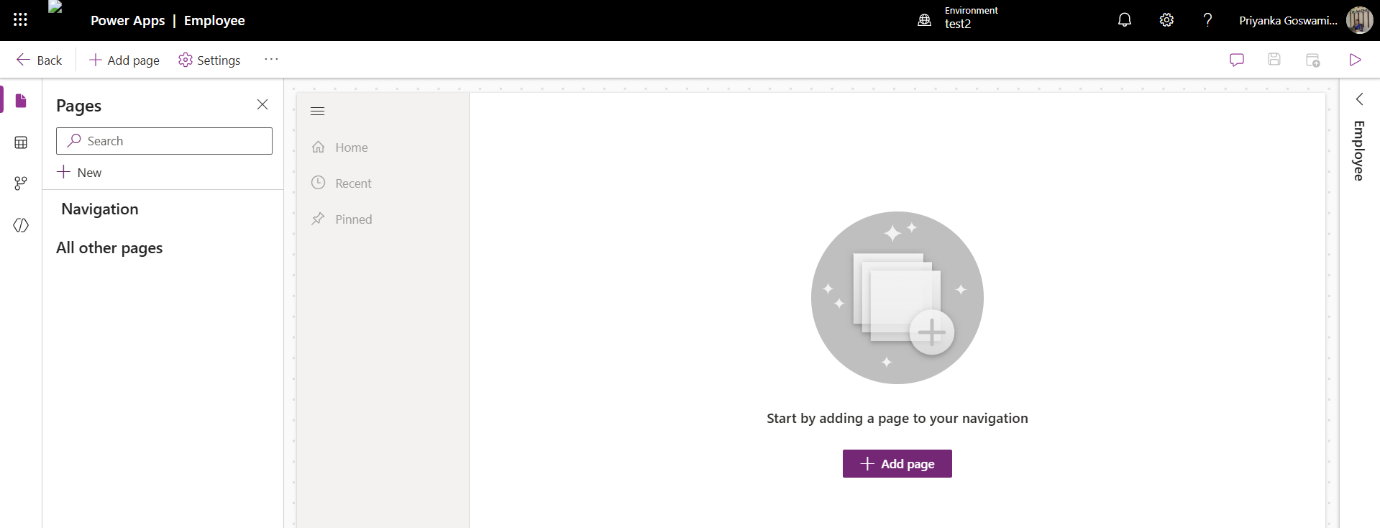
Step 1: Open Your Model-Driven App
- Go to Power Apps
- Open an existing model-driven app or create a new one
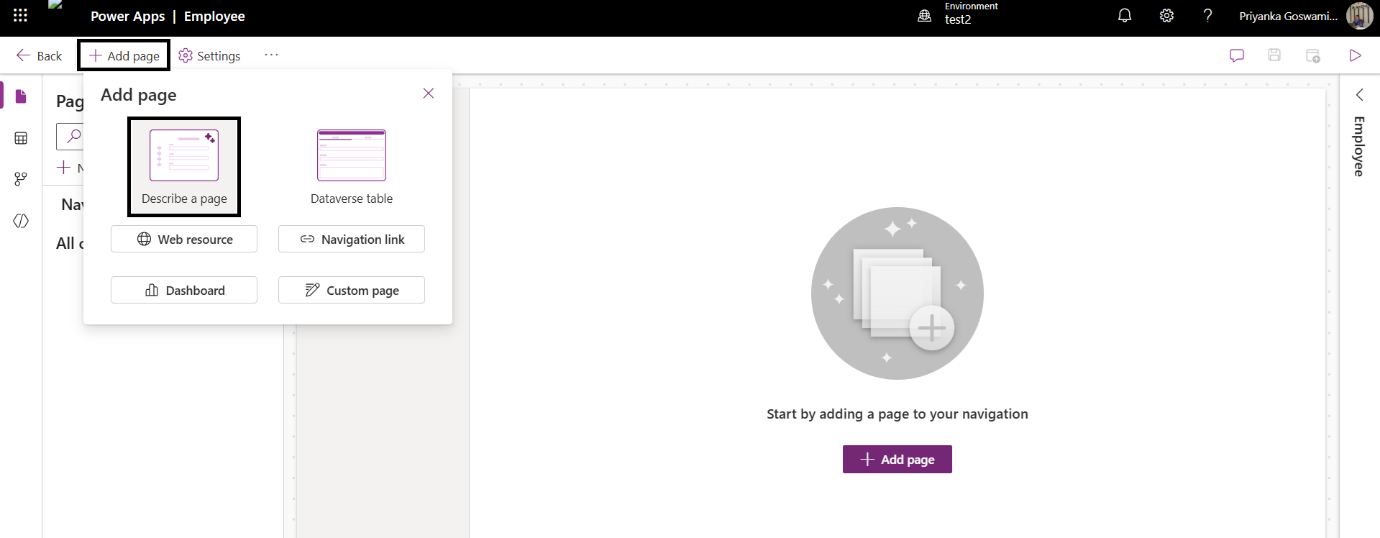
Step 2: Add Describe a Page (Generative page)
- Click + Add page
- Select Generative page (Preview)
- Click Next
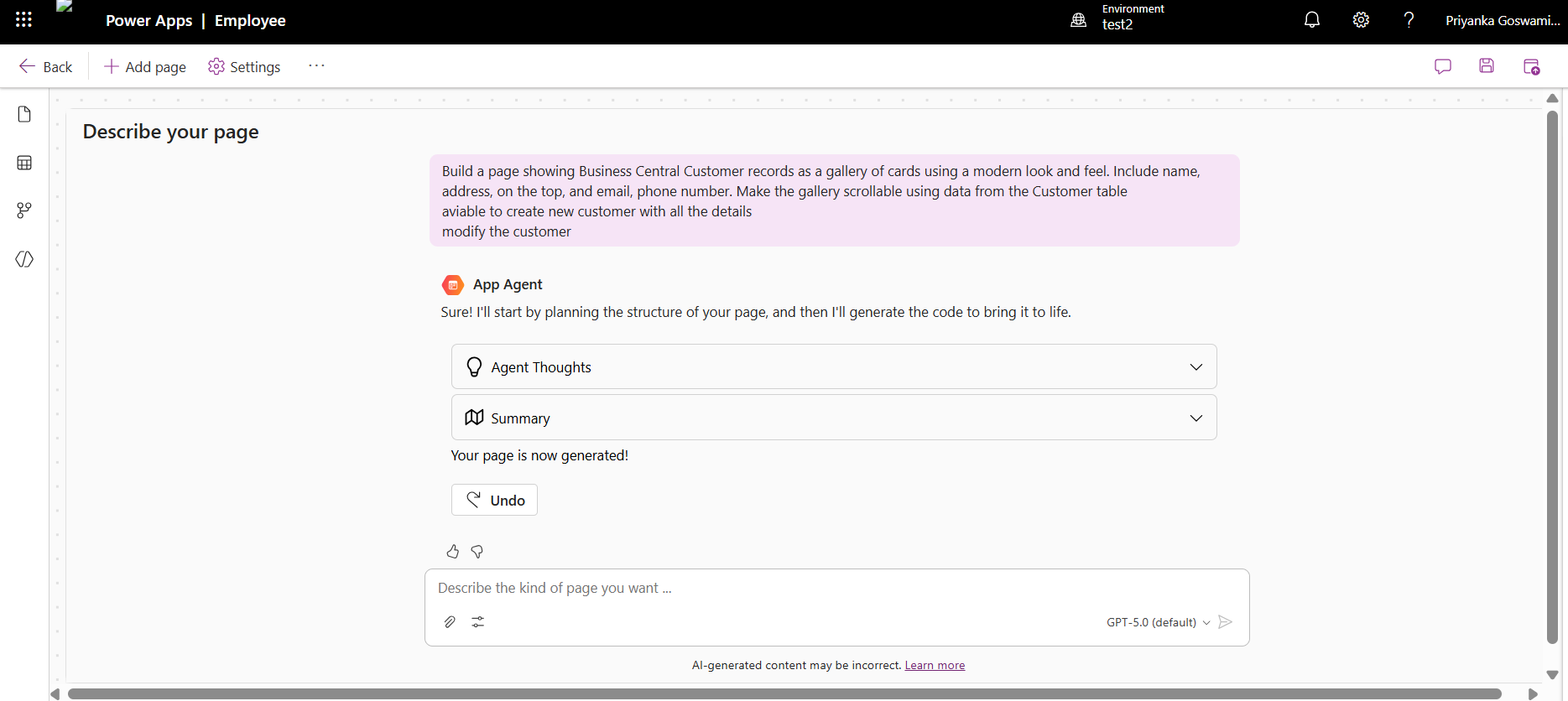
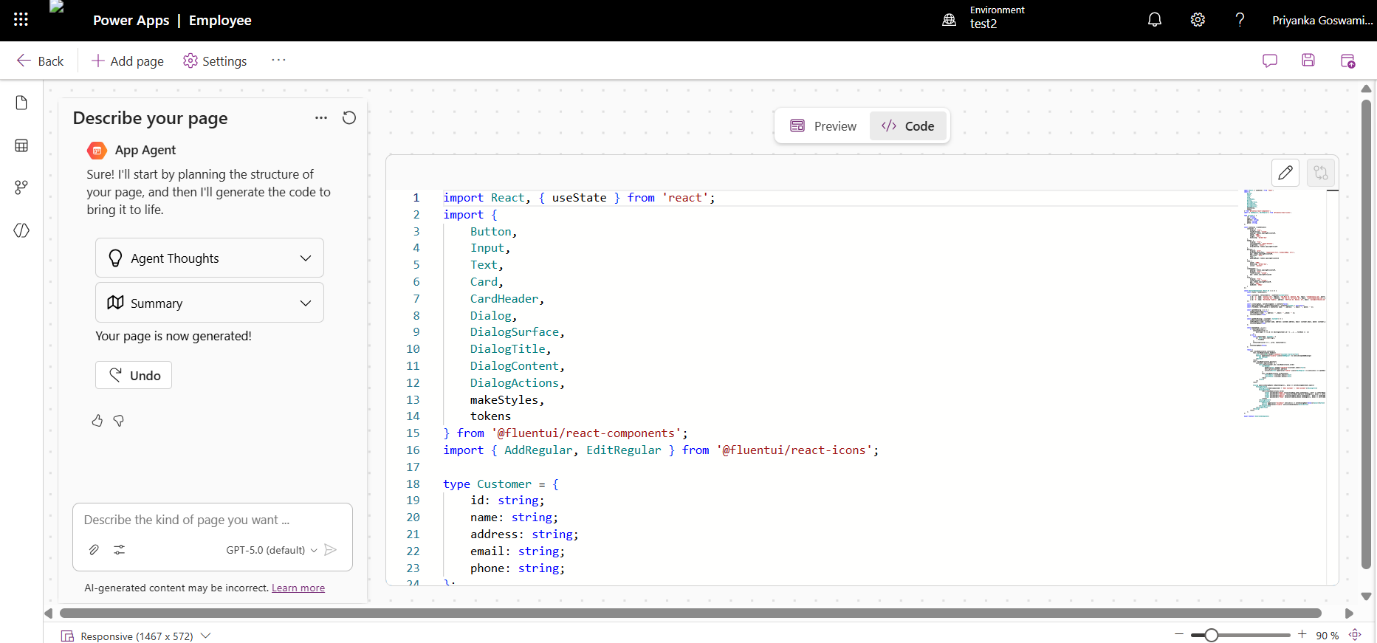
Step 3: Describe your page as a prompt for your requirement to create a page
The Copilot prompt area where the user enters a natural language description. Copilot analyzes the prompt and Dataverse tables to generate the page automatically.
Step 4: Review and Generate the Page
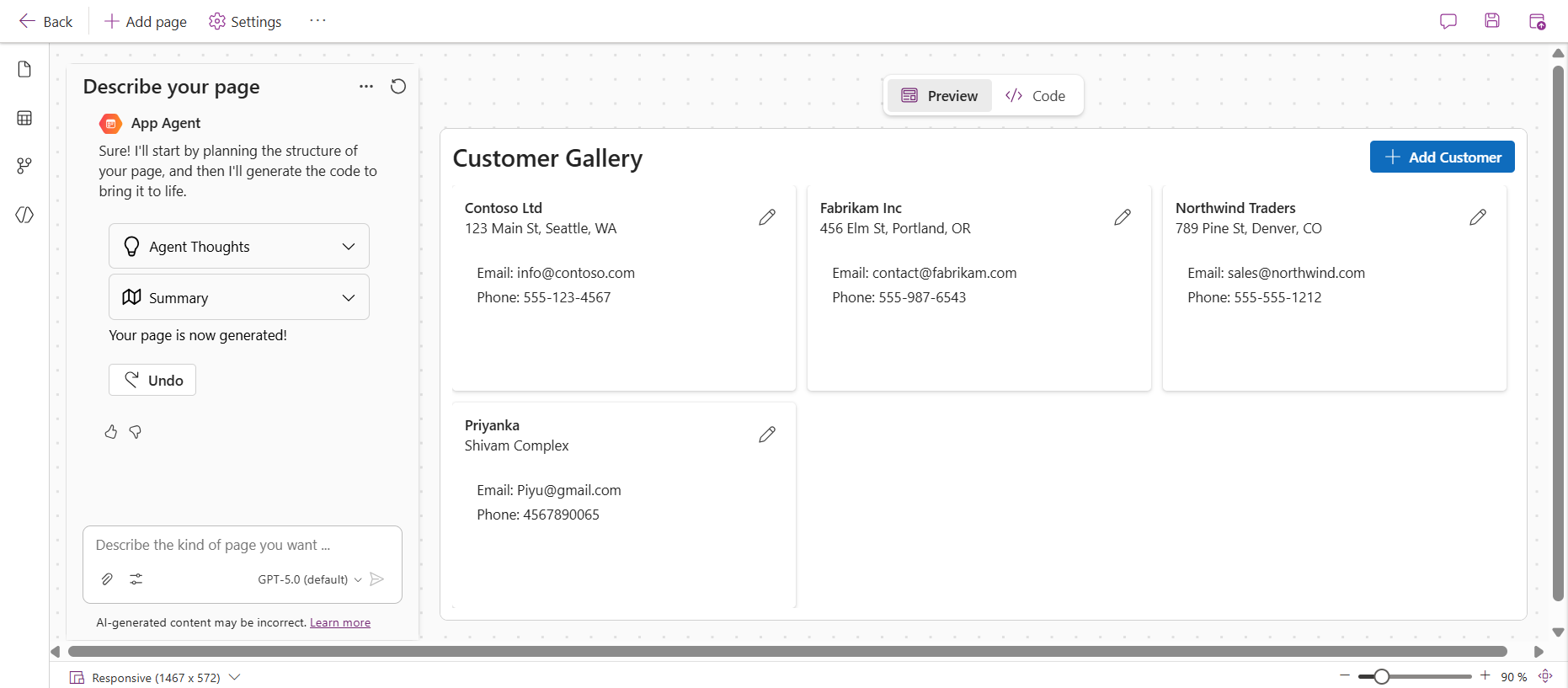
- The generated page layout created by Copilot, including forms, related data sections, and table views.
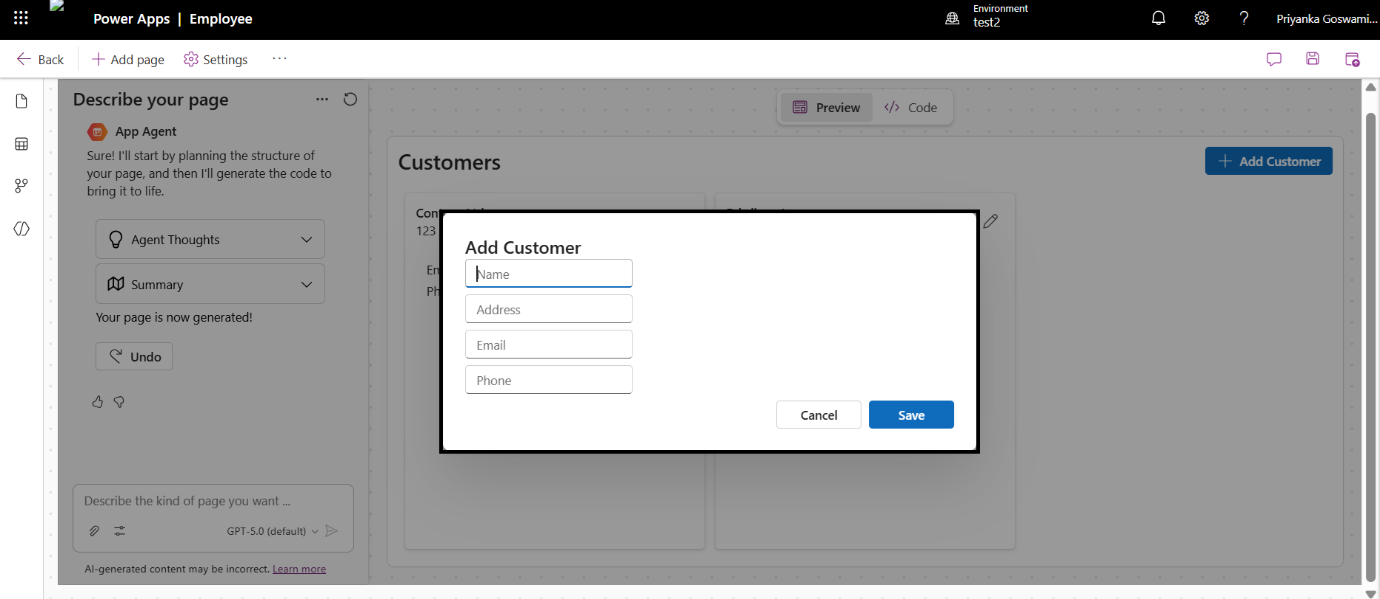
- Click on the Add customer then Open the new screen as can I add as a new customer.
Important Limitation & Resolution
During implementation, the Generative Page option was not visible even after enabling Copilot After detailed research, it was identified that:
- Generative Pages are supported only in Sandbox or Production environments
- The feature is currently available only in the US region
- Copilot settings alone are not sufficient
Why AI Generative Pages Are a Game-Changer
Building a page inside a model-driven app has traditionally meant working through the classic app designer step by step: placing forms, wiring up views, arranging components, and testing every small tweak before it looks right. AI generative pages flip that workflow on its head. Instead of clicking through design panels, a maker simply describes the page in plain English, and Copilot turns that description into a working, functional page backed by real Dataverse data.
Here’s why this matters for anyone building on the Power Platform:
- Speed: What used to take hours of manual layout work can now be produced in minutes, letting teams ship app updates faster.
- Lower skill barrier: Citizen developers and business users who aren’t UI experts can still produce clean, functional pages just by describing what they need.
- Consistency: Copilot selects components and layouts based on best practices, so generated pages tend to look and behave consistently across an app.
- Conversational iteration: Instead of redoing manual design work every time requirements change, you simply chat with the agent to adjust layout, fields, or functionality.
- Frees up developer time: Pro developers can focus on complex, custom scenarios while simpler pages are self-served by makers, speeding up overall delivery.
Two Ways to Build Generative Pages
Microsoft currently supports two approaches for creating generative pages, depending on your role and comfort with code:
- Power Apps maker portal: Makers can create and refine generative pages directly in the browser using a conversational, chat-based experience at make.powerapps.com. This approach is currently available in the United States, Great Britain, Australia, and Singapore.
- AI code generation tools: Developers who prefer working locally with TypeScript and React can use external AI coding tools, such as Claude Code, to build generative pages with a code-first approach and CLI-based deployment. This route is available worldwide on public clouds, which is useful for teams outside the supported maker-portal regions.
What Happens Behind the Scenes When You Click Generate
Once you describe your page and select Generate page, Copilot doesn’t just guess at an answer. It runs through a visible, multi-step build process so you can follow along in real time:
- Thought streaming: The agent first outlines its interpretation of your prompt, including requirements, assumptions, and its execution plan.
- Code generation: It then writes the underlying React code for the page, based on that plan.
- Transpilation: The generated code is transpiled to ensure it renders correctly and stays compatible across environments.
- Final rendering: The completed page experience is displayed, ready for you to review.
This transparency is genuinely useful you can catch a misunderstanding early instead of discovering it after the page is already built.
Reviewing, Editing, and Publishing Your Generated Page
A generated page is a starting point, not a finished product. Once Copilot builds the first version, you have several ways to refine it before it goes live:
- View and edit the code: Open the Code tab to see exactly what was generated. You can keep chatting with the agent to fix errors or adjust layout, or edit the code manually and save it as a new iteration.
- Compare iterations: After two or more rounds of changes, use Compare on the Code tab to view a diff between the current and previous version.
- Attach a screenshot: You can attach a screenshot of the current preview to your next chat message, which is a fast way to point out exactly what needs to change visually.
- Check accessibility: After every iteration, the built-in Accessibility assistant scans the generated code and flags issues, with an Auto fix option to resolve them automatically.
- Save and publish: Save regularly to avoid losing progress, and select Save and Publish once you’re happy with the result to make the page live in your app.
| Category | Generative Pages | Standard Pages (Forms, Views, Custom Pages) |
|---|---|---|
| Creation Method | AI-driven natural language | Manual setup with drag-and-drop and Power Fx |
| Technology | Auto-generated React components | Native model-driven or canvas components |
| Data Sources | Dataverse only | Dataverse plus hundreds of connectors |
| Development Speed | Very fast | Moderate to slow |
| Customization | AI-guided refinements | Full manual control |
| Performance | Optimized React rendering | Depends on implementation |
| ALM Support | Developing | Enterprise-ready and mature |
Known Limitations You Should Plan For
Beyond the region restriction covered above, there are a few other constraints worth knowing before you build your rollout plan around generative pages:
- Data source limit: A generative page can connect to Dataverse tables only, and a maximum of six tables per page. No other data sources are supported.
- Prompt length: Prompts are capped at 50,000 characters.
- Prompting language: In the Power Apps maker portal, only US English is currently supported for prompts.
- No real-time collaboration: Only one maker should work on a given generative page at a time to avoid conflicting changes.
- Supported field types only: Columns must use one of the supported data types, such as Choice, Currency, Customer, Date and Time, Decimal Number, Image, Lookup, Multiline Text, Text, Whole Number, and Yes/No, among a few others.
- Canvas apps aren’t supported: Generative pages currently work only inside model-driven apps.
Best Practices for Writing Effective Prompts
The quality of a generated page depends heavily on how clearly you describe it. A few habits that consistently produce better results:
- Combine functional and visual requirements in the same prompt mention the data you need and the look and feel you want.
- Name the exact Dataverse columns you want displayed instead of describing them vaguely.
- Attach a sketch, wireframe, or reference screenshot whenever you already have a visual idea in mind.
- Iterate in small, focused steps rather than trying to describe the entire page perfectly in one shot.
- Call out edge cases directly, such as empty states or error states, so the agent accounts for them upfront.
AI generative pages mark a real shift in how model-driven Power Apps get built. Rather than treating page design as a purely manual task, teams can now describe intent in natural language and let Copilot handle the heavy lifting, while still keeping full control to review, edit, and publish the final result. For organizations running on the Power Platform, this means faster app delivery, easier collaboration between technical and non-technical team members, and more time to focus on the customizations that truly need a human touch.

Have questions about generative pages or model-driven Power Apps?
Setting up AI generative pages the right way from environment prerequisites to prompt design can save your team weeks of trial and error. Contact Madhda’s Power Platform experts can help you plan, implement, and troubleshoot your model-driven app rollout.
Frequently Asked Questions
Does using generative pages cost extra credits?
No. The maker experience for generative pages doesn’t require any additional AI or message credits.
Can I use generative pages in canvas apps?
No, this capability is currently limited to model-driven apps only.
Is the generated code production-ready?
Copilot makes a best-effort attempt to follow accessibility and security best practices, but your team is still responsible for reviewing the code against your organization’s standards before shipping it.
Can a generative page move between environments?
Yes. Generative pages are solution-aware, so they can be exported and imported like other solution components. Only the last published version of the code and the original prompt travel with the page the full chat history stays behind in the source environment.