 LinkedIn
  You-tube

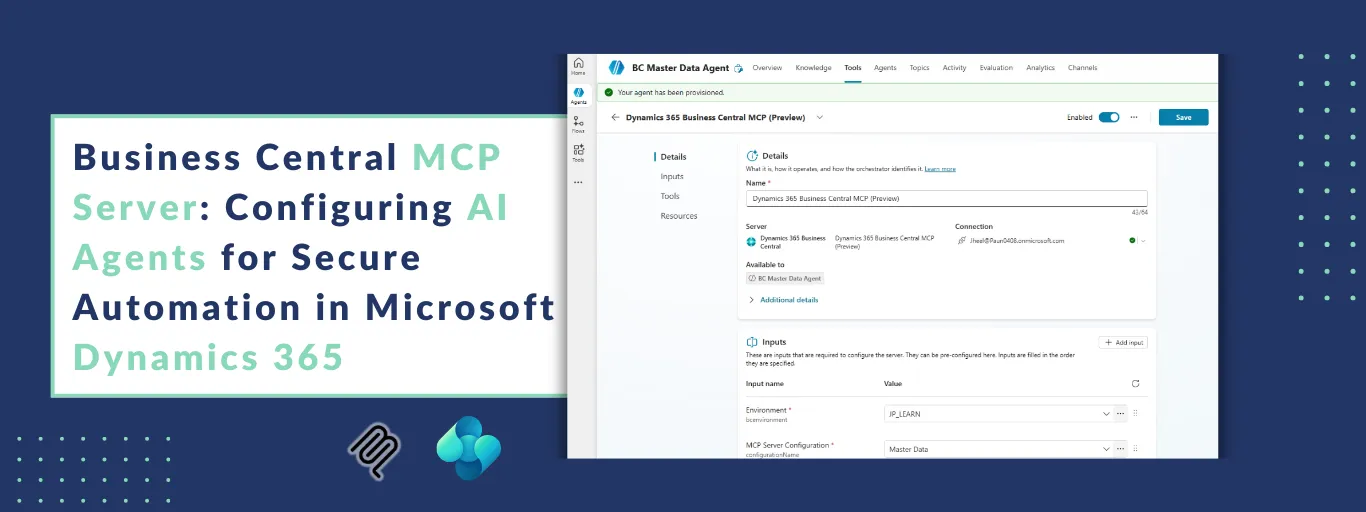

Configure Business Central MCP Server
Business Central provides a Model Context Protocol (MCP) server that allows AI agents to securely connect to environments and execute structured interactions and operational tasks.
Configuration Overview
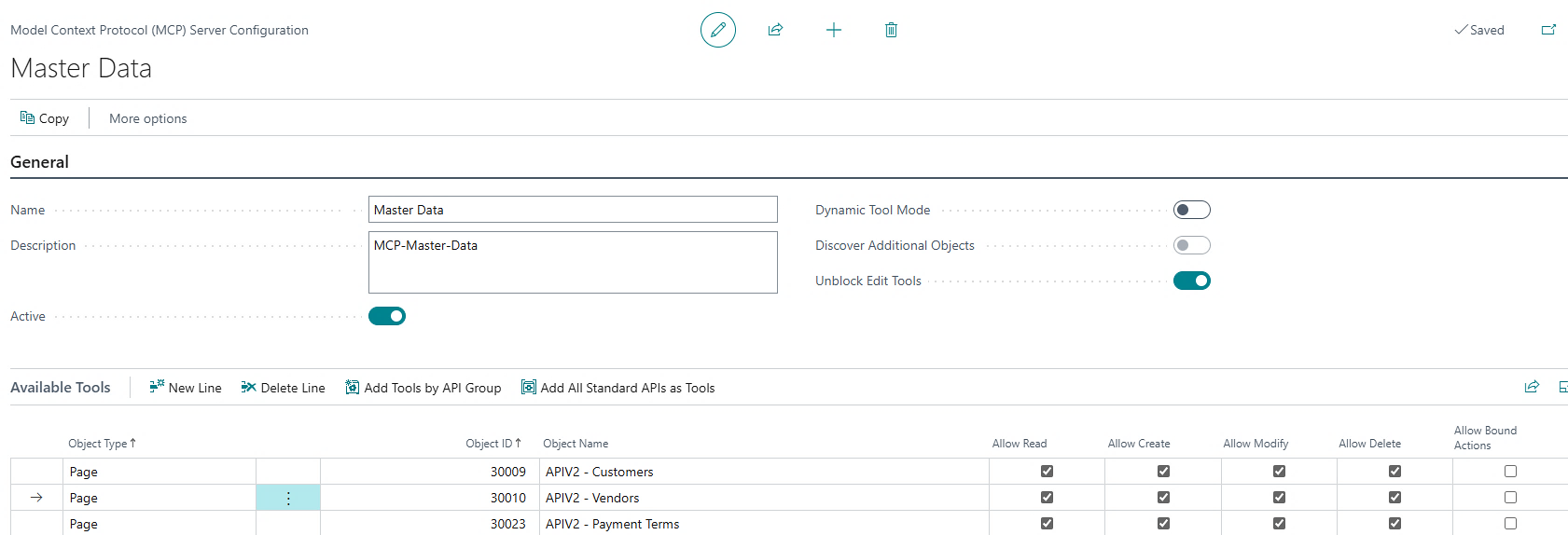
By default, the MCP Server provides agents with read-only access to the Business Central API pages that are exposed.
If agents need to create, update, or delete records, those permissions must be explicitly enabled in the MCP Server configuration.
Configuring the Business Central MCP Server involves:
- Adding specific API page objects to a configuration
- Defining which operations are allowed (Read, Insert, Modify, Delete)
Only the operations you configure will be available to the connected agents, ensuring controlled and secure access to your data.
Create agents in Copilot Studio that connect to Business Central
Copilot Studio is used to build AI agents that interact with Business Central.
For agent-based scenarios, integration is done through the Business Central MCP (Model Context Protocol) Server.
The MCP Server allows agents to securely connect to Business Central and interact with approved API pages. Agents can read data, create or update records, and trigger business actions while Business Central enforces standard validations and business logic.
In short, MCP acts as the secure bridge that enables AI agents to automate tasks inside Business Central.
Create Agents Using the Business Central Connector
Agents can use Business Central connector actions, such as Create Record or List Companies, by adding them as tools within Copilot Studio. Tools act as integration components that allow the agent to interact with external systems, in this case, Business Central.
For example, if a user needs an agent to list, create, or update items in Business Central, the agent must include the Find Records, Create Record, and Update Record actions as tools. These tools enable the agent to perform the required operations based on the user’s request.
Exercise: Build an Agent to Create Customer and Vendor
Objective:
Create an agent that generates Customer and Vendor records in Business Central with predefined values:
- Posting Group: Domestic/Foreign
- Customer/Vendor Posting Group: Domestic/Foreign
- Gen. Business Posting Group: Domestic/Foreign
- Payment Term: 30 Days
Sign in and Create Agent
- Sign in to Copilot Studio.
- Select Create → New agent.
- Choose Blank agent.
- Provide a name (example: BC Master Data Agent).
- Create the agent.
This agent will serve as the interface between users and Business Central MCP Server, enabling controlled master data creation.

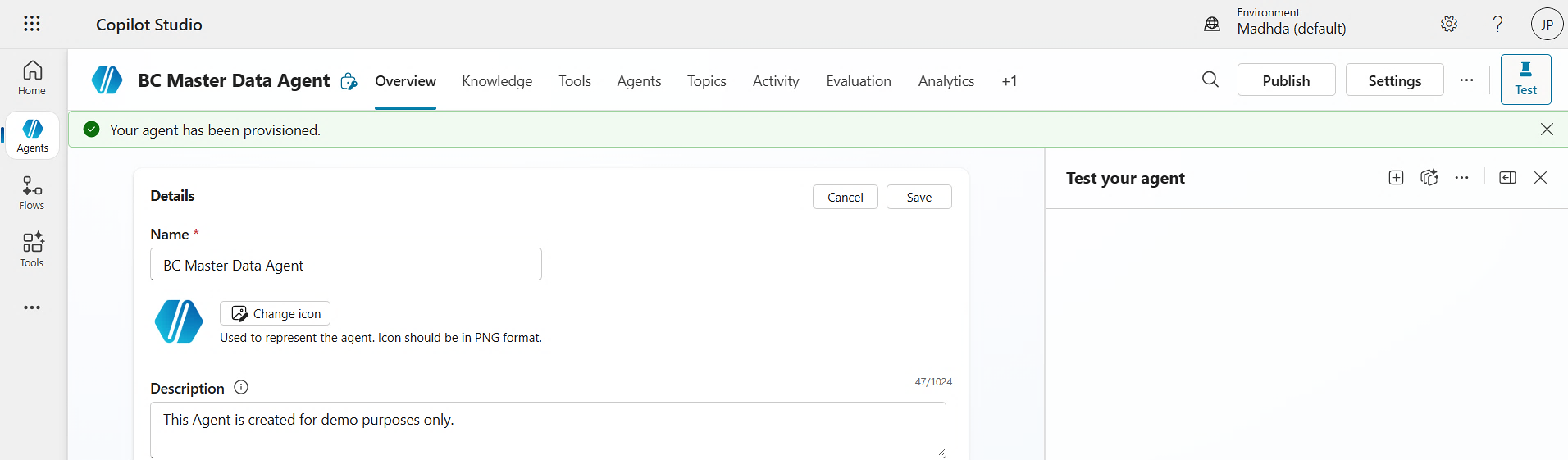
Add the MCP Tool to the Agent
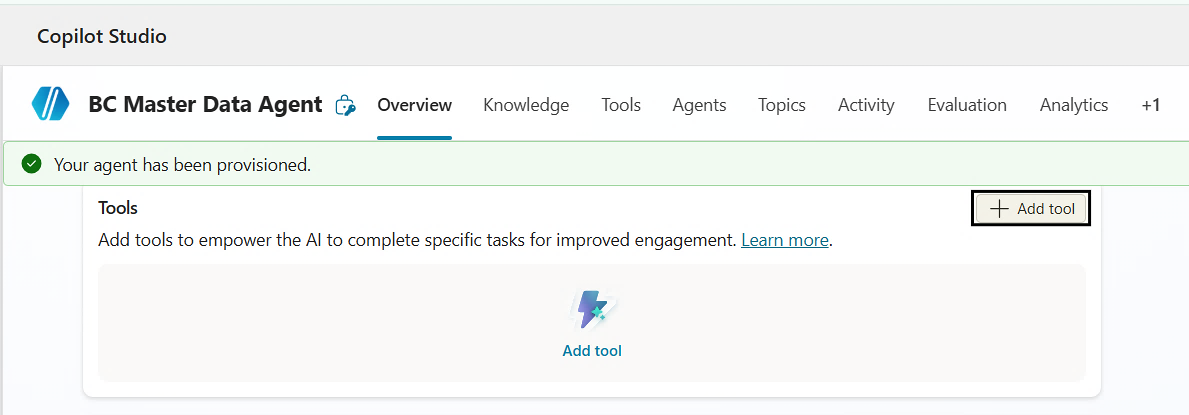
Within the agent configuration page:
- Navigate to the Tools section.
- Select Add a tool to connect to an external system.
This step establishes the connection between the agent and Business Central.
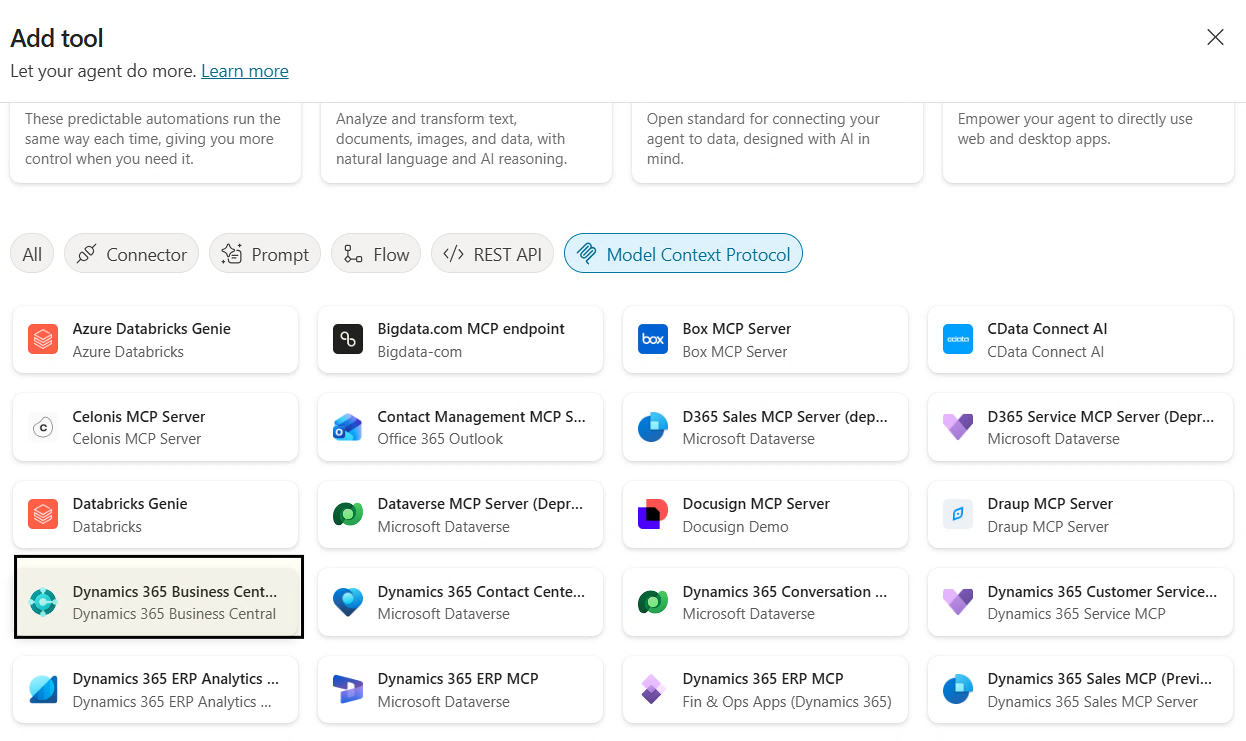
Select Business Central MCP Tool
From the available tools list: Choose Dynamics 365 Business Central MCP Server (Preview).
This enables MCP-based communication, allowing the agent to securely interact with Business Central APIs for customer and vendor creation.
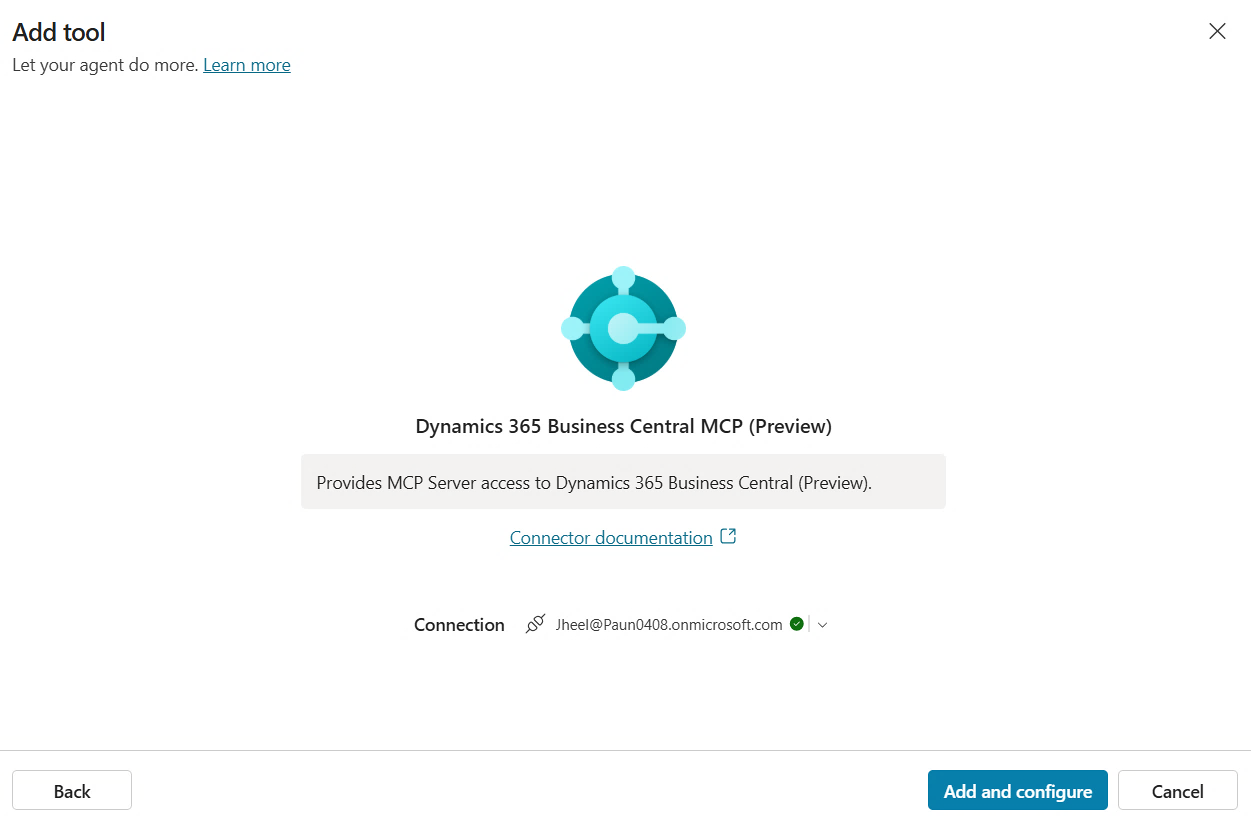
After adding the tool, configure the connection settings:
- Select the appropriate Business Central environment.
- Select the previously created MCP Server configuration.
- Choose the relevant Company.
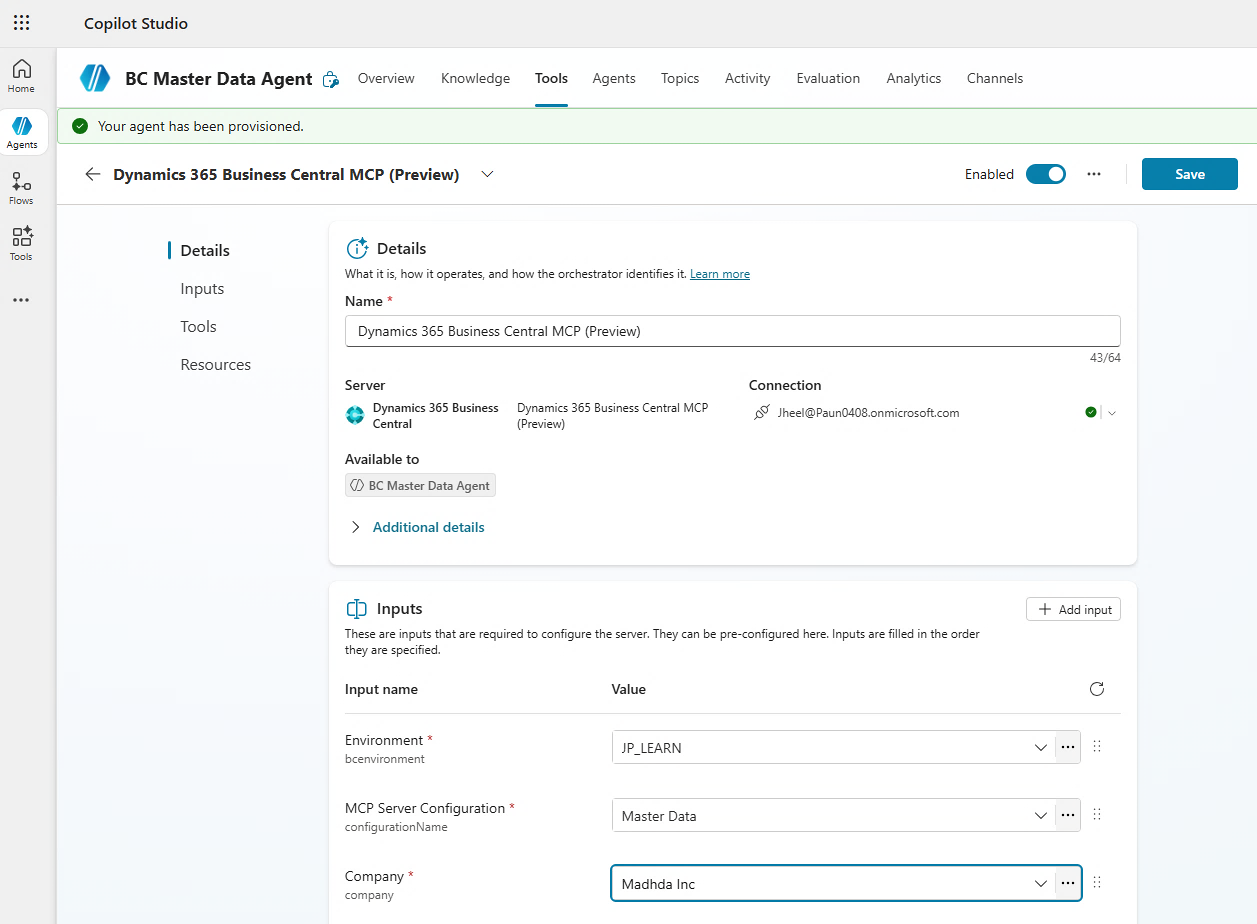
Click on ‘Save’. These settings establish the connection context and associate the agent with the correct Business Central environment and configuration.
Note – Refresh MCP Tools After configuration, select Refresh in the Tools section to synchronize the available MCP tools and APIs based on the selected configuration. This ensures the agent recognizes all exposed Business Central capabilities.
Test the Agent
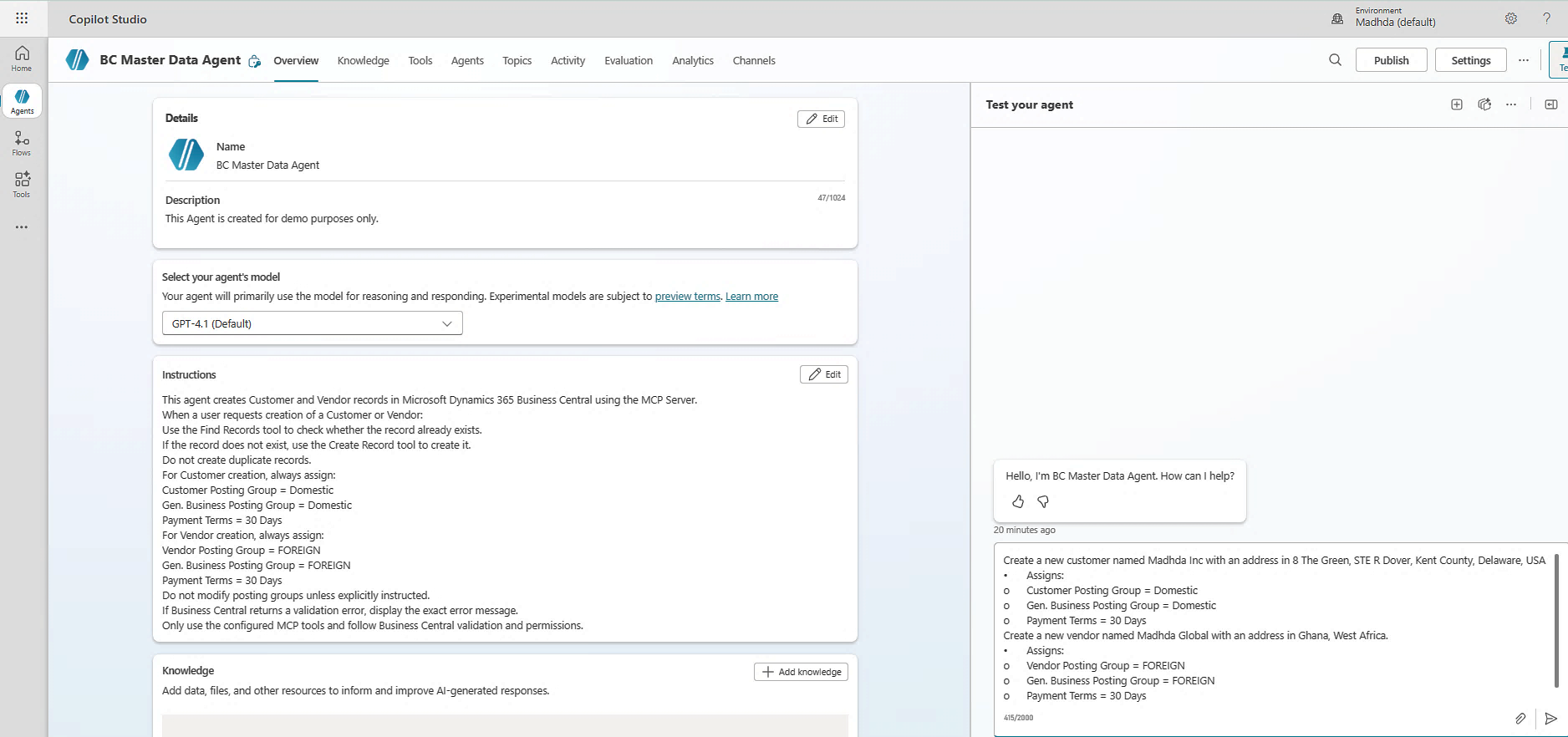
Test the agent using natural language prompts to verify that the MCP connection and tool configuration are working correctly.
Use simple operational requests to confirm record retrieval and creation.
Customer Creation Test
Create a new customer named Madhda Inc with an address in Delaware, USA.
Expected behavior:
- The agent checks if the customer already exists.
- If not found, create the customer.
- Returns a confirmation message.
Vendor Creation Test
Create a new vendor named Madhda Global with an address in Ghana, West Africa.
Expected behavior:
- The agent checks if the vendor already exists.
- If not found, create the vendor.
- Returns a confirmation message.
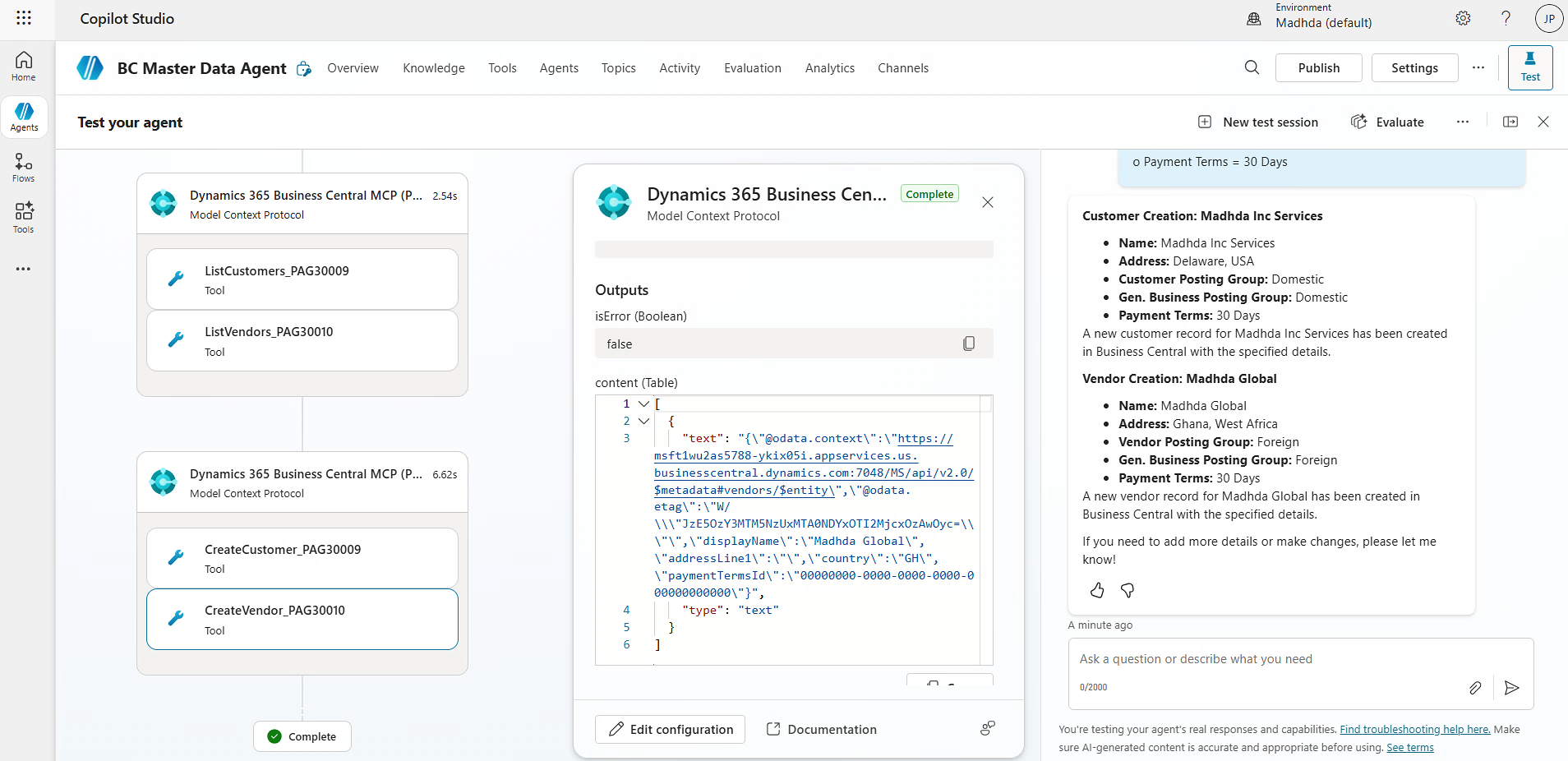
View Agent Output
The agent returns real-time execution results directly from Business Central, including confirmation of Customer and Vendor creation.
The response reflects standard Business Central validation, posting setup enforcement, and server-side business logic.
This confirms successful end-to-end integration between Copilot Studio and Microsoft Dynamics 365 Business Central MCP Server, including secure tool invocation, API execution, and structured response handling.
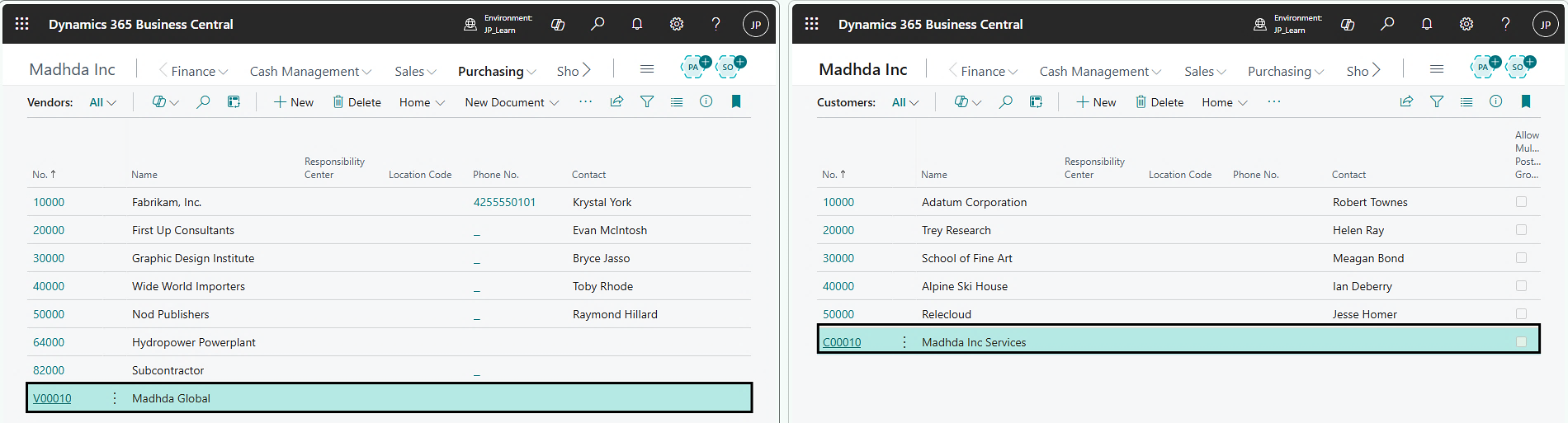
Conclusion
This demo shows how Copilot Studio connects to Microsoft Dynamics 365 Business Central using the MCP Server.
In this example, we created Customer and Vendor records to demonstrate how an agent can apply predefined business rules during record creation.
It confirms that AI agents can securely interact with Business Central, execute API actions, and return validated results.
This setup can be expanded further to support more advanced automation scenarios as needed.
Follow Madhda Inc for more practical insights and Business Central tips.