 LinkedIn
  You-tube

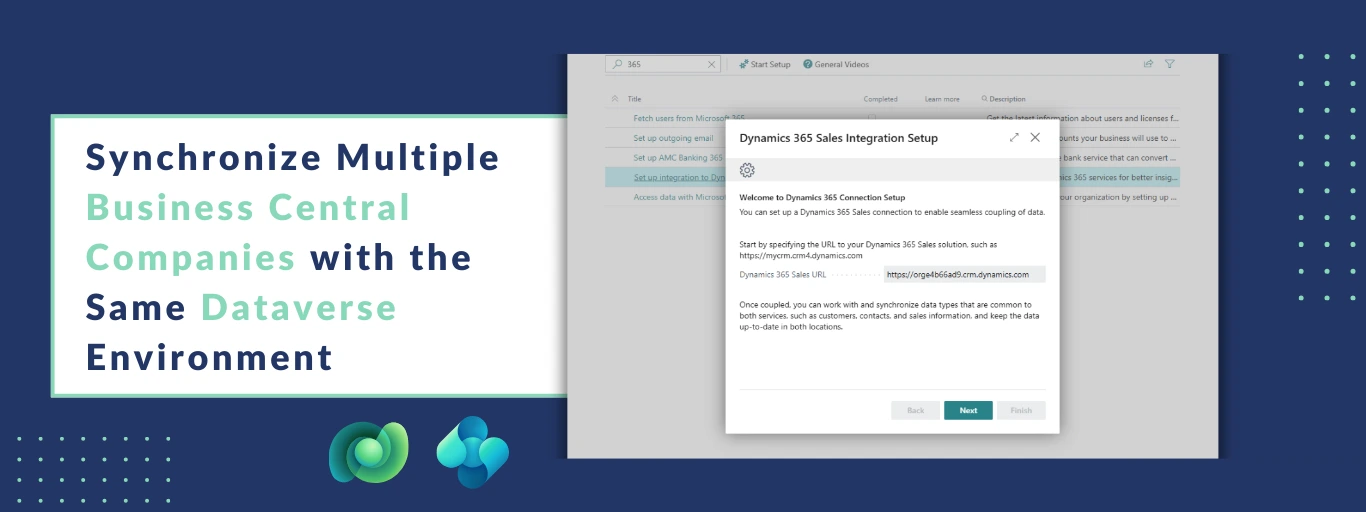

A Practical Guide to Multi-Company Integration in Dynamics 365 Business Central
Managing multiple legal entities in Business Central often means dealing with duplicate customer records, disconnected sales data, and extra manual work across systems.
If your sales team works in Dynamics 365 Sales (Dataverse) while finance operates in multiple Business Central companies, keeping everything aligned can quickly become complicated.
Microsoft addressed this challenge in Dynamics 365 Business Central 2023 Wave 2 by introducing Multi-Company Synchronization.
This feature allows multiple Business Central companies to connect to the same Dataverse environment and share synchronized data seamlessly – without maintaining separate integrations for each company.
The result?
Less duplication. Better consistency. Cleaner operations.
Let’s break down how it works and how you can set it up correctly.
What is Multi-Company Synchronization?
Multi-Company Synchronization allows multiple Business Central companies to connect to a single Dataverse (Dynamics 365 Sales/CRM) environment and share the same integration mappings.
Instead of:
- Maintaining separate connections
- Managing duplicate accounts or contacts
- Syncing records manually
You can now centralize data and automatically sync it across companies.
For example:
If a new customer is created in Dynamics 365 Sales, it can automatically appear in:
- Company IN01
- Company US01
- Or any other connected Business Central company
This keeps both your sales and finance teams working with the same, up-to-date information.
Why This Matters for Growing Businesses
For companies operating across regions or subsidiaries, this feature delivers immediate benefits:
- Eliminates duplicate master data
- Reduces manual data entry
- Improves reporting accuracy
- Ensures consistent customer records
- Saves admin and IT effort
- Keeps sales and finance aligned
Simply put, you maintain one source of truth across the organization.
How Multi-Company Sync Works
Once enabled at the table mapping level:
What changes:
- Company filters are removed from user/team-owned tables (Account, Contact, etc.)
- These records become available across all connected companies
- Data can flow into multiple companies automatically
What stays the same:
- Organization-owned tables (like Currency) are not affected
Important note:
Sales documents such as quotes and orders require you to explicitly select the target company to avoid posting in the wrong entity.
This ensures control while still allowing shared master data.
Step-by-Step Implementation Guide
Below is a practical setup process you can follow inside Business Central.
Step 1 — Configure the Integration in Each Company
Start by connecting each Business Central company to the same Dataverse environment.
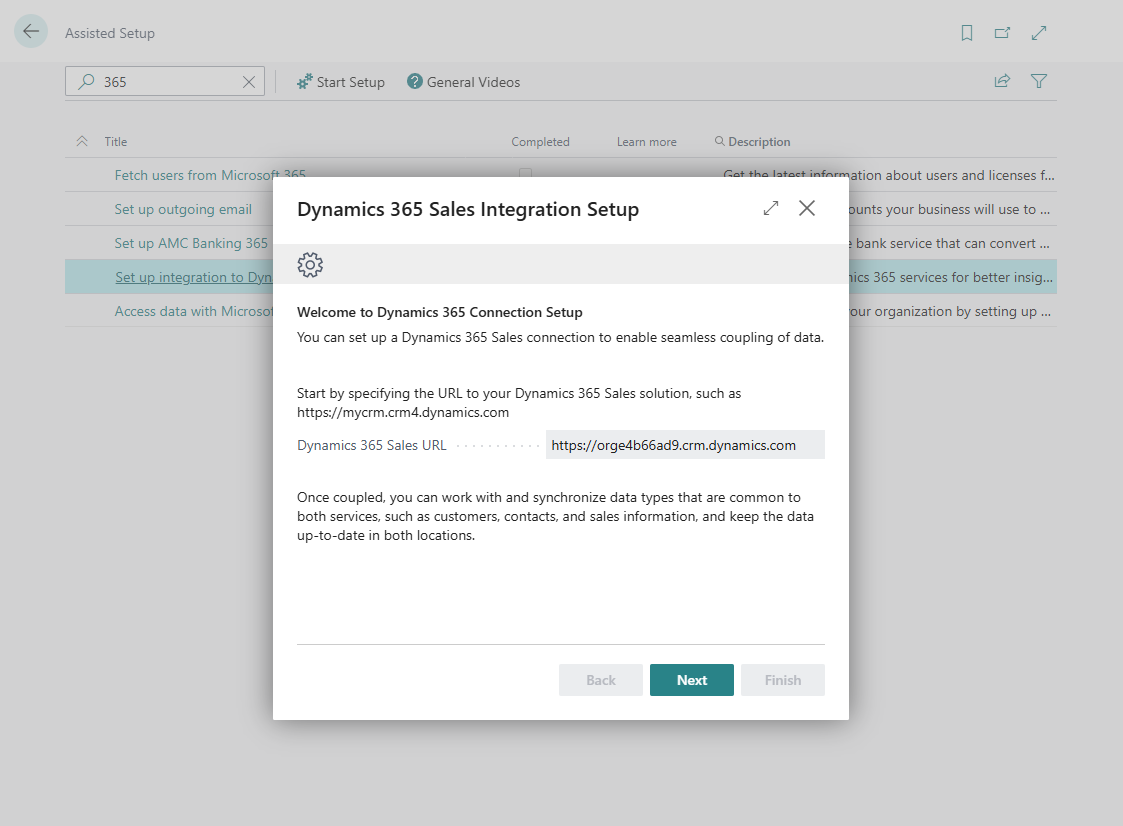
In Company 1 (example: IN01)
- Open Dynamics 365 Sales Integration Setup
- Choose Set up connection
- Sign in and connect to your Dataverse/Dynamics 365 Sales environment
- Complete the integration wizard
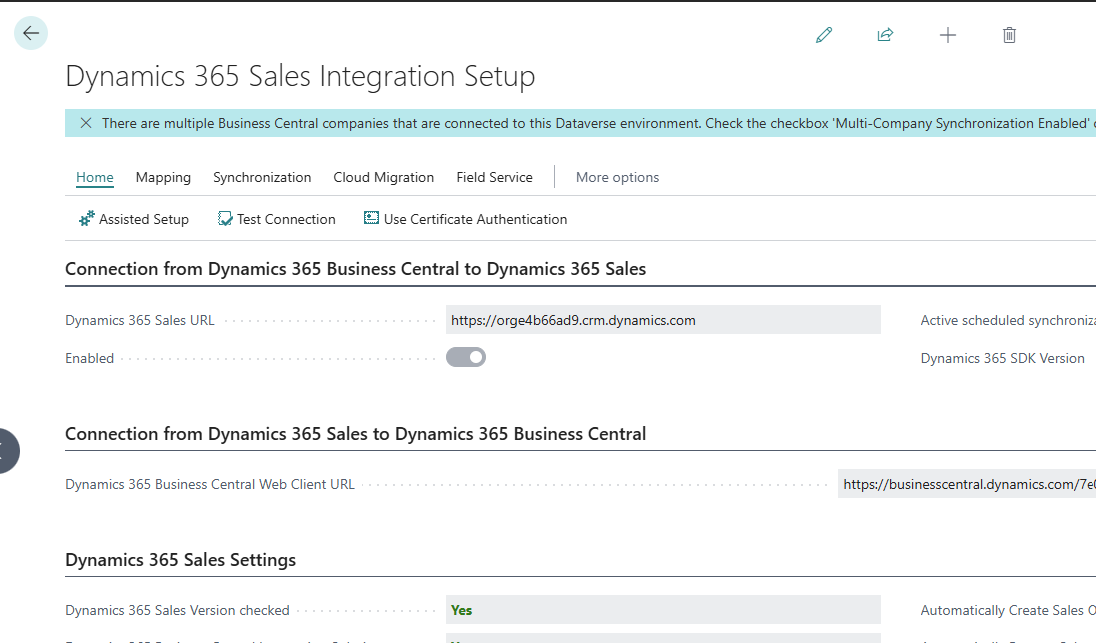
In Company 2 (example: US01)
- Switch to the second company
- Open Dynamics 365 Sales Integration Setup
- Select Use Existing Connection
- Choose the same Dataverse environment
At this stage, both companies are connected to the same CRM system.
Step 2 — Enable Multi-Company Synchronization in Table Mappings
Now you decide which tables should sync across companies.
- Search Integration Table Mappings
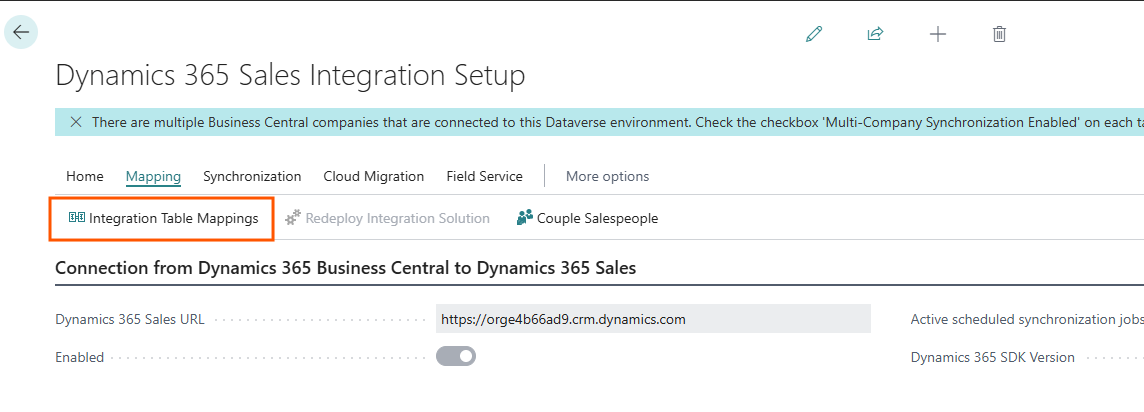
- Open the mapping you want (for example: Customer ↔ Account)
- Enable Multi-Company Synchronization
- Repeat for each relevant table
- Ensure it is enabled in all connected companies
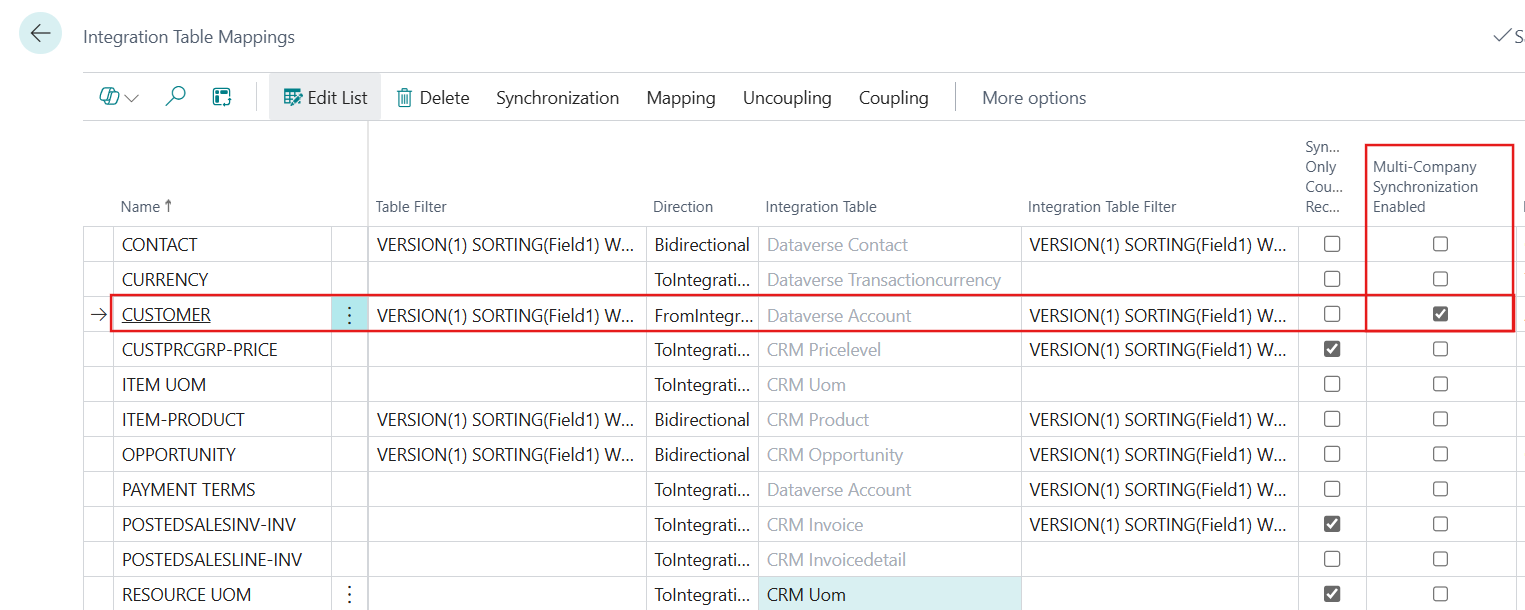
Recommended tables to enable:
- Customer / Account
- Contact
- Vendors (if required)
- Items (if shared)
Avoid enabling for transactional tables unless necessary.
Tip: Start small. Test with master data first before expanding.
Step 3 — Test the Setup
Testing is critical before going live.
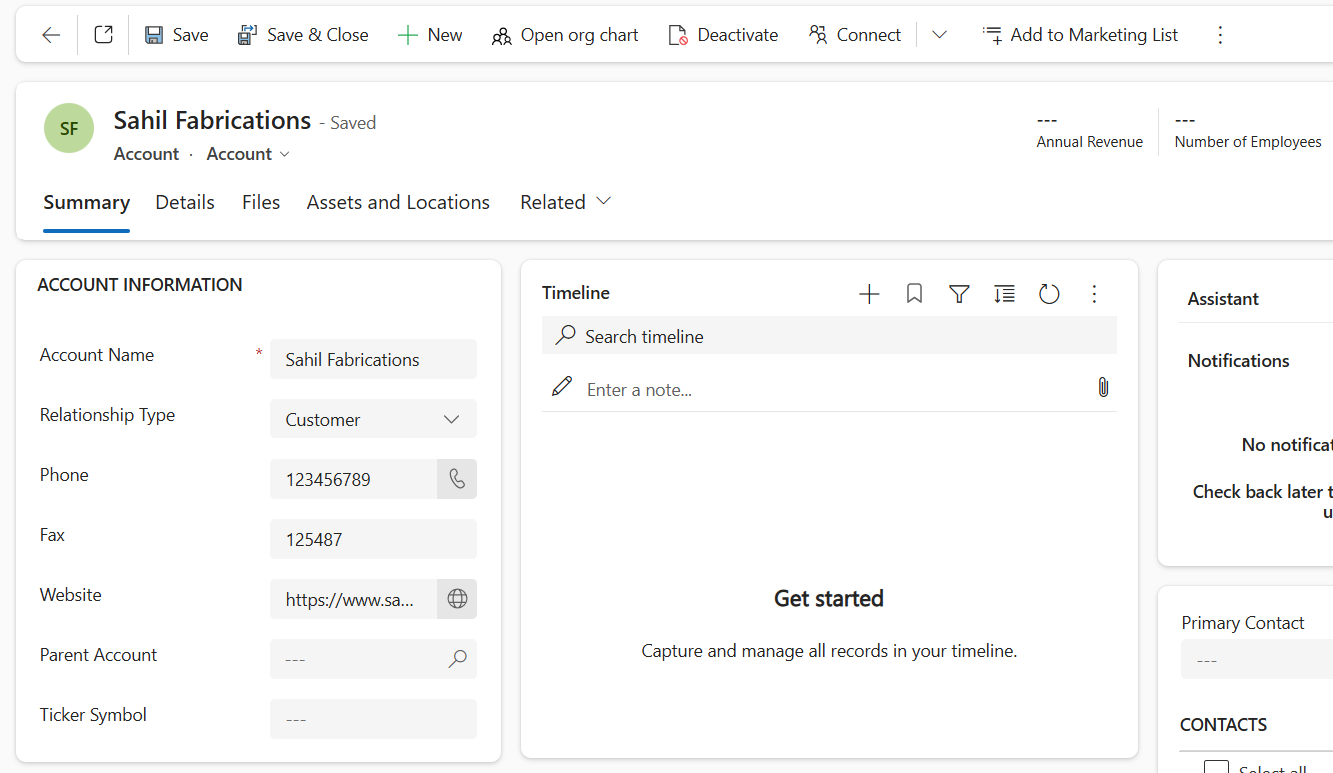
Example test scenario:
- Create a new Account/Customer in Dynamics 365 Sales
- Wait for synchronization
- Open both Business Central companies
- Verify the record appears in each company
If configured correctly, the same customer should exist in both.
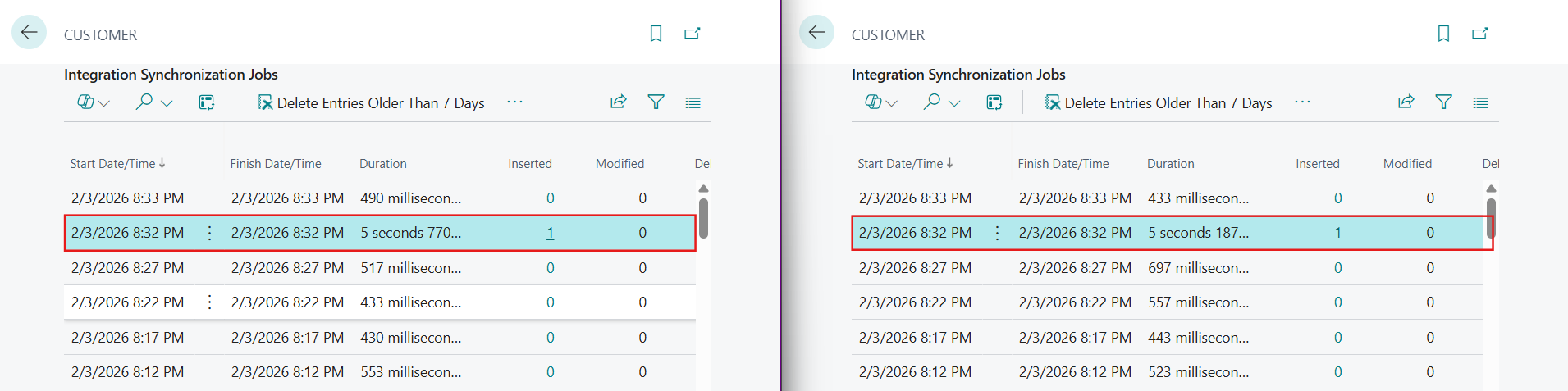

Also test:
- Updates
- Modifications
- Error logs
This ensures reliability before production use.
Best Practices to Follow
From real-world implementations, here are some recommendations:
✔ Start with master data only
Sync customers, contacts, and items first.
✔ Be selective
Not every table needs multi-company sync.
✔ Train users on company selection
Especially for sales documents.
✔ Monitor synchronization jobs
Check logs regularly to avoid silent failures.
✔ Test in sandbox first
Never enable directly in production.
When Should You Use This Feature?
Multi-Company Synchronization is ideal if:
- You operate multiple legal entities
- Sales uses CRM while finance uses Business Central
- You want shared customer data
- You want to avoid duplicate records
- You need consolidated reporting
If your companies operate independently with completely separate data, you may not need it.
Managing multiple Business Central companies doesn’t have to mean managing multiple versions of the same data.
With Multi-Company Synchronization, you can connect everything to one Dataverse environment and keep records aligned automatically.
Less duplication.
Less manual effort.
More control.
That’s exactly how modern ERP + CRM integration should work.
Need help setting up Business Central integrations?
At Madhda Inc, we help businesses design, implement, and optimize Microsoft Dynamics 365 Business Central and CRM integrations for smoother operations and better visibility.
Follow Madhda Inc for more practical insights and Business Central tips.