 LinkedIn
  You-tube


Overview: Why Data Protection Matters in Cloud ERP
When organizations migrate financial and operational data to the cloud, one of the most critical and often most misunderstood areas is data backup and recovery. In Microsoft Dynamics 365 Business Central Online (SaaS), Microsoft shoulders the responsibility of infrastructure, database management, and continuous data protection as part of the platform contract.
Business Central Online runs on Microsoft Azure, leveraging Azure SQL Database’s enterprise-grade data protection features. Understanding precisely how this works empowers administrators, CFOs, and IT decision-makers to evaluate risk, meet audit requirements, and confidently answer: ‘What happens to our data if something goes wrong?’
99.9%
UPTIME SLA
Microsoft’s guaranteed availability for Business Central Online
28
DAYS RETENTION
Automated backup retention for production environments
~5 min
BACKUP GRANULARITY
Transaction log backups capture changes every ~5 minutes
3×
DATA REDUNDANCY
Azure stores three synchronous replicas of every backup
Important Distinction: Business Central Online (SaaS) backup is fully managed by Microsoft and cannot be disabled, paused, or modified by tenant administrators. This guide covers the SaaS offering specifically not Business Central On-Premises, where backup responsibility lies entirely with the customer’s IT team.
The Backup Process: How It Works Under the Hood
Business Central Online databases are hosted in Azure SQL Database, which implements a layered, automated backup strategy. Backups are not initiated by users or administrators they occur continuously and automatically at the infrastructure level.
Three Types of Automated Backups
1. Full Backups
A complete snapshot of the entire database is captured once per week. These form the foundation of the restore chain and capture everything: tables, stored procedures, configuration, master data, and transactional data.
2. Differential Backups
Every 12–24 hours, Azure captures all changes made since the last full backup. These allow faster restores than replaying all transaction logs, significantly reducing Recovery Time Objective (RTO).
3. Transaction Log Backups
The most granular tier transaction logs are captured approximately every 5 to 12 minutes. These enable point-in-time restore (PITR) to any moment within the retention window, minimizing Recovery Point Objective (RPO).
How These Layers Work Together
To restore a database to a specific point in time — say, Tuesday at 14:37 — Azure SQL Database uses all three backup types in combination: the most recent full backup as the baseline, the relevant differential backup to advance the state efficiently, and then the transaction log backups to replay changes up to the precise requested moment. This three-tier chain enables both fast restores and highly granular recovery windows.
// Conceptual restore chain for point-in-time recovery
RESTORE DATABASE [BC_Production]
FROM AzureBlob ‘FullBackup_2025-05-11_00:00’ // Step 1
WITH NORECOVERY;
RESTORE DATABASE [BC_Production]
FROM AzureBlob ‘DiffBackup_2025-05-13_12:00’ // Step 2
WITH NORECOVERY;
RESTORE LOG [BC_Production]
FROM AzureBlob ‘LogBackup_2025-05-13_14:35’ // Step 3
WITH STOPAT = ‘2025-05-13 14:37:00’, RECOVERY;
Additional Database Protection Features
- Geo-Redundant Storage (GRS): Backup files are replicated to a geographically distant Azure region by default, ensuring survival of a full regional Azure outage.
- Transparent Data Encryption (TDE): All database files and backups are encrypted at rest using AES-256. Keys are managed by Microsoft in Azure Key Vault.
- SQL Threat Detection: Azure monitors for anomalous database activities and alerts Microsoft operations teams automatically.
- Active Geo-Replication: Business Central always uses read replicas in secondary Azure regions for additional data durability.
- Soft Delete Protection: Deleted environments are retained in a recoverable state for a configurable period before permanent deletion.
Zero Configuration Required: All backups happen automatically, invisibly, and continuously. Microsoft engineers monitor backup health, storage quotas, replication status, and restore readiness 24/7/365 — not your IT team.
Backup Frequency: Always On, Always Current
Business Central Online’s backup architecture is continuous and automated there is no backup window, no scheduled downtime, and no risk of missing a backup due to administrator oversight.
Backup Schedule Summary:
Every ~5–12 Minutes — Transaction Log Backup
Captures all committed database transactions. This is the heartbeat of your data protection ensuring that at worst, only a few minutes of activity would be lost in a catastrophic failure scenario.
Every 12–24 Hours — Differential Backup
Captures all data changed since the last full backup. Differential backups are automatically compressed and encrypted before being written to Azure Blob Storage.
Once Per Week — Full Database Backup
A complete, encrypted snapshot of the entire Business Central database. This resets the differential baseline and forms a fresh foundation for the restore chain.
On-Demand — Admin-Initiated Backup (Manual)
From the Business Central Admin Center, administrators can initiate manual backups of any environment at any time. This is particularly useful before major updates, configuration changes, or custom development deployments.
Sandbox vs. Production
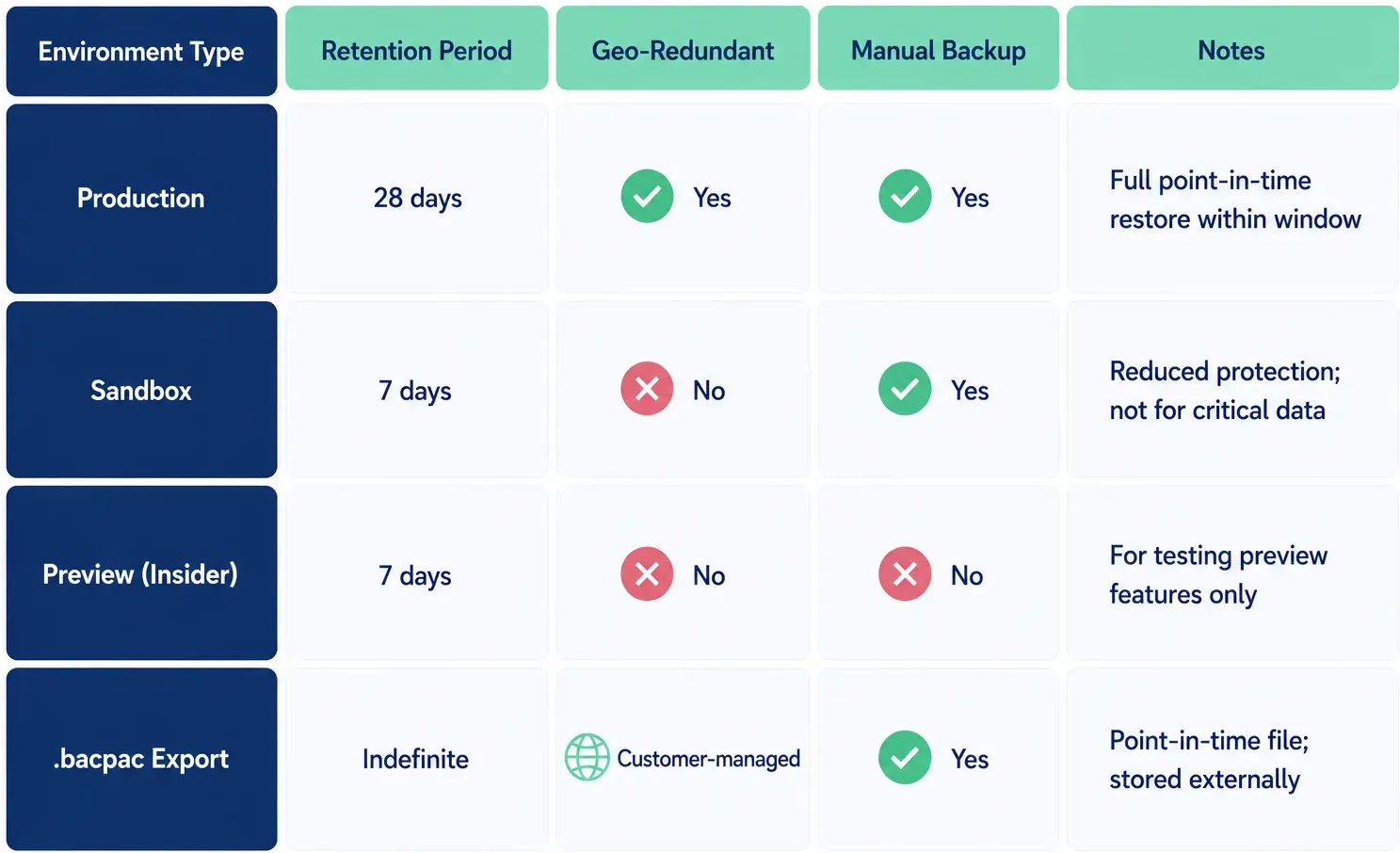
Sandbox environments have a reduced backup retention period (7 days) compared to production (28 days). Sandboxes also do not have geo-redundant replication by default. Factor this in when using sandboxes for critical testing work.
Storage Location: Azure-Powered, Geographically Distributed
Business Central Online backup data is stored entirely within Microsoft Azure infrastructure, using Azure Blob Storage with Geo-Redundant Storage (GRS) replication. The physical location aligns with the Azure region where your Business Central tenant was provisioned.
Storage Architecture:-
1. Primary Region Storage
Backup files are written to Azure Blob Storage in your tenant’s primary Azure region (e.g., West Europe for EU customers, East US for North American customers). Three synchronous copies are maintained.
2. Paired Region Replication
Azure automatically replicates all GRS backup data to a paired Azure region hundreds of miles away protecting against entire-region failures.
3. Encryption at Rest
All backup data is encrypted using AES-256 before writing to Azure Blob Storage. Microsoft manages encryption keys in Azure Key Vault using hardware security modules (HSMs).
4. Data Residency Compliance
For customers with GDPR, AU Privacy Act, or other sovereignty requirements, Microsoft ensures backup data stays within approved geographic boundaries.
What You Cannot Access (and Why That’s Actually Fine)
Unlike on-premises SQL Server backups, administrators cannot directly access, download, or export the raw Azure backup files. This is by design the backup files are part of Microsoft’s internal infrastructure layer. What administrators can do is:
- Initiate a point-in-time restore to a new environment via the Admin Center.
- Copy environments (effectively a “restore” into a new sandbox or production slot).
- Export a full database backup as a.bacpac file from the Admin Center for external archiving or compliance purposes.
- Export data to external systems via APIs, data export, or tools like Azure Data Factory for additional backup layers
Exporting Data: The .bacpac Option
Administrators cannot directly download raw Azure backup files they are part of Microsoft’s internal infrastructure layer. However, Business Central Admin Center allows export of a full . bacpac (SQL Server Data-Tier Application) file at any time. This can be stored on-premises or in your own Azure storage for external archiving or compliance purposes.
Retention Period: How Far Back Can You Go?
Backup files older than the retention period are automatically purged by Microsoft. Organizations with extended regulatory requirements (5–10 year financial records) should supplement automated backups with periodic .bacpac exports stored in their own long-term archival systems.
What Happens at the Retention Boundary?
Backup files older than the retention period are automatically purged by Microsoft. There is no mechanism to extend the retention period beyond 28 days for production environments within the standard SaaS offering. Organizations with extended regulatory retention requirements (e.g., 7-year financial records) should supplement automated backups with periodic .bacpac exports stored in their own long-term archival storage.
Restore Process: Getting Back on Your Feet
Microsoft provides a straightforward restore mechanism through the Business Central Admin Center. Administrators can restore a production or sandbox environment to any point within the retention window no need to contact Microsoft Support for standard restores.
Step-by-Step: Restoring an Environment
1. Access the Business Central Admin Center
Navigate to admin.businesscentral.dynamics.com and sign in with a Global Administrator or Dynamics 365 BC Administrator account. Navigate to Environments in the left panel.
2. Select the Target Environment
Click on the production or sandbox environment you want to restore. You’ll see environment details including region, application version, and status.
3. Initiate Restore
Click Restore in the environment actions menu. Business Central will display the available restore window based on the environment type (up to 28 days for production).
4. Select Point in Time
Choose a specific date and time within the retention window. The UI shows a calendar picker and time selector. Note that this is a point-in-time restore all changes after this moment will not be in the restored environment.
5. Choose Restore Target
Critically, Business Central restores to a new environment slot, not in-place over the existing live environment. You’ll name the new environment (e.g., “Production-Restored-May13”). This protects your current live data during the recovery evaluation process.
6. Monitor Restore Progress
The Admin Center shows restore status in real time. Typical restore time for a small-to-medium Business Central environment is 15 to 60 minutes, depending on database size and restore point distance.
7. Validate and Cut Over
Once restored, validate the recovered environment check records, run reports, test key processes. If satisfied, you can rename environments, adjust user access, and communicate the switch to your team. The original environment remains available until you delete it.
Restore Use Case Scenarios
1. Accidental Data Entry Errors
A user posted incorrect journal entries for an entire period. Restore to the point before the posting, validate the recovered environment, extract the pre-error state, and repost correctly.
2. Problematic Customization Deployment
A new extension or configuration change caused data corruption. Restore to a point before the deployment, giving you a clean baseline to diagnose and fix before redeploying.
3. Regulatory Audit Requests
An auditor needs to see the exact state of your books as of a specific historic date. Restore to that date into a sandbox environment for read-only audit review.
4. Security Incident Recovery
Ransomware or unauthorized data manipulation detected. Immediately restore to a known-good point before the incident, then investigate the breach timeline separately.
Admin Tools & Additional Features
Business Central Admin Center
The Business Central Admin Center (admin.businesscentral.dynamics.com) is the central hub for all backup and restore operations. Key capabilities include:
- View all environments across your tenant with status, version, and region.
- Initiatemanual backupof any environment at any time (creates a restore point immediately).
- Performpoint-in-time restorewithin the applicable retention window.
- Export environment as a.bacpac filefor external storage or migration.
- Copy an environment to a new sandbox (useful for creating test environments from production data).
- Viewupdate and change historyfor environments, including version upgrades.
- Configurenotification recipientsfor update and operation alerts.
PowerShell & API Automation
Microsoft provides the Business Central Administration API (accessible via the Microsoft Graph API or via the dedicated BC Admin API endpoint) which allows organizations to automate backup and restore operations programmatically. Combined with Azure Automation or Azure DevOps pipelines, teams can build automated pre-deployment backup workflows.
# PowerShell example: Trigger a manual backup via BC Admin API
$tenantId = “your-tenant-id”
$envName = “Production”
$apiBase=“https://api.businesscentral.dynamics.com/admin/v2.21”
$headers=@{ Authorization=“Bearer $accessToken” }
# Initiate point-in-time restore to new environment
Invoke-RestMethod -Method POST \
-Uri “$apiBase/applications/businesscentral/environments/$envName/restoreEnvironment” \
-Headers $headers \
-Body (@{
environmentName=“Production-PreRelease-Backup”
pointInTime=“2025-05-13T08:00:00Z”
} | ConvertTo-Json) \
-ContentType “application/json”
Microsoft 365 Defender & Compliance Center Integration
For organizations on Microsoft 365 E3/E5 or Dynamics 365 with advanced compliance add-ons, Business Central data can be surfaced in the Microsoft Purview Compliance Portal for eDiscovery, audit log retention, and legal hold purposes extending data preservation capabilities beyond the standard 28-day backup window.
Head-to-Head: D365 BC vs. NetSuite vs. QuickBooks Online
When evaluating cloud ERP platforms, backup and data protection are critical and often underweighted selection criteria. Here is a detailed, objective comparison across all three platforms.
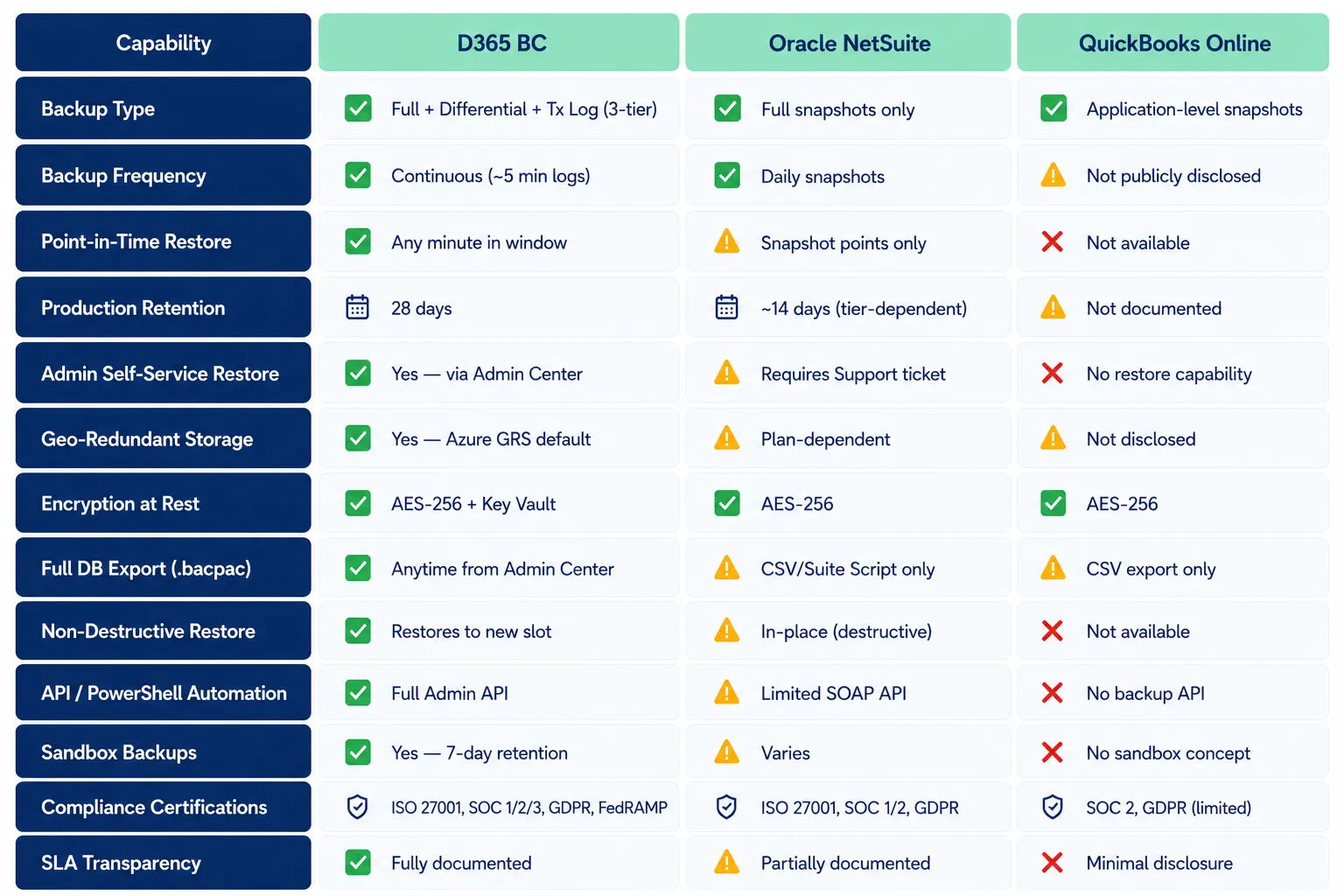
Across every measurable dimension backup granularity, retention window, self-service restore, infrastructure redundancy, and documentation transparency Dynamics 365 Business Central Online is the clear winner.
Where NetSuite Falls Short
NetSuite’s backup relies primarily on daily snapshots rather than continuous transaction log capture. In a failure scenario, up to 24 hours of transactions may be lost, significant for high-volume businesses. Restores require opening a support ticket rather than being self-service, introducing human latency. Retention at the standard tier is around 14 days versus Business Central’s 28.
Where QuickBooks Online Falls Critically Short
QuickBooks Online does not publicly document its backup frequency, retention policy, or RTO/RPO commitments. More critically, QBO offers no customer-facing restore mechanism — if data is corrupted or accidentally deleted, customers are at Intuit’s mercy with no SLA. There is no point-in-time restore, no .bacpac equivalent, and no backup API. For any organization beyond micro-business scale, QBO’s data protection posture represents a meaningful business risk.
Best Practices & Recommendations
Even though Microsoft handles the technical backup infrastructure, Business Central administrators play a vital role in building comprehensive data governance.
1. Create Manual Backups Before Major Changes
Always initiate a manual backup before deploying new extensions, running data migrations, or applying bulk changes. This creates an explicit restore point without relying on the automated schedule.
2. Establish a Regular .bacpac Export Schedule
For long-term regulatory compliance (5–10 years depending on jurisdiction), set up monthly or quarterly .bacpac exports to your own Azure Blob Storage, AWS S3, or on-premises archive.
3. Document Your RTO and RPO
Work with business stakeholders to define your Recovery Time Objective (how long can the business operate without BC?) and Recovery Point Objective (how much data loss is acceptable?). BC’s continuous log backup means RPO can be measured in minutes.
4. Conduct Annual Restore Drills
At least once per year, perform a test restore of your production environment to a sandbox slot. Verify that the restore completes successfully and that your team knows the end-to-end process. Untested backup systems are unreliable backup systems.
5. Monitor Environment Health via Azure App Insights
Business Central’s telemetry integration with Azure Application Insights can surface signals relevant to data integrity unexpected query failures, extension errors, bulk delete operations that might warrant a manual backup or investigation.
6. Understand What Backups Do Not Cover
Backups protect against infrastructure failures and accidental data loss but if a user with appropriate permissions intentionally deletes or manipulates data, that action is faithfully backed up. Complement backup strategy with RBAC, audit logging, and segregation of duties.
7. Consider Third-Party Tools for Granular Recovery
Several Microsoft ISV partners offer Business Central-specific backup tools providing record-level restore, automated exports, cross-environment comparison, and advanced retention management worth evaluating for complex recovery requirements.
Microsoft Dynamics 365 Business Central Online delivers an enterprise-grade, fully managed backup and recovery architecture. The combination of continuous transaction log capture, automated differential and full backups, 28-day retention, geo-redundant Azure storage, AES-256 encryption, and self-service point-in-time restore represents a genuinely strong data protection foundation.
When compared to Oracle NetSuite and QuickBooks Online, Business Central’s offering is measurably superior across granularity, transparency, self-service capability, and infrastructure redundancy. The key responsibility for administrators is building organizational processes around it: pre-change backups, export archives, documented recovery procedures, and annual drills.
Business Central Online’s backup architecture is not a feature you configure. it’s a platform capability that runs continuously, invisibly, and reliably behind every transaction your business posts. The question is not whether your data is being backed up. The question is whether your organization has a tested, documented plan to use that capability when it matters most.
Madhda Inc is a certified Microsoft Dynamics 365 partner helping organizations across the Middle East and beyond implement, migrate, and optimize Business Central with full data protection governance built in from day one.
Our experts bring deep D365 BC expertise in:
- Business Central Implementation Go-Live
- Data Migration & Backup Strategy Design
- Customization, Integration & Extension Development
- Ongoing Support, Training & Optimization