 LinkedIn
  You-tube

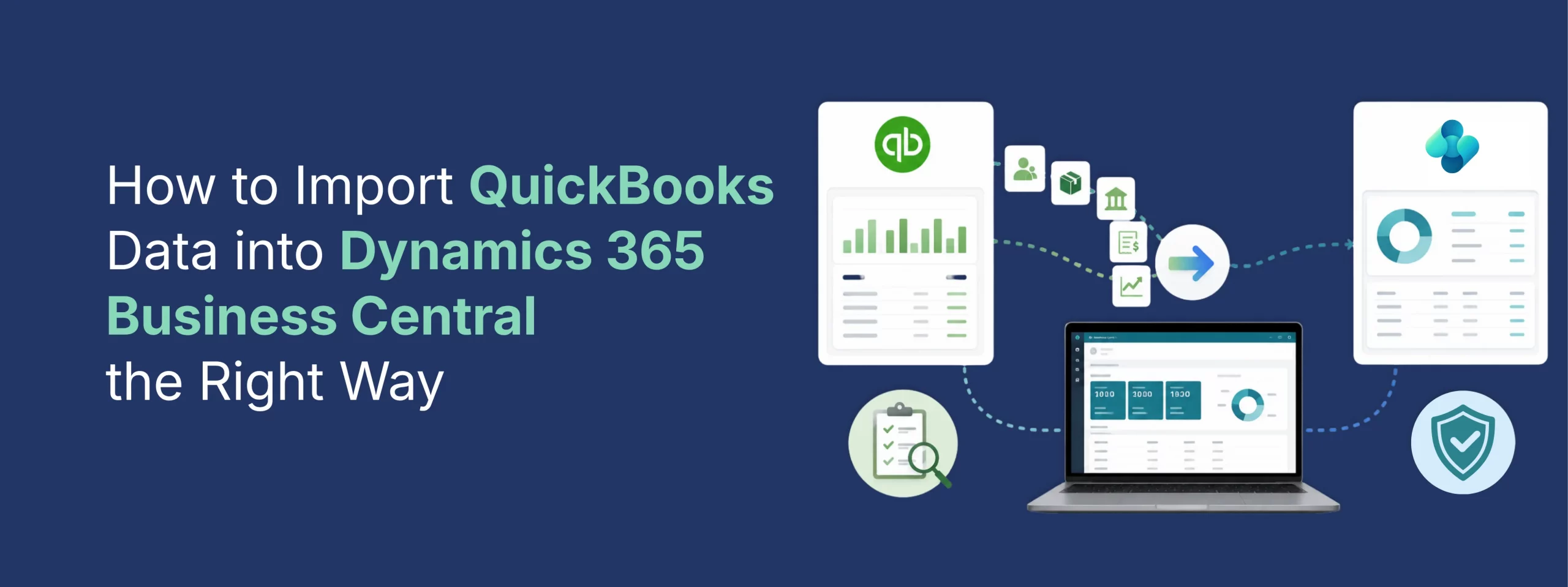

Your business started on QuickBooks and it served you well. But somewhere between your fifth Excel work around, your third “company file too large” warning, and your finance team manually reconciling inventory against a separate system, you realized it’s time for a real ERP.
Dynamics 365 Business Central is the natural next step for growing businesses outgrowing QuickBooks. It unifies finance, inventory, sales, purchasing, projects, and reporting in one cloud platform with the full power of the Microsoft ecosystem (Excel, Power BI, Teams, and Copilot) built in.
But here’s the truth most blogs won’t tell you upfront: the migration itself is where projects succeed or fail. Import your QuickBooks data the wrong way, and you’ll carry years of messy data, duplicate customers, and unreconciled balances into your brand-new ERP. Import it the right way, and you start day one with a clean, trustworthy system.
This guide walks you through exactly how to do it the right way.
Why Businesses Move from QuickBooks to Business Central
Before we get into the “how,” it helps to understand the “why” because your reasons for migrating should shape your migration strategy. Common triggers we see at Madhda:
- You’ve hit QuickBooks’ limits. List limits, file size issues, slow performance with multiple users, or the need for more than basic inventory tracking.
- Too many disconnected systems. Sales in one tool, inventory in another, financials in QuickBooks and Excel holding it all together.
- Multi-entity or multi-currency needs. Consolidations, intercompany transactions, and global operations are painful (or impossible) in QuickBooks.
- Audit and compliance pressure. You need proper approval workflows, dimensions-based reporting, and a real audit trail.
- You want one source of truth. Business Central gives finance, operations, and leadership the same real-time data.
If any of these sound familiar, you’re not just changing accounting software – you’re upgrading how your business runs. Treat the data migration with that level of seriousness.
Decide What “Done” Looks Like Before You Touch Any Data
The single biggest migration mistake? Starting the export before defining the scope. Sit down with your finance lead (and ideally a migration partner) and answer:
- What’s the cutover date? Most businesses migrate at a fiscal year-end or quarter-end. It makes opening balances dramatically cleaner.
- How much history do you actually need? Migrating opening balances plus open transactions is fast and clean. Migrating seven years of transactional history is slow, expensive, and rarely necessary historical reporting can often live in a read-only QuickBooks archive or a data warehouse.
- Who owns data sign-off? Someone must be accountable for confirming that the trial balance in Business Central matches QuickBooks to the penny.
- What will you NOT migrate? Inactive customers, dead SKUs, abandoned projects a migration is the best data cleanup opportunity you’ll ever get. Don’t waste it.
What QuickBooks Data Can (and Should) Be Imported into Business Central
Master Data – Always Migrate
| QuickBooks | Business Central Equivalent |
|---|---|
| Chart of Accounts | G/L Accounts |
| Customers | Customers |
| Vendors / Suppliers | Vendors |
| Items (Products & Services) | Items |
| Employees (basic records) | Employees |
Open Transactions – Migrate
- Open (unpaid) customer invoices → Open A/R entries
- Open (unpaid) vendor bills → Open A/P entries
- On-hand inventory quantities and values → Item journal entries
- G/L opening balances (trial balance) → General journal entries
- Open sales orders and purchase orders (often re-entered or imported, depending on volume)
What Typically Does NOT Migrate Directly
- Full transaction history (paid invoices, old journal entries) – possible, but usually handled as a reporting archive rather than a live import
- Payroll history – Business Central handles payroll via integrated solutions; QuickBooks payroll data stays in QuickBooks or moves to your new payroll provider
- Bank reconciliation history – start fresh from your cutover date
- Memorized transactions, custom templates, attachments – recreated in Business Central, where the equivalents (recurring journals, report layouts, incoming documents) are typically more powerful
Knowing this upfront prevents the most common stakeholder disappointment: expecting Business Central to look like a 1:1 copy of QuickBooks. It won’t and it shouldn’t. It’s a structurally better system.
The Three Ways to Import QuickBooks Data into Business Central
Option 1: The Built-In QuickBooks Data Migration Tool (Assisted Setup)
Business Central ships with a Data Migration assisted setup wizard that includes QuickBooks migration extensions. At a high level:
- In QuickBooks Desktop, export your data using the Intuit Interchange Format / migration export, or connect QuickBooks Online directly.
- In Business Central, search for “Data Migration” in the assisted setup.
- Select the QuickBooks migration option, then upload or connect your data.
- Map your QuickBooks chart of accounts to Business Central G/L accounts.
- Review and run the import for customers, vendors, items, and account balances.
Best for: Very small, clean QuickBooks files with simple charts of accounts and minimal inventory complexity.
Watch out for: The wizard imports what it finds including your messy data. It offers limited transformation, limited control over posting groups and dimensions, and it can struggle with large files, inventory costing differences, and multi-currency. Microsoft has been evolving (and in some regions retiring) parts of this tooling, so always confirm current availability for your QuickBooks version and country before planning around it.
Option 2: Configuration Packages (RapidStart) + Excel
This is the method professionals use most, because it gives full control:
- Export from QuickBooks – pull lists (customers, vendors, items, chart of accounts) and reports (A/R aging, A/P aging, inventory valuation, trial balance) to Excel/CSV.
- Clean and transform in Excel – deduplicate, standardize naming, fix addresses and tax IDs, and assign Business Central posting groups, payment terms, and dimensions.
- Build Configuration Packages in Business Central – define the tables you’re importing (Customer, Vendor, Item, etc.), export the Excel template, and paste in your cleaned data.
- Validate and apply – Business Central validates every field against its business logic before posting, catching errors before they enter your system.
- Import opening balances via journals – trial balance through the General Journal, open invoices/bills through customer and vendor journals (one line per open document so aging is preserved), and inventory through the Item Journal.
You can also use Business Central’s “Edit in Excel” feature for ongoing list maintenance after go-live a huge quality-of-life upgrade over QuickBooks.
Best for: Most real-world migrations. It’s transparent, repeatable, and audit-friendly.
Option 3: Partner-Led Migration with Specialized Tooling
For complex scenarios large files, multiple QuickBooks companies consolidating into one Business Central environment, historical transaction migration, heavy inventory with serial/lot tracking, or integrations (e-commerce, CRM, EDI) a Microsoft partner uses a combination of migration tools, custom data pipelines, and staged test migrations.
Best for: Businesses where the data is the business distributors, manufacturers, multi-entity groups, or anyone who can’t afford a messy cutover. (This is where Madhda lives more on that below.)
The Right Way: A Step-by-Step Migration Process
Here’s the proven sequence we follow on every QuickBooks-to-Business-Central project:
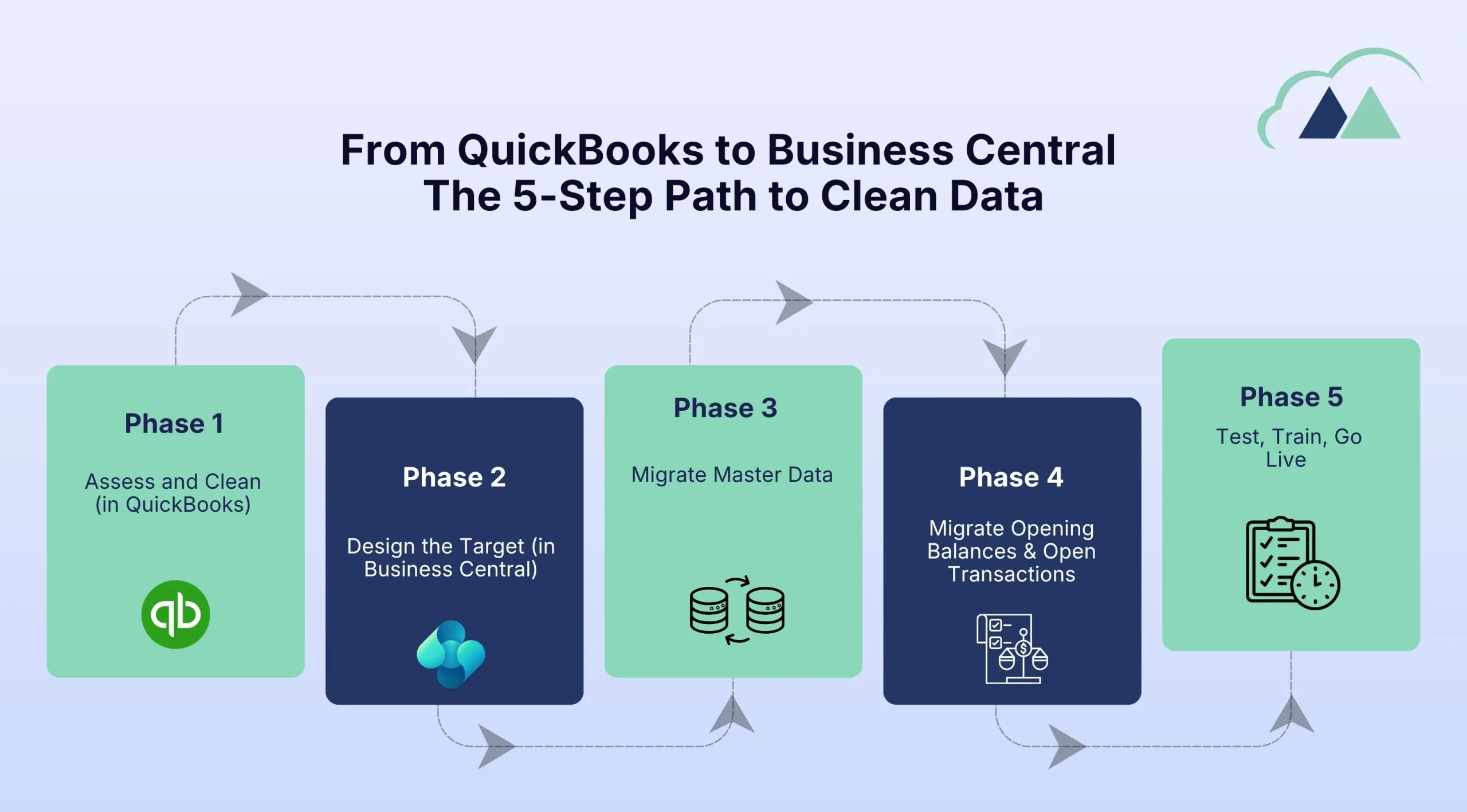
Phase 1: Assess and Clean (in QuickBooks)
- Run the trial balance, A/R aging, A/P aging, and inventory valuation reports these are your “source of truth” snapshots.
- Reconcile bank accounts, clear undeposited funds, and resolve negative inventory.
- Merge duplicate customers/vendors, deactivate dead records, and write off uncollectible balances.
- Close the books through your cutover date.
Golden rule: never migrate dirty data.Cleanup is 10x cheaper before migration than after.
Phase 2: Design the Target (in Business Central)
- Redesign your chart of accounts don’t blindly copy QuickBooks. Business Central’s dimensions (department, project, region, etc.) replace the need for hundreds of sub-accounts and classes. A QuickBooks “class” usually becomes a dimension, not an account.
- Define posting groups (customer, vendor, inventory, tax) these drive automatic G/L posting and are the backbone of Business Central accounting.
- Configure currencies, payment terms, tax setup, and number series.
Phase 3: Migrate Master Data
- Import customers, vendors, items, and G/L accounts via configuration packages.
- Validate counts: 1,240 active customers in QuickBooks should mean 1,240 customers in Business Central. Every variance gets explained.
Phase 4: Migrate Opening Balances and Open Transactions
- Post the trial balance as of the cutover date.
- Import open A/R and A/P as individual entries with original document numbers, dates, and due dates so aging reports match.
- Post inventory quantities and unit costs via the item journal.
- Reconcile: the Business Central trial balance, A/R aging, A/P aging, and inventory value must tie to your QuickBooks snapshots exactly.
Phase 5: Test, Train, Go Live
- Run a trial migration into a sandbox first never a single big-bang import into production.
- Have your finance team process real scenarios: post an invoice, receive a payment, run a bank rec, close a period.
- Train users, freeze QuickBooks entry, perform the final delta migration, and go live.
- Keep QuickBooks accessible in read-only mode for historical reference.
7 Common Pitfalls (and How to Avoid Them)
- Copying the QuickBooks chart of accounts as-is. You’ll miss the entire point of dimensions and end up with a bloated, unreportable G/L.
- Importing lump-sum A/R and A/P balances. One big journal entry kills your aging reports and makes payment application impossible. Always migrate open documents line by line.
- Ignoring inventory costing differences. QuickBooks uses average cost (or FIFO in some editions); Business Central supports FIFO, LIFO, average, standard, and specific. Choose deliberately – it affects your margins from day one.
- Migrating mid-period. Cutting over mid-month means split reporting and painful reconciliation. Align to a period end.
- Skipping the sandbox test migration. The first import always reveals surprises. Make sure those surprises happen in a test environment.
- No reconciliation sign-off. If nobody formally confirms the numbers tie out, discrepancies surface months later during an audit.
- Treating migration as an IT task. It’s a finance project with technical components. Your accountants must be in the room.
How the Madhda Team Helps You Achieve a Clean Data Migration
This is where we stop being a blog and start being useful.
Madhda Inc is a certified Microsoft Solutions Partner specializing in Dynamics 365 Business Central and we’re one of the few partners with deep, hands-on expertise on both sides of this migration. Our BPO division includes certified accountants who work in QuickBooks every single day, and our IT division has delivered 200+ ERP projects, including migrations from QuickBooks, MYOB, Sage, NetSuite, Dynamics GP, and NAV to Business Central.
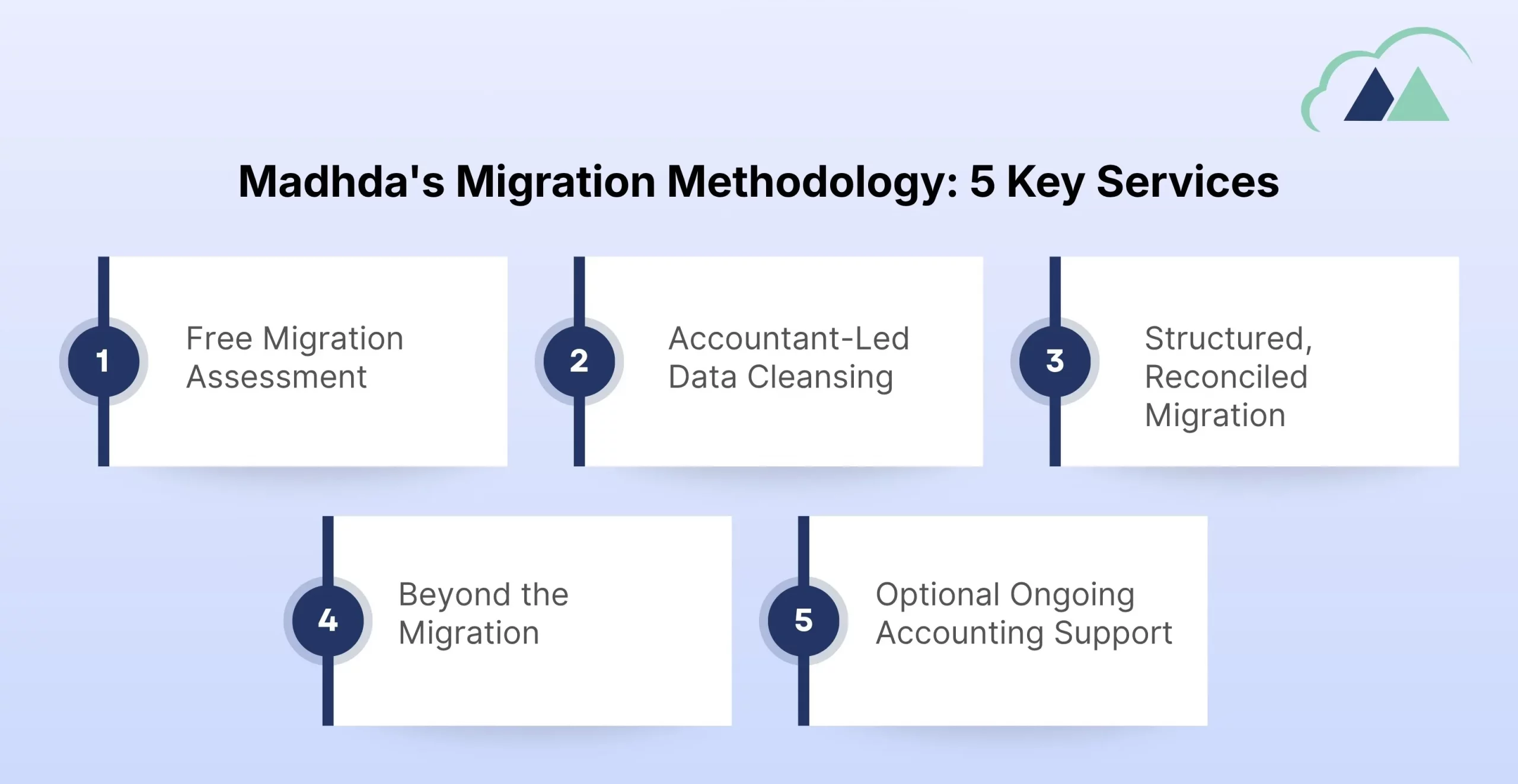
Here’s what that means for your migration:
1. Free Migration Assessment
We start by analyzing your QuickBooks file data volumes, list health, customizations, integrations, and reporting needs and give you a clear scope, timeline, and fixed-cost estimate. No surprises mid-project.
2. Accountant-Led Data Cleansing
Because our team includes accounting professionals (not just developers), we don’t just move your data we clean, deduplicate, and validate it with an accountant’s eye. Duplicate vendors get merged, stale balances get resolved with your approval, and your chart of accounts gets redesigned around Business Central best practices and dimensions.
3. Structured, Reconciled Migration
We follow the exact phased methodology described above sandbox trial migration first, full reconciliation of trial balance, A/R, A/P, and inventory against your QuickBooks snapshots, and a formal sign-off before go-live. Your auditors will thank you.
4. Beyond the Migration
Migration is just the start. Madhda configures your workflows, approvals, and reports; integrates Business Central with your e-commerce, CRM, or industry tools (including via our own DynaConnect integration platform); and provides dedicated post-go-live support and training so your team is confident from day one.
5. Optional Ongoing Accounting Support
Don’t have the in-house bandwidth to run Business Central? Our BPO team can handle your bookkeeping, A/P–A/R management, payroll, and month-end close directly in Business Central – so you get the new system and the team to run it.
And because we deliver from a global team across the USA, UAE, and India, you get certified Microsoft expertise at up to 40% less than typical Microsoft partners without compromising on responsiveness or quality.
Ready to Leave QuickBooks Limitations Behind?
Migrating from QuickBooks to Dynamics 365 Business Central is one of the highest-ROI moves a growing business can make if the data comes across clean. Done right, you go live with numbers you trust, reports you’ve never had before, and a platform that scales with you for the next decade.
Done wrong… well, you’ve read the pitfalls section. Let’s do it the right way, together.
➤ Book a Free Migration Consultation with a Madhda Business Central expert
Call: USA +1 (302) 303-9860 | IND +91 97242 42267 | Email: sales@madhda.com
FAQs
How long does a QuickBooks to Business Central migration take?
A typical small-to-mid-size migration (master data + opening balances + open transactions) takes 4–8 weeks including testing and training. Complex scenarios with historical data or integrations take longer. Madhda provides a fixed timeline after the free assessment.
Can I migrate from both QuickBooks Online and QuickBooks Desktop?
Yes. The export process differs (QuickBooks Online connects via API/exports; Desktop uses file exports), but the migration methodology is the same. Madhda supports both.
Will my historical QuickBooks data be lost?
No. We recommend keeping QuickBooks in read-only mode (or exporting history to a reporting archive) so you retain full access to historical records while Business Central becomes your live system.
Do I need to migrate at year-end?
It’s the cleanest option, but quarter-end or month-end cutovers work well too. What matters is cutting over at a closed period with a reconciled trial balance.
Can Madhda also run our accounting in Business Central after migration?
Yes, our BPO team provides ongoing bookkeeping, payroll, and financial reporting services directly in Business Central, Xero, QuickBooks, and more.